Getting Started with Syncfusion® JavaScript (ES5) UI Controls
26 Sep 20264 minutes to read
Build your first Syncfusion JavaScript (ES5) application with a simple Grid control in just a few minutes. This quickstart guides you through creating a minimal, runnable HTML page that loads the Syncfusion EJ2 (ES5) Grid from the CDN, initializes it with sample data, and renders a data table. The example uses CDN version 34.1.29 and the bootstrap5.3 theme; substitute the version that matches your target release.
Prerequisites
- Visual Studio Code (or any text editor) to create the HTML file
- A modern web browser (Chrome, Edge, Firefox, or Safari) to view the result
- An active internet connection to load the Syncfusion CDN resources
Quick Setup
Step 1: Create a Folder and HTML File
- Create a folder named
quickstartin your desired directory. - Inside the
quickstartfolder, create a new file namedindex.html.
Step 2: Add Syncfusion® CSS Styles and Scripts
Include the following CSS from UNPKG and JavaScript links in the <head> section of index.html. The ej2-base, ej2-data, and ej2-popups scripts are required dependencies of the Grid component. Advanced Grid features such as paging, filtering, sorting, and column menus require additional dependency scripts (for example, ej2-buttons, ej2-navigations, ej2-dropdowns, ej2-lists, ej2-inputs, and ej2-calendars).
Styles (CSS):
https://unpkg.com/@syncfusion/ej2-bootstrap5.3-theme/styles/base/base.css
https://unpkg.com/@syncfusion/ej2-bootstrap5.3-theme/styles/grid/grid.css
Scripts (JavaScript):
https://cdn.syncfusion.com/ej2/34.2.2/ej2-base/dist/global/ej2-base.min.js
https://cdn.syncfusion.com/ej2/34.2.2/ej2-data/dist/global/ej2-data.min.js
https://cdn.syncfusion.com/ej2/34.2.2/ej2-popups/dist/global/ej2-popups.min.js
https://cdn.syncfusion.com/ej2/34.2.2/ej2-grids/dist/global/ej2-grids.min.js
Step 3: Add the Syncfusion® Grid Control to the Application
Copy and paste the following complete code into your index.html file:
<!DOCTYPE html>
<html>
  <head>
    <title>Syncfusion Grid - Quick Start</title>
    <!-- Styles -->
    <link href="https://unpkg.com/@syncfusion/ej2-bootstrap5.3-theme/styles/base/base.css" rel="stylesheet" />
    <link href="https://unpkg.com/@syncfusion/ej2-bootstrap5.3-theme/styles/grid/grid.css" rel="stylesheet" />

    <!-- Scripts -->
    <script src="https://cdn.syncfusion.com/ej2/34.2.2/ej2-base/dist/global/ej2-base.min.js"></script>
    <script src="https://cdn.syncfusion.com/ej2/34.2.2/ej2-data/dist/global/ej2-data.min.js"></script>
    <script src="https://cdn.syncfusion.com/ej2/34.2.2/ej2-popups/dist/global/ej2-popups.min.js"></script>
    <script src="https://cdn.syncfusion.com/ej2/34.2.2/ej2-grids/dist/global/ej2-grids.min.js"></script>
  </head>

  <body>
    <h1>Syncfusion Grid</h1>
    <div id="Grid"></div>

    <script>
      // Sample data
      var data = [
        { OrderID: 10248, CustomerID: 'VINET', Freight: 32.38, OrderDate: new Date(1996, 6, 4) },
        { OrderID: 10249, CustomerID: 'TOMSP', Freight: 11.61, OrderDate: new Date(1996, 6, 5) },
        { OrderID: 10250, CustomerID: 'HANAR', Freight: 65.83, OrderDate: new Date(1996, 6, 8) },
        { OrderID: 10251, CustomerID: 'VICTE', Freight: 41.34, OrderDate: new Date(1996, 6, 8) }
      ];

      // Create Grid
      var grid = new ej.grids.Grid({
        dataSource: data,
        columns: [
          { field: 'OrderID', headerText: 'Order ID', width: 120 },
          { field: 'CustomerID', headerText: 'Customer ID', width: 140 },
          { field: 'Freight', headerText: 'Freight', width: 120, format: 'C2' },
          { field: 'OrderDate', headerText: 'Order Date', width: 140, format: 'yMd' }
        ]
      });
      // Render Grid
      grid.appendTo('#Grid');
    </script>
  </body>
</html>
Step 4: Run the Application
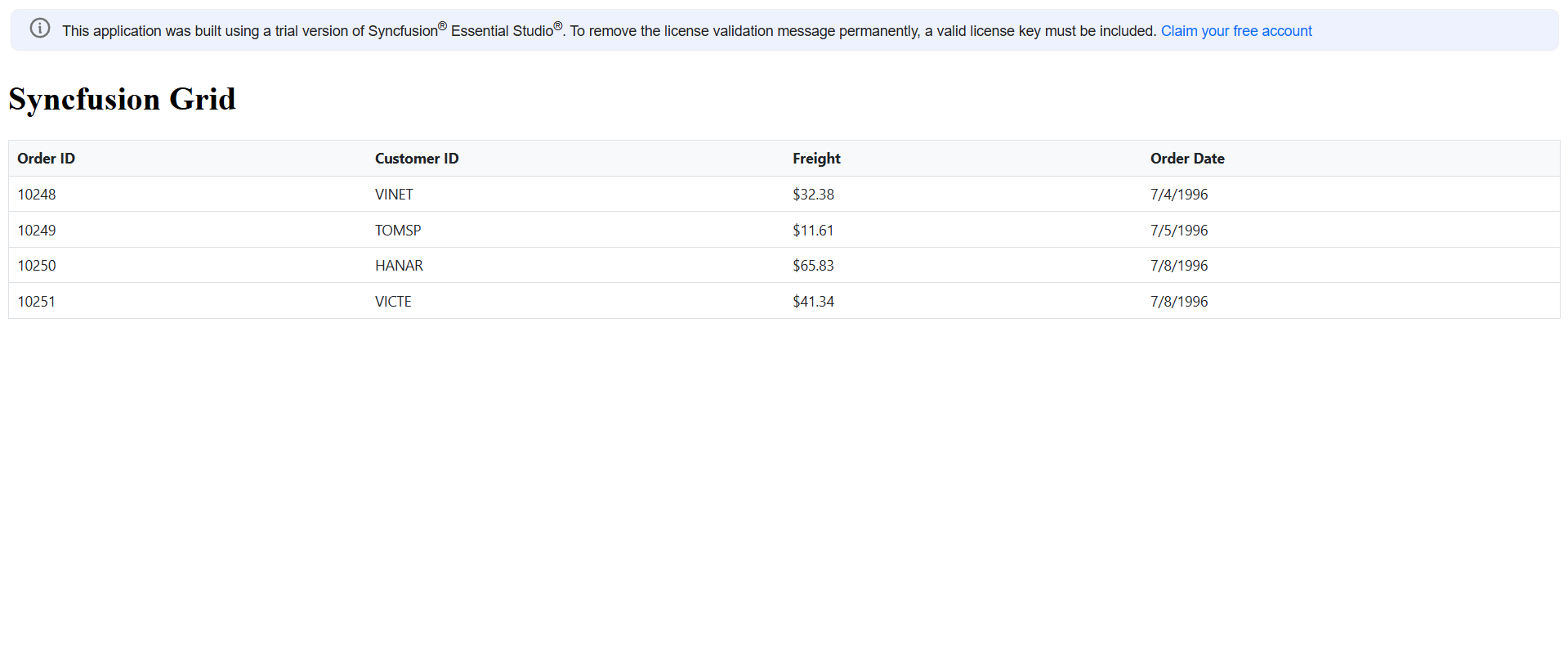
Open the quickstart/index.html file in your web browser (or right-click the file in VS Code and choose Open with Live Server if you have the Live Server extension installed). You should see the Syncfusion Grid control displaying the sample data.
Output
The following screenshot shows the output of the Syncfusion Grid quick start application:
See Also
- Grid Component Documentation - Comprehensive guide to all Grid control features and functionality.
- GitHub Samples - View complete working examples for CDN and local resource implementations.
- Register License Key - Learn how to register your Syncfusion license key in your JavaScript application.
-
Available Themes - Browse all built-in themes such as
material3,material,bootstrap5.3,fluent2, andtailwind.