How can I help you?
Orthogonal Connectors in EJ2 JavaScript Diagram control
22 Mar 202524 minutes to read
Orthogonal segments is used to create segments that are perpendicular to each other.
Set the segment type as orthogonal to create a default orthogonal segment and need to specify type. The following code example illustrates how to create a default orthogonal segment.
Multiple segments can be defined one after another. To create a connector with multiple segments, define and add the segments to connector.segments collection. The following code example illustrates how to create a connector with multiple segments.
The length and direction properties allow to define the flow and length of segment. The following code example illustrates how to create customized orthogonal segments.
ej.diagrams.Diagram.Inject(ej.diagrams.ConnectorEditing);
var connectors = [
  {
    id: 'connector2',
    type: 'Orthogonal',
    // Defines multile segemnts for the connectors
    segments: [
      {
        type: 'Orthogonal',
        direction: 'Bottom',
        length: 150,
      },
      {
        type: 'Orthogonal',
        direction: 'Right',
        length: 150,
      },
      {
        type: 'Orthogonal',
        direction: 'Top',
        length: 100,
      },
      {
        type: 'Orthogonal',
        direction: 'Left',
        length: 100,
      },
    ],
    style: {
      strokeColor: '#6BA5D7',
      fill: '#6BA5D7',
      strokeWidth: 2,
    },
    targetDecorator: {
      style: {
        fill: '#6BA5D7',
        strokeColor: '#6BA5D7',
      },
    },
    sourcePoint: {
      x: 300,
      y: 100,
    },
    targetPoint: {
      x: 350,
      y: 150,
    },
    constraints:
      ej.diagrams.ConnectorConstraints.Default |
      ej.diagrams.ConnectorConstraints.DragSegmentThumb,
  },
];

var diagram = new ej.diagrams.Diagram(
  {
    width: '100%',
    height: '600px',
    connectors: connectors,
  },
  '#element'
);
<!DOCTYPE html><html lang="en"><head>
<title>EJ2 Diagram</title>
<meta charset="utf-8">
<meta name="viewport" content="width=device-width, initial-scale=1.0">
<meta name="description" content="Typescript UI Controls">
<meta name="author" content="Syncfusion">
<link href="index.css" rel="stylesheet">
<link href="https://cdn.syncfusion.com/ej2/33.2.3/ej2-base/styles/tailwind3.css" rel="stylesheet">
<link href="https://cdn.syncfusion.com/ej2/33.2.3/ej2-buttons/styles/tailwind3.css" rel="stylesheet">
<link href="https://cdn.syncfusion.com/ej2/33.2.3/ej2-popups/styles/tailwind3.css" rel="stylesheet">
<link href="https://cdn.syncfusion.com/ej2/33.2.3/ej2-splitbuttons/styles/tailwind3.css" rel="stylesheet">
<link href="https://cdn.syncfusion.com/ej2/33.2.3/ej2-diagrams/styles/tailwind3.css" rel="stylesheet">
<link href="https://cdn.syncfusion.com/ej2/33.2.3/ej2-navigations/styles/tailwind3.css" rel="stylesheet">
<script src="https://cdn.syncfusion.com/ej2/33.2.3/dist/ej2.min.js" type="text/javascript"></script>
</head>
<body>
<div id="container">
<div id="element"></div>
</div>
<script>
var ele = document.getElementById('container');
if(ele) {
ele.style.visibility = "visible";
}
</script>
<script src="index.js" type="text/javascript"></script>
</body></html>NOTE
You need to mention the segment type as same as what you mentioned in connector type. There should be no contradiction between connector type and segment type.
Orthogonal segment editing
- Orthogonal thumbs allow you to adjust the length of adjacent segments by clicking and dragging them.
- When necessary, some segments are added or removed automatically, while dragging the segment.
- This is to maintain proper routing of orthogonality between segments.
ej.diagrams.Diagram.Inject(ej.diagrams.ConnectorEditing);
var connectors = [
  {
    id: 'connector2',
    type: 'Orthogonal',
    // Defines multile segemnts for the connectors
    segments: [
      {
        type: 'Orthogonal',
        direction: 'Bottom',
        length: 150,
      },
      {
        type: 'Orthogonal',
        direction: 'Right',
        length: 150,
      },
      {
        type: 'Orthogonal',
        direction: 'Top',
        length: 100,
      },
      {
        type: 'Orthogonal',
        direction: 'Left',
        length: 100,
      },
    ],
    style: {
      strokeColor: '#6BA5D7',
      fill: '#6BA5D7',
      strokeWidth: 2,
    },
    targetDecorator: {
      style: {
        fill: '#6BA5D7',
        strokeColor: '#6BA5D7',
      },
    },
    sourcePoint: {
      x: 300,
      y: 100,
    },
    targetPoint: {
      x: 350,
      y: 150,
    },
    constraints:
      ej.diagrams.ConnectorConstraints.Default |
      ej.diagrams.ConnectorConstraints.DragSegmentThumb,
  },
];

var diagram = new ej.diagrams.Diagram(
  {
    width: '100%',
    height: '600px',
    connectors: connectors,
  },
  '#element'
);
<!DOCTYPE html><html lang="en"><head>
<title>EJ2 Diagram</title>
<meta charset="utf-8">
<meta name="viewport" content="width=device-width, initial-scale=1.0">
<meta name="description" content="Typescript UI Controls">
<meta name="author" content="Syncfusion">
<link href="index.css" rel="stylesheet">
<link href="https://cdn.syncfusion.com/ej2/33.2.3/ej2-base/styles/tailwind3.css" rel="stylesheet">
<link href="https://cdn.syncfusion.com/ej2/33.2.3/ej2-buttons/styles/tailwind3.css" rel="stylesheet">
<link href="https://cdn.syncfusion.com/ej2/33.2.3/ej2-popups/styles/tailwind3.css" rel="stylesheet">
<link href="https://cdn.syncfusion.com/ej2/33.2.3/ej2-splitbuttons/styles/tailwind3.css" rel="stylesheet">
<link href="https://cdn.syncfusion.com/ej2/33.2.3/ej2-diagrams/styles/tailwind3.css" rel="stylesheet">
<link href="https://cdn.syncfusion.com/ej2/33.2.3/ej2-navigations/styles/tailwind3.css" rel="stylesheet">
<script src="https://cdn.syncfusion.com/ej2/33.2.3/dist/ej2.min.js" type="text/javascript"></script>
</head>
<body>
<div id="container">
<div id="element"></div>
</div>
<script>
var ele = document.getElementById('container');
if(ele) {
ele.style.visibility = "visible";
}
</script>
<script src="index.js" type="text/javascript"></script>
</body></html>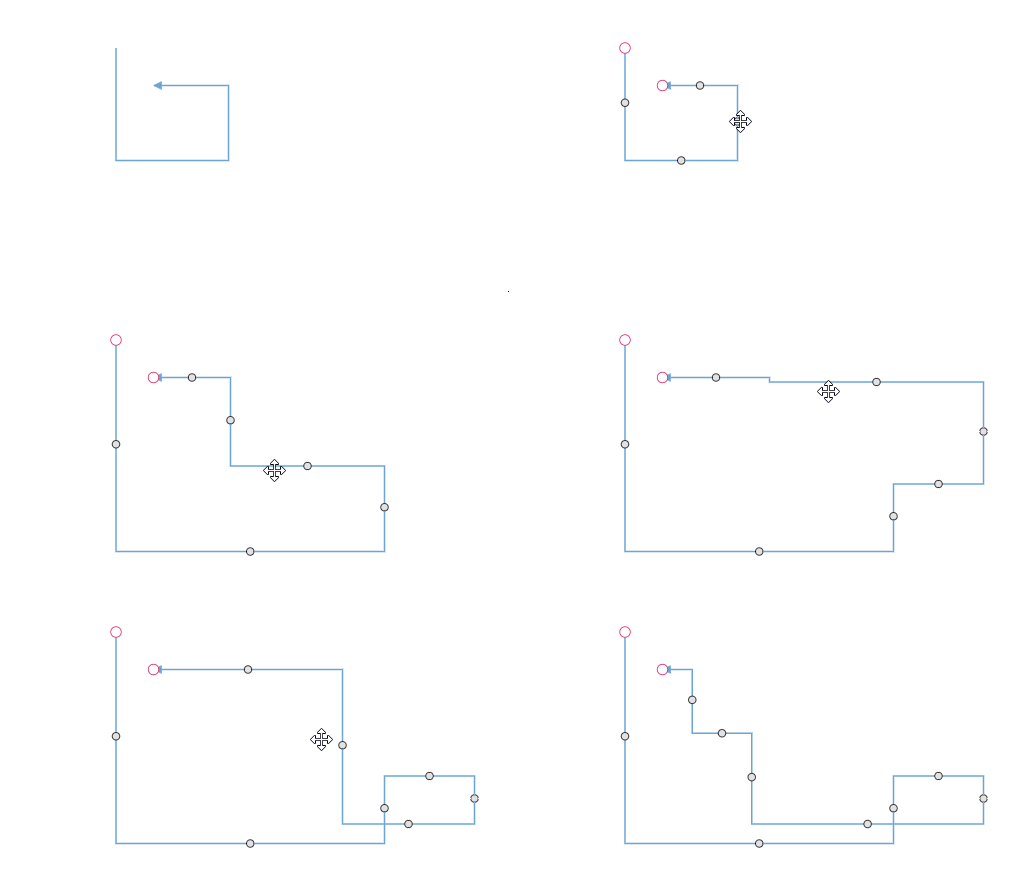
Avoid overlapping
Orthogonal segments are automatically re-routed, in order to avoid overlapping with the source and target nodes. The following preview illustrates how orthogonal segments are re-routed.
var nodeport = {
    style: {
        strokeColor: '#366F8C',
        fill: '#366F8C'
    }
};
nodeport.shape = 'Circle';
nodeport.visibility = ej.diagrams.PortVisibility.Visible;
nodeport.id = 'port';
nodeport.offset = {
    x: 0,
    y: 0.5
};
var port2 = {
    style: {
        strokeColor: '#366F8C',
        fill: '#366F8C'
    }
}
port2.offset = {
    x: 0,
    y: 0.5
};
port2.id = 'port1';
port2.visibility = ej.diagrams.PortVisibility.Visible;
port2.shape = 'Circle';
var nodes = [{
        id: 'node',
        width: 100,
        height: 100,
        offsetX: 100,
        offsetY: 100,
        ports: [nodeport]
    },
    {
        id: 'node1',
        width: 100,
        height: 100,
        offsetX: 300,
        offsetY: 100,
        ports: [port2]
    },
];

var connectors = {
    id: "connector1",
    style: {
        strokeColor: '#6BA5D7',
        fill: '#6BA5D7',
        strokeWidth: 2
    },
    targetDecorator: {
        style: {
            fill: '#6BA5D7',
            strokeColor: '#6BA5D7'
        }
    },
    type: 'Orthogonal',
    sourcePoint: {
        x: 100,
        y: 100
    },
    targetPoint: {
        x: 200,
        y: 200
    },
    sourceID: 'node',
    targetID: 'node1',
    sourcePortID: 'port',
    targetPortID: 'port1'
}

var diagram = new ej.diagrams.Diagram({
    width: 900,
    height: 900,
    nodes: nodes,
    connectors: [connectors],
    getNodeDefaults: (node) => {
        node.height = 100;
        node.width = 100;
        node.style.fill = '#6BA5D7';
        node.style.strokeColor = 'white';
        return node;
    },
}, '#element');
<!DOCTYPE html><html lang="en"><head>
<title>EJ2 Diagram</title>
<meta charset="utf-8">
<meta name="viewport" content="width=device-width, initial-scale=1.0">
<meta name="description" content="Typescript UI Controls">
<meta name="author" content="Syncfusion">
<link href="index.css" rel="stylesheet">
<link href="https://cdn.syncfusion.com/ej2/33.2.3/ej2-base/styles/tailwind3.css" rel="stylesheet">
<link href="https://cdn.syncfusion.com/ej2/33.2.3/ej2-buttons/styles/tailwind3.css" rel="stylesheet">
<link href="https://cdn.syncfusion.com/ej2/33.2.3/ej2-popups/styles/tailwind3.css" rel="stylesheet">
<link href="https://cdn.syncfusion.com/ej2/33.2.3/ej2-splitbuttons/styles/tailwind3.css" rel="stylesheet">
<link href="https://cdn.syncfusion.com/ej2/33.2.3/ej2-diagrams/styles/tailwind3.css" rel="stylesheet">
<link href="https://cdn.syncfusion.com/ej2/33.2.3/ej2-navigations/styles/tailwind3.css" rel="stylesheet">
<script src="https://cdn.syncfusion.com/ej2/33.2.3/dist/ej2.min.js" type="text/javascript"></script>
</head>
<body>
<div id="container">
<div id="element"></div>
</div>
<script>
var ele = document.getElementById('container');
if(ele) {
ele.style.visibility = "visible";
}
</script>
<script src="index.js" type="text/javascript"></script>
</body></html>How to customize Orthogonal Segment Thumb Shape
The orthogonal connector can have any number of segments in between the source and the target point. Segments are rendered with the circle shape by default. The segmentThumbShape property allows you to change the default shape of the segment thumb. The following predefined shapes are provided:
| Shape name | Shape |
|---|---|
| Rhombus | 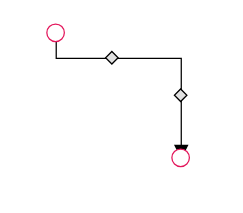 |
| Square | 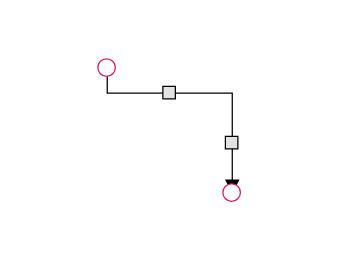 |
| Rectangle | 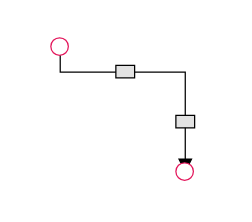 |
| Ellipse | 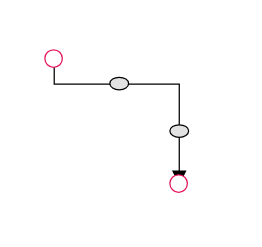 |
| Arrow | 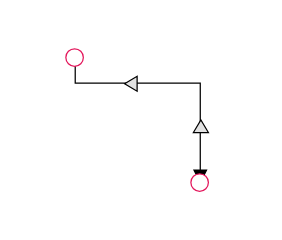 |
| OpenArrow | 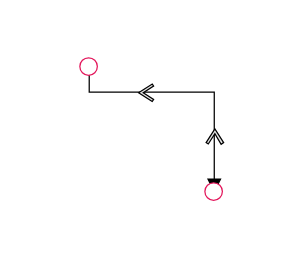 |
| Circle | 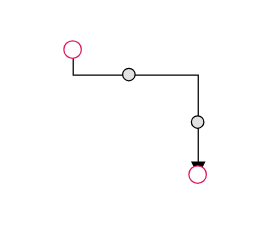 |
| Fletch | 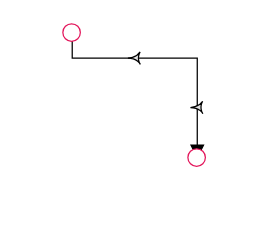 |
| OpenFetch | 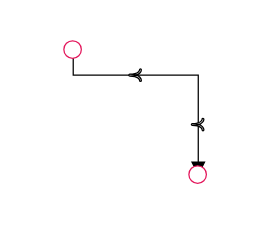 |
| IndentedArrow | 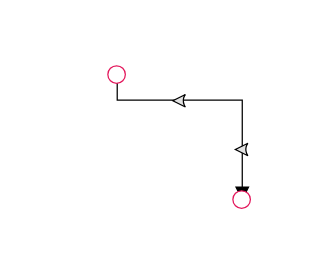 |
| OutdentedArrow | 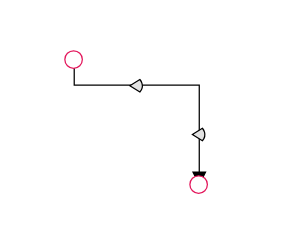 |
| DoubleArrow | 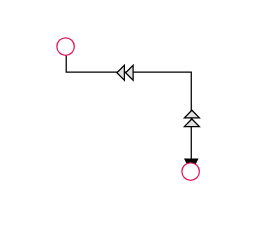 |
You can customize the style of the thumb shape by overriding the class e-orthogonal-thumb.
ej.diagrams.Diagram.Inject(ej.diagrams.ConnectorEditing);
var connector1 = {
  id: 'connector1',
  type: 'Orthogonal',
  sourcePoint: { x: 250, y: 250 },
  targetPoint: { x: 350, y: 350 },
  segments: [
    { type: 'Orthogonal', direction: 'Right', length: 70 },
    {
      type: 'Orthogonal',
      direction: 'Bottom',
      length: 20,
    },
  ],
  constraints:
    ej.diagrams.ConnectorConstraints.Default |
    ej.diagrams.ConnectorConstraints.DragSegmentThumb,
};
var diagram = new ej.diagrams.Diagram(
  {
    width: 1500,
    height: 1000,
    connectors: [connector1],
    segmentThumbShape: 'Arrow',
  },
  '#element');
<!DOCTYPE html><html lang="en"><head>
<title>EJ2 Diagram</title>
<meta charset="utf-8">
<meta name="viewport" content="width=device-width, initial-scale=1.0">
<meta name="description" content="Typescript UI Controls">
<meta name="author" content="Syncfusion">
<link href="index.css" rel="stylesheet">
<link href="https://cdn.syncfusion.com/ej2/33.2.3/ej2-base/styles/tailwind3.css" rel="stylesheet">
<link href="https://cdn.syncfusion.com/ej2/33.2.3/ej2-buttons/styles/tailwind3.css" rel="stylesheet">
<link href="https://cdn.syncfusion.com/ej2/33.2.3/ej2-popups/styles/tailwind3.css" rel="stylesheet">
<link href="https://cdn.syncfusion.com/ej2/33.2.3/ej2-splitbuttons/styles/tailwind3.css" rel="stylesheet">
<link href="https://cdn.syncfusion.com/ej2/33.2.3/ej2-diagrams/styles/tailwind3.css" rel="stylesheet">
<link href="https://cdn.syncfusion.com/ej2/33.2.3/ej2-navigations/styles/tailwind3.css" rel="stylesheet">
<script src="https://cdn.syncfusion.com/ej2/33.2.3/dist/ej2.min.js" type="text/javascript"></script>
</head>
<body>
<div id="container">
<div id="element"></div>
</div>
<script>
var ele = document.getElementById('container');
if(ele) {
ele.style.visibility = "visible";
}
</script>
<script src="index.js" type="text/javascript"></script>
</body></html>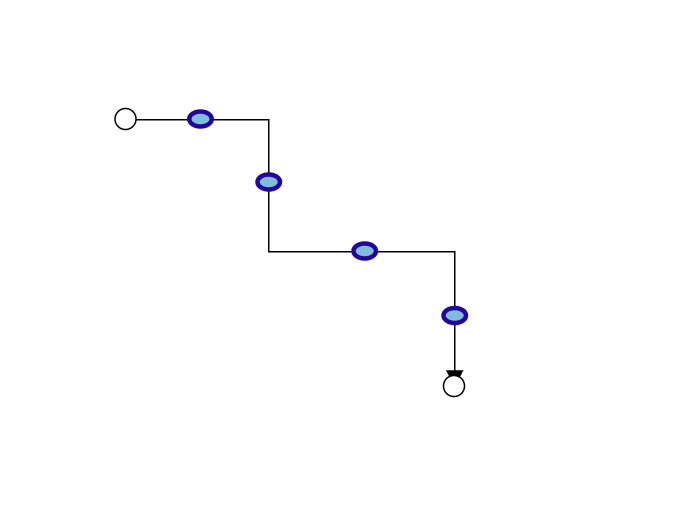
Use the following CSS to customize the segment thumb shape.
 .e-orthogonal-thumb {

            stroke:#24039e;

            fill:rgb(126, 190, 219);

            stroke-width: 3px;

            }
How to customize Orthogonal Segment Thumb Size
Orthogonal segment thumbs default to size 10. This can be adjusted globally or for individual connectors using the segmentThumbSize property.
To change the thumb size for all Orthogonal connectors, set the segmentThumbSize property in the diagram’s model.
To customize the thumb size for a specific connector, disable the InheritSegmentThumbSize constraint, then set the desired segmentThumbSize.
ej.diagrams.Diagram.Inject(ej.diagrams.ConnectorEditing);
var nodes = [
    {
        id: 'node1', width: 100, height: 100, offsetX: 200, offsetY: 200,
    },
    {
        id: 'node2', width: 100, height: 100, offsetX: 400, offsetY: 400,
    },
    {
        id: 'node3', width: 100, height: 100, offsetX: 600, offsetY: 200,
    },
    {
        id: 'node4', width: 100, height: 100, offsetX: 800, offsetY: 400,
    },
];

var connectors = [
    {
        id: 'connector1',
        type: 'Orthogonal',
        sourceID: 'node1',
        targetID: 'node2',
        segments: [
            {
                type: 'Orthogonal',
                direction: "Right",
                length: 70
            },
            {
                type: 'Orthogonal',
                direction: "Bottom",
                length: 50
            }
        ],
        constraints: ej.diagrams.ConnectorConstraints.Default | ej.diagrams.ConnectorConstraints.DragSegmentThumb,
    },
    {
        id: 'connector2',
        type: 'Orthogonal',
        sourceID: 'node3',
        targetID: 'node4',
        segments: [
            {
                type: 'Orthogonal',
                direction: "Right",
                length: 70
            },
            {
                type: 'Orthogonal',
                direction: "Bottom",
                length: 50
            }
        ],
        constraints:ej.diagrams.ConnectorConstraints.Default & ~(ej.diagrams.ConnectorConstraints.InheritSegmentThumbSize) | ej.diagrams.ConnectorConstraints.DragSegmentThumb,
        segmentThumbSize: 20
    },
];

var diagram = new ej.diagrams.Diagram({
    width: '100%',
    height: '600px',
    nodes: nodes,
    connectors: connectors,
    segmentThumbSize: 15
}, '#element');
<!DOCTYPE html><html lang="en"><head>
<title>EJ2 Diagram</title>
<meta charset="utf-8">
<meta name="viewport" content="width=device-width, initial-scale=1.0">
<meta name="description" content="Typescript UI Controls">
<meta name="author" content="Syncfusion">
<link href="index.css" rel="stylesheet">
<link href="https://cdn.syncfusion.com/ej2/33.2.3/ej2-base/styles/tailwind3.css" rel="stylesheet">
<link href="https://cdn.syncfusion.com/ej2/33.2.3/ej2-buttons/styles/tailwind3.css" rel="stylesheet">
<link href="https://cdn.syncfusion.com/ej2/33.2.3/ej2-popups/styles/tailwind3.css" rel="stylesheet">
<link href="https://cdn.syncfusion.com/ej2/33.2.3/ej2-splitbuttons/styles/tailwind3.css" rel="stylesheet">
<link href="https://cdn.syncfusion.com/ej2/33.2.3/ej2-diagrams/styles/tailwind3.css" rel="stylesheet">
<link href="https://cdn.syncfusion.com/ej2/33.2.3/ej2-navigations/styles/tailwind3.css" rel="stylesheet">
<script src="https://cdn.syncfusion.com/ej2/33.2.3/dist/ej2.min.js" type="text/javascript"></script>
</head>
<body>
<div id="container">
<div id="element"></div>
</div>
<script>
var ele = document.getElementById('container');
if(ele) {
ele.style.visibility = "visible";
}
</script>
<script src="index.js" type="text/javascript"></script>
</body></html>