Elasticsearch in EJ2 TypeScript Pivot Table
07 Aug 20267 minutes to read
This guide explains how to connect an Elasticsearch database to the Pivot Table component using the NEST library and a Web API controller to fetch and bind data to the Pivot Table.
Create a Web API service to fetch Elasticsearch data
Follow these steps to create a Web API service that retrieves data from an Elasticsearch database and prepares it for the Pivot Table.
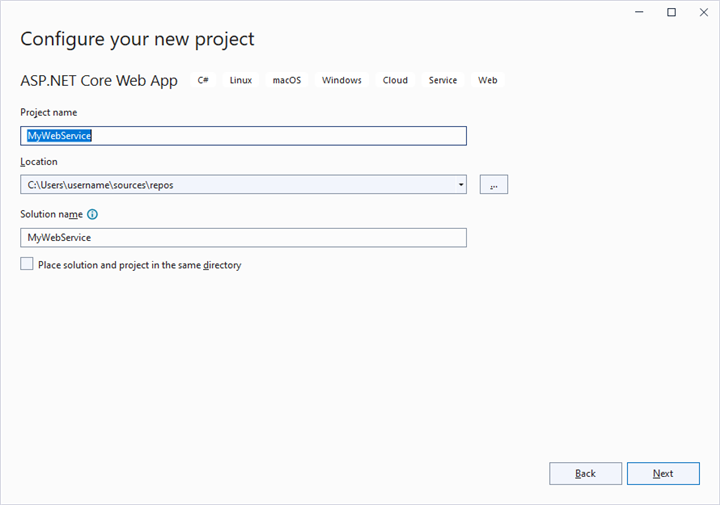
Step 1: Create an ASP.NET Core Web Application
- Open Visual Studio and create a new ASP.NET Core Web App project named MyWebService.
- Follow the instructions in the Microsoft documentation to set up the project.
Step 2: Install the NEST NuGet Package
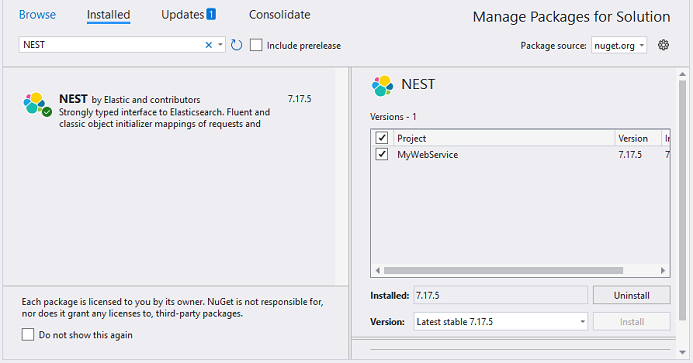
- Open the NuGet Package Manager in your project solution.
- Search for the NEST package and install it to enable connectivity with the Elasticsearch server.
Step 3: Create a Web API Controller
- In the Controllers folder, create a new Web API controller named PivotController.cs.
- This controller will facilitate data communication between the Elasticsearch database and the Pivot Table.
Step 4: Configure Elasticsearch Connection
- In the PivotController.cs file, use the ElasticClient class from the NEST library to establish a connection to the Elasticsearch database.
- Use the Search method to query an Elasticsearch index and retrieve data.
Step 5: Implement Data Retrieval Logic
- In the PivotController.cs file, define a Get() method that calls the FetchElasticsearchData method to retrieve data from Elasticsearch.
- Serialize the retrieved data into JSON format using JsonConvert.SerializeObject().
Here’s the sample code for the PivotController.cs file:
    using Microsoft.AspNetCore.Mvc;
    using Nest;
    using Newtonsoft.Json;

    namespace MyWebService.Controllers
    {
        [ApiController]
        [Route("[controller]")]
        public class PivotController : ControllerBase
        {
            [HttpGet(Name = "GetElasticSearchData")]
            public object Get()
            {
                return JsonConvert.SerializeObject(FetchElasticsearchData());
            }

            private static object FetchElasticsearchData()
            {
                // Replace with your own connection string.
                var connectionString = "<Enter your valid connection string here>";
                var uri = new Uri(connectionString);
                var connectionSettings = new ConnectionSettings(uri);
                var client = new ElasticClient(connectionSettings);
                var searchResponse = client.Search<object>(s => s
                    .Index("product")
                    .Size(1000)
                );
                return searchResponse.Documents;
            }
        }
    }
Step 6: Run the Web Application
- Build and run the web application.
- The application will be hosted at the URL
https://localhost:44323.
Step 7: Verify the Data
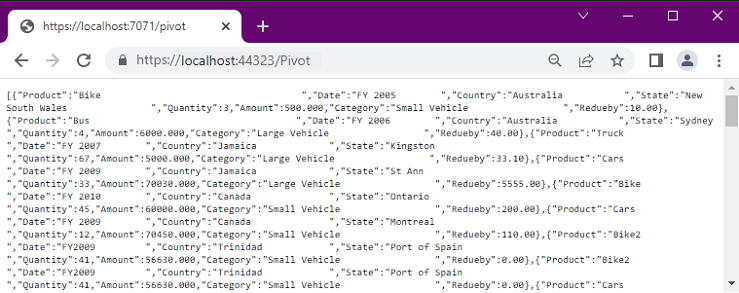
- Access the Web API endpoint at
https://localhost:44323/Pivotto view the JSON data retrieved from the Elasticsearch database. - The browser will display the JSON data, as shown below.
Connecting the Pivot Table to an Elasticsearch Database Using the Web API Service
This section explains how to connect the Pivot Table component to an Elasticsearch database by retrieving data from the Web API service created in the previous section.
Step 1: Create a Pivot Table in Typescript
- Set up a basic Typescript Pivot Table by following the Getting Started documentation.
- Ensure your Typescript project is configured with the necessary EJ2 Pivot Table dependencies.
Step 2: Configure the Web API URL in the Pivot Table
- In the app.ts file, map the Web API URL (
https://localhost:44323/Pivot) to the Pivot Table using the url property within the dataSourceSettings. - Below is the sample code to configure the Pivot Table to fetch data from the Web API:
import { PivotView, FieldList } from '@syncfusion/ej2-pivotview';

PivotView.Inject(FieldList);
let pivotObj: PivotView = new PivotView({
    dataSourceSettings: {
        url: 'https://localhost:44323/Pivot',
        //Other codes here...
    }
});
pivotObj.appendTo('#PivotView');
Step 3: Define the Pivot Table Report
- Configure the Pivot Table report in the app.ts file to structure the data retrieved from the Elasticsearch database.
- Add fields to the rows, columns, values, and filters properties of dataSourceSettings to define the report structure, specifying how data fields are organized and aggregated in the Pivot Table.
- Enable the field list by setting the showFieldList property to true and including the
FieldListmodule in the services section. This allows users to dynamically add or rearrange fields across the columns, rows, and values axes using an interactive user interface.
Here’s the updated sample code for app.ts with the report configuration and field list support:
import { PivotView, FieldList } from '@syncfusion/ej2-pivotview';

PivotView.Inject(FieldList);
let pivotObj: PivotView = new PivotView({
    dataSourceSettings: {
        url: 'https://localhost:44323/Pivot',
        expandAll: false,
        enableSorting: true,
        columns: [{ name: 'Product' }],
        values: [{ name: 'Quantity' }, { name: 'Amount', caption: 'Sold Amount' }],
        rows: [{ name: 'Country' }, { name: 'State' }],
        formatSettings: [{ name: 'Amount', format: 'C0' }],
        filters: []
    },
    showFieldList: true,
    width: '100%',
    height: 290,
    gridSettings: { columnWidth: 140 }
});
pivotObj.appendTo('#PivotView1');
Step 4: Run and Verify the Pivot Table
- Run the Typescript application.
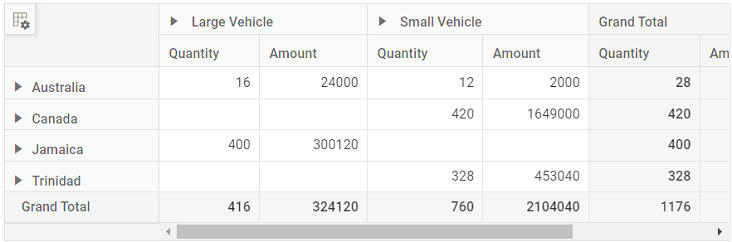
- The Pivot Table will display the data fetched from the Elasticsearch database via the Web API, structured according to the defined report.
- The resulting Pivot Table will look like this:
Additional Resources
Explore a complete example of the Typescript Pivot Table integrated with an ASP.NET Core Web Application to fetch data from an Elasticsearch database in this GitHub repository.