Multiple Selection in ASP.NET MVC TreeView
25 Aug 202619 minutes to read
Selection provides interactive support and highlights the node that you select. Selection can be performed using mouse or keyboard interactions.
The TreeView control supports selection of multiple nodes by setting the allowMultiSelection property to true.
To multi-select, press and hold the CTRL key and click the desired nodes. To select a range of nodes, press and hold the SHIFT key and click the nodes. In the following example, the allowMultiSelection property is enabled.
Multi selection is not applicable through touch interactions.
@Html.EJS().TreeView("treedata").AllowMultiSelection(true).Fields(field=>
    field.Selected("is_selected").Id("id").ParentID("pid").Text("name").HasChildren("hasChild").Expanded("expanded")
    .DataSource(ViewBag.dataSource)).Render()
using Syncfusion.EJ2.Navigations;
public ActionResult MultiSelection()
{
List<object> treedata = new List<object>();
treedata.Add(new { id = 1, name = "Australia", hasChild = true, expanded = true });
treedata.Add(new { id = 2, pid = 1, name = "New South Wales" });
treedata.Add(new { id = 3, pid = 1, name = "Victoria" });
treedata.Add(new { id = 4, pid = 1, name = "South Australia" });
treedata.Add(new { id = 6, pid = 1, name = "Western Australia", is_selected = true });
treedata.Add(new { id = 7, name = "Brazil", hasChild = true });
treedata.Add(new { id = 8, pid = 7, name = "Paraná" });
treedata.Add(new { id = 9, pid = 7, name = "Ceará" });
treedata.Add(new { id = 10, pid = 7, name = "Acre" });
treedata.Add(new { id = 11, name = "China", hasChild = true });
treedata.Add(new { id = 12, pid = 11, name = "Guangzhou" });
treedata.Add(new { id = 13, pid = 11, name = "Shanghai" });
treedata.Add(new { id = 14, pid = 11, name = "Beijing" });
treedata.Add(new { id = 15, pid = 11, name = "Shantou" });
treedata.Add(new { id = 16, name = "France", hasChild = true });
treedata.Add(new { id = 17, pid = 16, name = "Pays de la Loire" });
treedata.Add(new { id = 18, pid = 16, name = "Aquitaine" });
treedata.Add(new { id = 19, pid = 16, name = "Brittany" });
treedata.Add(new { id = 20, pid = 16, name = "Lorraine" });
treedata.Add(new { id = 21, name = "India", hasChild = true });
treedata.Add(new { id = 22, pid = 21, name = "Assam" });
treedata.Add(new { id = 23, pid = 21, name = "Bihar" });
treedata.Add(new { id = 24, pid = 21, name = "Tamil Nadu" });
ViewBag.dataSource = treedata;
return View();
}The output will look like the image below:
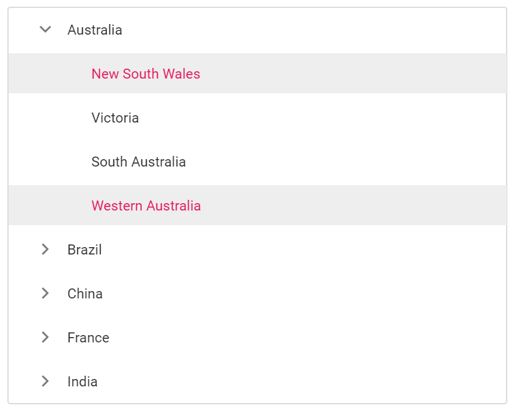
Selected nodes
You can get or set the selected nodes in the TreeView at initial rendering and dynamically by using the selectedNodes property. It will return the IDs of the selected nodes as an array.
-
The nodeselecting event is triggered before a node is selected/unselected which can be used to prevent the selection.
-
The nodeSelected event is triggered once a node is successfully selected/unselected.
In the following example, New South Wales and Western Australia nodes are selected at initial rendering. When a node is selected, the selected node’s ID is displayed in an alert.
@Html.EJS().TreeView("treedata").AllowMultiSelection(true).NodeSelected("nodeSelected").Fields(field=>
    field.Selected("is_selected").Id("id").ParentID("pid").Text("name").HasChildren("hasChild").Expanded("expanded")
    .DataSource(ViewBag.dataSource)).SelectedNodes(ViewBag.selectedNodes).Render()

<script>
function nodeSelected() {
        alert("The selected node's id: " + this.selectedNodes);
    }
</script>
using System;
using System.Collections.Generic;
using System.Linq;
using System.Threading.Tasks;
using Microsoft.AspNetCore.Mvc;
namespace EJ2CoreSampleBrowser.Controllers.TreeView
{
public partial class TreeViewController : Controller
{
public IActionResult MultiSelection()
{
List<object> treedata = new List<object>();
treedata.Add(new
{
id = 1,
name = "Australia",
hasChild = true,
expanded = true
});
treedata.Add(new
{
id = 2,
pid = 1,
name = "New South Wales"
});
treedata.Add(new
{
id = 3,
pid = 1,
name = "Victoria"
});
treedata.Add(new
{
id = 4,
pid = 1,
name = "South Australia"
});
treedata.Add(new
{
id = 6,
pid = 1,
name = "Western Australia",
is_selected = true
});
treedata.Add(new
{
id = 7,
name = "Brazil",
hasChild = true
});
treedata.Add(new
{
id = 8,
pid = 7,
name = "Paraná"
});
treedata.Add(new
{
id = 9,
pid = 7,
name = "Ceará"
});
treedata.Add(new
{
id = 10,
pid = 7,
name = "Acre"
});
treedata.Add(new
{
id = 11,
name = "China",
hasChild = true
});
treedata.Add(new
{
id = 12,
pid = 11,
name = "Guangzhou",
});
treedata.Add(new
{
id = 13,
pid = 11,
name = "Shanghai"
});
treedata.Add(new
{
id = 14,
pid = 11,
name = "Beijing"
});
treedata.Add(new
{
id = 15,
pid = 11,
name = "Shantou"
});
treedata.Add(new
{
id = 16,
name = "France",
hasChild = true
});
treedata.Add(new
{
id = 17,
pid = 16,
name = "Pays de la Loire"
});
treedata.Add(new
{
id = 18,
pid = 16,
name = "Aquitaine"
});
treedata.Add(new
{
id = 19,
pid = 16,
name = "Brittany"
});
treedata.Add(new
{
id = 20,
pid = 16,
name = "Lorraine"
});
treedata.Add(new
{
id = 21,
name = "India",
hasChild = true
});
treedata.Add(new
{
id = 22,
pid = 21,
name = "Assam"
});
treedata.Add(new
{
id = 23,
pid = 21,
name = "Bihar"
});
treedata.Add(new
{
id = 24,
pid = 21,
name = "Tamil Nadu"
});
ViewBag.dataSource = treedata;
ViewBag.selectedNodes = new string[] { "2", "3" };
return View();
}
}
}