Items in ASP.NET MVC Timeline
21 Aug 20269 minutes to read
The Timeline items can be added by using the <e-timeline-item> tag helper. Each item can be configured with options such as content, oppositeContent, dotCss, disabled and cssClass.
Adding content
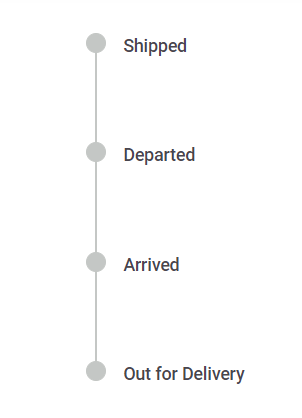
You can define the item content using the content property.
String content
You can define string content for the Timeline items.
@using Syncfusion.EJ2.Layouts

<div id="container" style="height: 350px;">
    @Html.EJS().Timeline("timeline").Items(ViewBag.orderStatus).Render()
</div>
public ActionResult StringContent()
{
List<TimelineItem> orderStatus = new List<TimelineItem>();
orderStatus.Add(new TimelineItem { Content = "Shipped" });
orderStatus.Add(new TimelineItem { Content = "Departed" });
orderStatus.Add(new TimelineItem { Content = "Arrived" });
orderStatus.Add(new TimelineItem { Content = "Out for Delivery" });
ViewBag.orderStatus = orderStatus;
return View();
}
Templated content
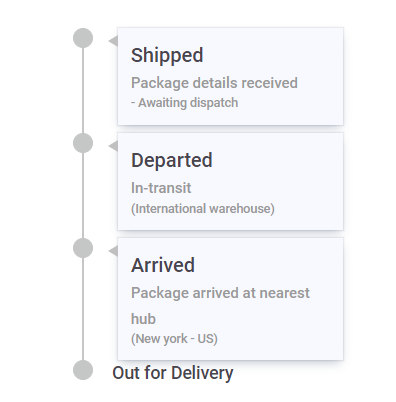
You can specify the Template Content for the items, by using the selector for an element in HTML.
@using Syncfusion.EJ2.Layouts

<div id="container" style="height: 350px;">
    @Html.EJS().Timeline("timeline").Items(ViewBag.orderStatus).Render()
</div>

<script id="content-template" type="text/x-jsrender">
    <div class="content-container">
        <div class="title">
            ${if(itemIndex==0)} Shipped
            ${else if(itemIndex==1)} Departed
            ${else if(itemIndex==2)} Arrived
            ${/if}
        </div>
        <span class="description">
            ${if(itemIndex==0)} Package details received
            ${else if(itemIndex==1)} In-transit
            ${else if(itemIndex==2)} Package arrived at nearest hub
            ${/if}
        </span>
        <div class="info">
            ${if(itemIndex==0)} - Awaiting dispatch
            ${else if(itemIndex==1)} (International warehouse)
            ${else if(itemIndex==2)} (New york - US)
            ${/if}
        </div>
    </div>
</script>

<style>
    .content-container {
        position: relative;
        width: 180px;
        padding: 10px;
        margin-left: 5px;
        box-shadow: rgba(9, 30, 66, 0.25) 0px 4px 8px -2px, rgba(9, 30, 66, 0.08) 0px 0px 0px 1px;
        background-color: ghostwhite;
    }

    .content-container::before {
        content: '';
        position: absolute;
        left: -8px;
        transform: translateY(-50%);
        width: 0;
        height: 0;
        border-top: 5px solid transparent;
        border-bottom: 5px solid transparent;
        border-right: 8px solid silver;
    }

    .content-container .title {
        font-size: 16px;
    }

    .content-container .description {
        color: #999999;
        font-size: 12px;
    }

    .content-container .info {
        color: #999999;
        font-size: 10px;
    }
</style>
public ActionResult TemplateContent()
{
List<TimelineItem> orderStatus = new List<TimelineItem>();
orderStatus.Add(new TimelineItem { Content = "#content-template" });
orderStatus.Add(new TimelineItem { Content = "#content-template" });
orderStatus.Add(new TimelineItem { Content = "#content-template" });
orderStatus.Add(new TimelineItem { Content = "Out for Delivery" });
ViewBag.orderStatus = orderStatus;
return View();
}
Adding opposite content
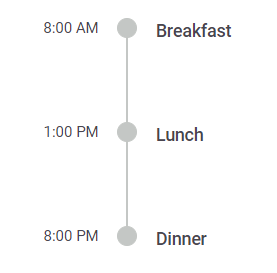
You can add additional information to each Timeline item, by using the oppositeContent property which is positioned opposite to the item content. Similar to the content property you can define string or function as contents to the oppositeContent.
@using Syncfusion.EJ2.Layouts

<div id="container" style="height: 250px;">
    @Html.EJS().Timeline("timeline").Items(ViewBag.mealTimes).Render()
</div>
public ActionResult OppositeContent()
{
List<TimelineItem> mealTimes = new List<TimelineItem>();
mealTimes.Add(new TimelineItem { Content = "Breakfast", OppositeContent = "8:00 AM" });
mealTimes.Add(new TimelineItem { Content = "Lunch", OppositeContent = "1:00 PM" });
mealTimes.Add(new TimelineItem { Content = "Dinner", OppositeContent = "8:00 PM" });
ViewBag.mealTimes = mealTimes;
return View();
}
Dot item
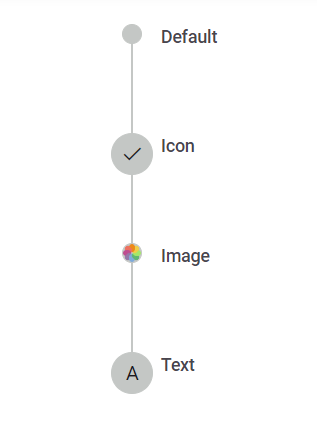
You can define CSS class to set icons, background colors, or images to personalize the appearance of dots associated with each Timeline item by using the dotCss property.
Adding icons
You can define the CSS class to show the icon for each item using the dotCss property.
Adding images
You can include images for the Timeline items using the dotCss property, by setting the CSS background-image property.
Adding text
You can display text for the Timeline items using the dotCss property, by adding text to the CSS content property.
@using Syncfusion.EJ2.Layouts

<div id="container" style="height: 350px;">
    @Html.EJS().Timeline("timeline").Items(ViewBag.dotItems).Render()
</div>

<style>
    /* Provide the URL for the image here. */
    .e-dot.custom-image {
        background-image: url("./images/timeline/dot-image.png");
    }

    .e-dot.custom-text::before {
        content: 'A';
    }
</style>
public ActionResult DotItem()
{
List<TimelineItem> dotItems = new List<TimelineItem>();
dotItems.Add(new TimelineItem { Content = "Default" });
dotItems.Add(new TimelineItem { Content = "Icon", DotCss = "e-icons e-check" });
dotItems.Add(new TimelineItem { Content = "Image", DotCss = "custom-image" });
dotItems.Add(new TimelineItem { Content = "Text", DotCss = "custom-text" });
ViewBag.dotItems = dotItems;
return View();
}
Disabling items
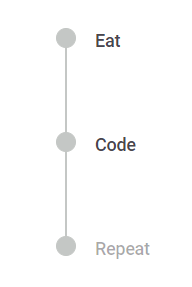
You can use the disabled property to disable an item when set to true. By default, the value is false.
@using Syncfusion.EJ2.Layouts

<div id="container" style="height: 250px;">
    @Html.EJS().Timeline("timeline").Items(ViewBag.disabledItem).Render()
</div>
public ActionResult DisabledItem()
{
List<TimelineItem> disabledItem = new List<TimelineItem>();
disabledItem.Add(new TimelineItem { Content = "Eat" });
disabledItem.Add(new TimelineItem { Content = "Code" });
disabledItem.Add(new TimelineItem { Content = "Repeat", Disabled = true });
ViewBag.disabledItem = disabledItem;
return View();
}
CSS class
The cssClass property allows you to define a custom class to modify the appearance of the Timeline item.