SQL Server Data Binding in ASP.NET MVC Pivot Table
9 Sep 20269 minutes to read
This section describes how to retrieve data from SQL Server database using Microsoft SqlClient and bind it to the Pivot Table via a Web API controller.
Steps to Connect the SQL Server Database via a Web API Application
Step 1: Download the Sample Application
Download the ASP.NET Core Web Application from this GitHub repository.
Step 2: Understand the Application Structure
The PivotController sample application downloaded from the GitHub repository above ships with the following files. The Database1.mdf file is included in the sample and is automatically attached to LocalDB by Visual Studio when the project is opened.
- PivotController.cs file under Controllers folder – This helps to do data communication with Pivot Table.
- Database1.mdf file under App_Data folder – This MDF (Master Database File) file contains example data.
Step 3: Connect to SQL Server and Retrieve Data
Before proceeding, ensure the SqlClient data provider is available in the project. The Microsoft SqlClient library is used to connect to a SQL Server database and retrieve data for the Pivot Table. If your project does not already reference it, install the System.Data.SqlClient package from NuGet before adding the code below.
- Establish Connection: Use SqlConnection with a valid connection string to connect to the SQL Server database (e.g., Database1.mdf).
-
Query and Fetch Data: Execute a SQL query (e.g.,
SELECT * FROM table1) using SqlCommand to retrieve data for the Pivot Table. - Structure the Data: Use the Fill method of SqlDataAdapter to populate query results into a DataTable for JSON serialization.
using Microsoft.AspNetCore.Mvc;
using System.Data;
using System.Data.SqlClient;

namespace PivotController.Controllers
{
     [ApiController]
     [Route("[controller]")]
     public class PivotController : ControllerBase
     {
          private static DataTable FetchSQLResult()
          {
               string conSTR = @"<Enter your valid connection string here>";
               string xquery = "SELECT * FROM table1";
               SqlConnection sqlConnection = new(conSTR);
               sqlConnection.Open();
               SqlCommand cmd = new(xquery, sqlConnection);
               SqlDataAdapter dataAdapter = new(cmd);
               DataTable dataTable = new();
               dataAdapter.Fill(dataTable);
               return dataTable;
          }
     }
}
Replace
<Enter your valid connection string here>with the actual connection string for your SQL Server database.
Step 4: Serialize Data to JSON
In the PivotController.cs file, define a Get method that calls FetchSQLResult to retrieve data from the SQL Server database as a DataTable. Then, use JsonConvert.SerializeObject from the Newtonsoft.Json library to convert the DataTable into JSON format. This JSON data will be consumed by the Pivot Table component.
Ensure the
Newtonsoft.JsonNuGet package (version 13.x or later) is installed in your project before usingJsonConvert. TheGetmethod serializes theDataTableinto a JSON string before ASP.NET Core’s pipeline returns it as the response body.
using Microsoft.AspNetCore.Mvc;
using Newtonsoft.Json;
using System.Data;
using System.Data.SqlClient;

namespace PivotController.Controllers
{
     [ApiController]
     [Route("[controller]")]
     public class PivotController : ControllerBase
     {
          [HttpGet(Name = "GetSQLResult")]
          public object Get()
          {
               return JsonConvert.SerializeObject(FetchSQLResult());
          }

          private static DataTable FetchSQLResult()
          {
               string conSTR = @"<Enter your valid connection string here>";
               string xquery = "SELECT * FROM table1";
               SqlConnection sqlConnection = new(conSTR);
               sqlConnection.Open();
               SqlCommand cmd = new(xquery, sqlConnection);
               SqlDataAdapter dataAdapter = new(cmd);
               DataTable dataTable = new();
               dataAdapter.Fill(dataTable);
               return dataTable;
          }
     }
}
Step 5: Run the Web API Application
- In Visual Studio, set PivotController as the startup project and press F5 (or run
dotnet runfrom the project folder). The actual listening port is read fromlaunchSettings.json; both HTTP and HTTPS endpoints are printed in the console. - The application is typically hosted at
https://localhost:7139/(the port number may vary depending on your configuration). Note the exact URL printed by the runtime so you can reference it from the ASP.NET MVC project.
Step 6: Access the JSON Data
- Access the Web API endpoint at
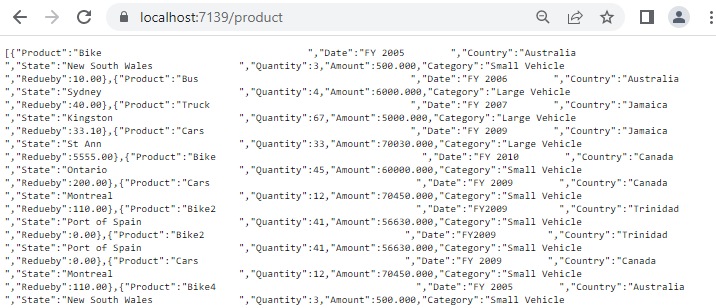
https://localhost:7139/pivotto view the JSON data retrieved from the SQL Server database. - The browser displays the JSON data, as shown in the image below, ready for use by the Pivot Table. A sample response has the following shape:
[
  { "Country": "USA", "State": "California", "Product": "Laptop", "Quantity": 2, "Amount": 2400.00 },
  { "Country": "USA", "State": "Texas", "Product": "Chair", "Quantity": 5, "Amount": 750.00 }
]
Because the API and the ASP.NET MVC app run on different origins (for example,
https://localhost:7139andhttps://localhost:44300), the Web API project must allow cross-origin requests from the MVC origin. Add CORS services in the API’sProgram.cs(for example,builder.Services.AddCors(...)withWithOrigins("https://localhost:44300")) and callapp.UseCors(...)beforeMapControllers().
Connecting the Pivot Table to the Hosted Web API URL
This section explains how to connect the Pivot Table component to a SQL Server database by retrieving data from the Web API service created in the previous section. Ensure that the Web API application from the previous section is still running before proceeding.
Step 1: Set up the ASP.NET MVC Pivot Table
- Download the ASP.NET MVC Pivot Table sample from the GitHub repository.
- Install the Syncfusion ASP.NET MVC helper package by running
Install-Package Syncfusion.EJ2.AspNet.MVC(or the equivalentdotnet add package Syncfusion.EJ2.AspNet.MVCcommand). - Register the Syncfusion namespace and tag helpers in ~/Views/Web.config (
<add namespace="Syncfusion.EJ2" />under<namespaces>) so theEJS()Razor helper is available in views. - Add the required EJ2 client-side references (for example,
ej2.min.js,ej2-pivotview.min.js, and the matching theme CSS) in ~/Views/Shared/_Layout.cshtml as described in the Getting Started documentation.
Step 2: Configure the Web API URL in the Pivot Table
- In the ~/Views/Home/Index.cshtml file, configure the Pivot Table to use the hosted Web API URL (
https://localhost:7139/pivot) by setting the Url property within the PivotViewDataSourceSettings object. - Below is the sample code to configure the Pivot Table to fetch data from the Web API:
@Html.EJS().PivotView("PivotView").Height("300").DataSourceSettings(
     dataSource => dataSource.Url("https://localhost:7139/pivot"
     )
     //Other codes here...
     ).Render()
Step 3: Define the Pivot Table Report
- Configure the Pivot Table report in the ~/Views/Home/Index.cshtml file to structure the data retrieved from the SQL Server database.
- Add fields to the
rows,columns,values, andfiltersproperties of PivotViewDataSourceSettings to define how data fields are organized and aggregated in the Pivot Table. - Enable the field list by setting the ShowFieldList property to true on the
PivotViewcomponent (not on the data source settings) and including theFieldListmodule in the services section. This allows users to dynamically add or rearrange fields across the columns, rows, and values axes using an interactive user interface. Note:EnableSortingis a property of thePivotViewcomponent; the sample above demonstrates the equivalent MVC builder usage for the data source settings.
Here’s the updated sample code with the report configuration and field list support:
@Html.EJS().PivotView("PivotView").Height("300").DataSourceSettings(
        dataSource => dataSource.Url("https://localhost:7139/pivot"
        ).ExpandAll(false).EnableSorting(true)
    .Rows(rows =>
    {
        rows.Name("Country").Add(); rows.Name("State").Add();
    }).Columns(columns =>
    {
        columns.Name("Product").Add();
    }).Values(values =>
    {
        values.Name("Quantity").Add(); values.Name("Amount").Caption("Sold Amount").Add();
    })).ShowFieldList(true).Render()
Step 4: Run and Verify the Pivot Table
- Run the ASP.NET MVC application.
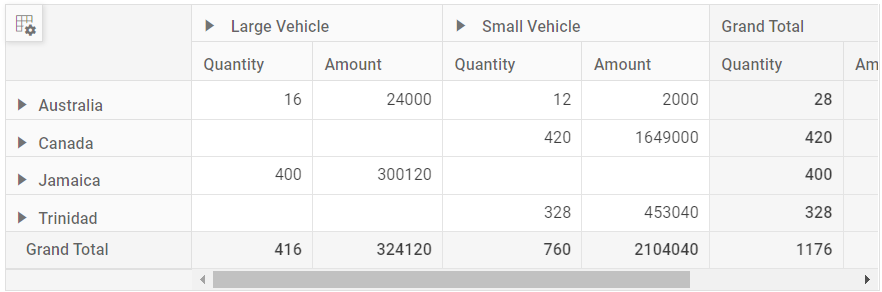
- The Pivot Table will display the data fetched from the SQL Server database via the Web API, structured according to the defined report.
- The resulting Pivot Table will look like this:
Additional Resources
Explore a complete example of the ASP.NET MVC Pivot Table integrated with an ASP.NET Core Web Application to fetch data from a SQL Server database in the GitHub repository.