Field Components Panel in ASP.NET MVC Form Builder component
22 Oct 202618 minutes to read
The Field Components Panel is the left pane of the Form Builder. It hosts the draggable palette of form field types, layout containers, and pre-built templates that authors drag onto the design canvas to compose a form.
The pane is split into two tabs that the author can toggle at the top:
- Fields — the toolbox with draggable form fields (always available).
- Templates — pre-built form schemas (visible in Developer mode only).
A search input below the tab strip filters the palette by component label or type. When a search query is active, the accordion collapses and a single flat list of matching components is rendered instead.
Fields tab
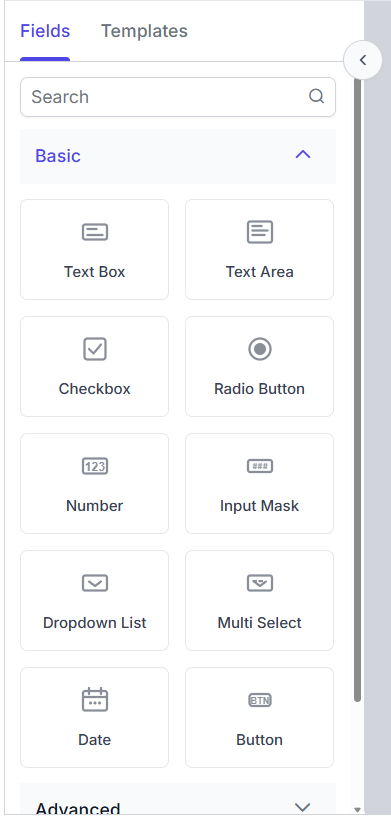
The Fields tab displays a categorized list of components that you can drag and drop onto the form canvas to build your form. Components are organized into three expandable categories— Basic, Advanced, and Layout — making it easy to find and add the fields and containers you need. Simply drag a component from the Fields tab and drop it onto your form to start designing.
Basic
The Basic category contains the most common input components.
| Component | Name used in schema |
|---|---|
| Text Box | textbox |
| Text Area | textarea |
| Checkbox | checkbox |
| Radio Button | radio |
| Number | number |
| Input Mask | inputMask |
| Dropdown List | dropdown |
| Multi Select | multiselect |
| Date | date |
| Button | button |
Advanced
The Advanced category contains more specialized input components.
| Component | Name used in schema | Simple mode? |
|---|---|---|
| Checkbox Group | checkboxGroup |
Visible |
| Date / Time | dateTime |
Visible |
| Time | time |
Visible |
| Date Range | dateRange |
Visible |
| Switch | switch |
Visible |
| Rating | rating |
Visible |
| Split Button | splitButton |
Hidden |
| Range Slider | rangeSlider |
Visible |
| Signature | signature |
Hidden |
| Image Editor | imageEditor |
Hidden |
| File Upload | fileUpload |
Visible |
| Color Picker | colorPicker |
Hidden |
| Rich Text Editor | richTextEditor |
Hidden |
| Data Grid | dataGrid |
Hidden |
Layout
The Layout category contains containers that group other components. Layout components are not stored in properties of the form schema — they appear only as nodes in the layout[] array.
| Component | Name used in schema |
|---|---|
| Message | message |
| Panel | panel |
| Table | table |
| Tabs | tabs |
| Card | card |
| HTML | staticHtml |
Templates tab
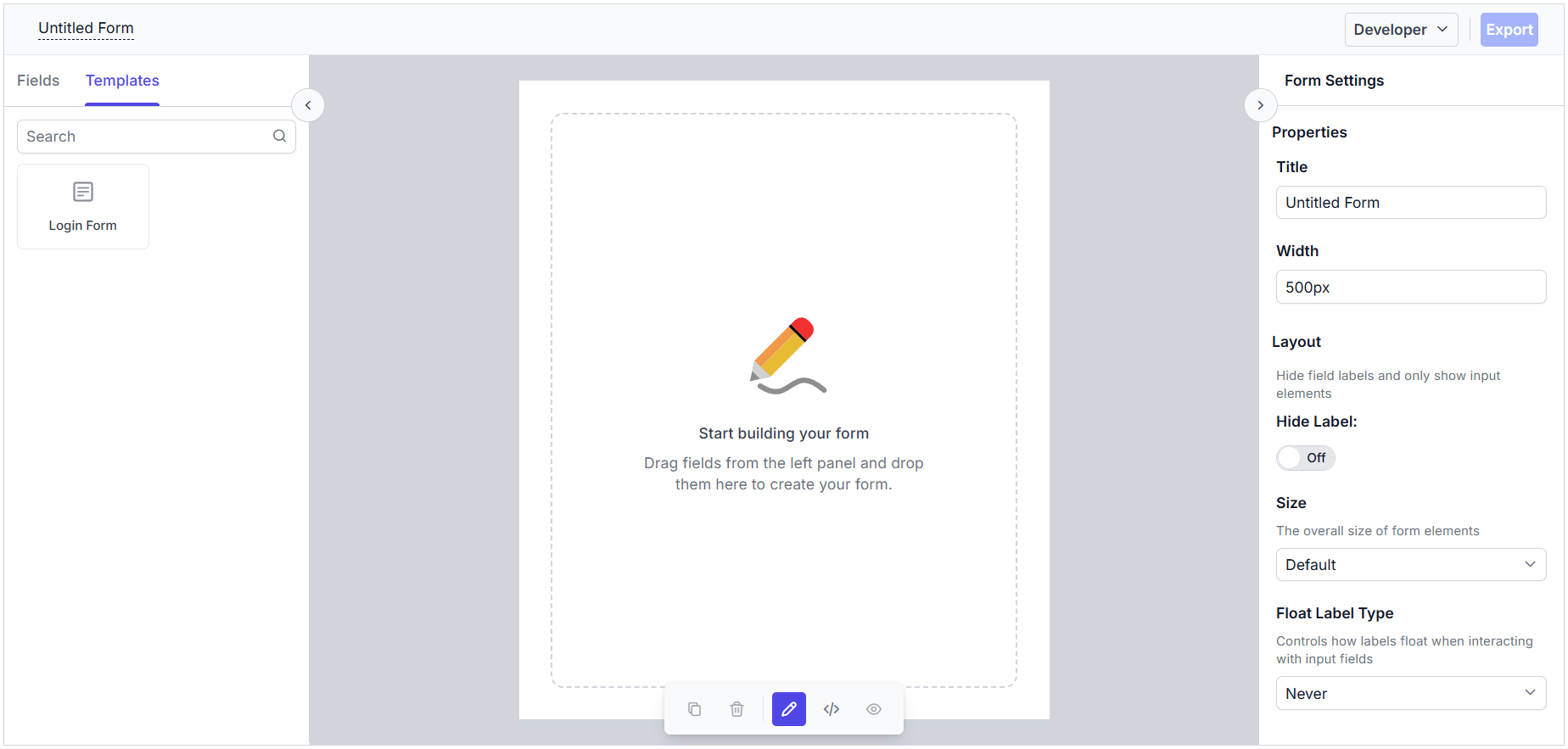
The Templates tab (available in Developer mode only) displays a flat list of pre-built form templates that you can drag and drop onto the canvas. These templates provide ready-made form layouts to help you quickly get started or add common scenarios to your form. You can also customize the available templates using the FormTemplates property.
@using Syncfusion.EJ2
@using Syncfusion.EJ2.FormBuilder

<div>
    @Html.EJS().FormBuilder("form-builder-control").FormTemplates(ViewData["formTemplate"]).Render()
</div>
public partial class FormBuilderController : Controller
{
public ActionResult Default()
{
ViewData["formTemplate"] = GetFormTemplate();
return View();
}
public List<FormTemplate> GetFormTemplate()
{
return new List<FormTemplate>
{
new FormTemplate
{
Id = "login form",
Title = "login",
Schema = GetLoginForm()
}
};
}
public Schema GetLoginForm()
{
return new Schema
{
Version = "0.1.0",
Properties = new Dictionary<string, BaseProperty>
{
["emailAddress"] = new TextboxProperty { Id = "t1", Name = "emailAddress", Type = "string", Label = "Email Address", TextboxType = "email", Required = true, Widget = "textbox" },
["password"] = new TextboxProperty { Id = "t2", Name = "password", Type = "string", Label = "Password", TextboxType = "password", Required = true, MinLength = 6, Widget = "textbox" },
["rememberMe"] = new CheckboxProperty { Id = "c1", Name = "rememberMe", Type = "boolean", Label = "Remember Me", Widget = "checkbox" },
["submit"] = new SubmitButtonProperty { Id = "s1", Name = "submit", Type = "button", Label = "Submit", ButtonType = "submit", Widget = "button", Style = "primary", Disabled = false }
},
Layout = new List<LayoutNode>
{
new LayoutNode { Type="field", PropertyId="emailAddress" },
new LayoutNode { Type="field", PropertyId="password" },
new LayoutNode { Type="field", PropertyId="rememberMe" },
new LayoutNode { Type="field", PropertyId="submit" }
},
Settings = new SchemaSettings { Name = "Login Form" }
};
}
}
public abstract class BaseProperty
{
[JsonProperty("id")] public string Id { get; set; }
[JsonProperty("name")] public string Name { get; set; }
[JsonProperty("type")] public string Type { get; set; }
[JsonProperty("label")] public string Label { get; set; }
[JsonProperty("widget")] public string Widget { get; set; }
[JsonProperty("size")] public string Size { get; set; }
}
public class TextboxProperty : BaseProperty
{
[JsonProperty("textboxType")] public string TextboxType { get; set; }
[JsonProperty("required")] public bool Required { get; set; }
[JsonProperty("minLength")] public int? MinLength { get; set; }
}
public class CheckboxProperty : BaseProperty { }
public class SubmitButtonProperty : BaseProperty
{
[JsonProperty("buttonType")] public string ButtonType { get; set; }
[JsonProperty("style")] public string Style { get; set; }
[JsonProperty("disabled")] public bool Disabled { get; set; }
}
public class Schema
{
[JsonProperty("version")] public string Version { get; set; }
[JsonProperty("properties")] public Dictionary<string, BaseProperty> Properties { get; set; }
[JsonProperty("layout")] public List<LayoutNode> Layout { get; set; }
[JsonProperty("settings")] public SchemaSettings Settings { get; set; }
}
public class FormTemplate
{
[JsonProperty("id")] public string Id { get; set; }
[JsonProperty("title")] public string Title { get; set; }
[JsonProperty("schema")] public Schema Schema { get; set; }
}
public class ToolboxCategories
{
[JsonProperty("category")] public string Category { get; set; }
[JsonProperty("items")] public string[] Items { get; set; }
}
public class SchemaSettings { [JsonProperty("name")] public string Name { get; set; } }
public class LayoutNode { [JsonProperty("type")] public string Type { get; set; } [JsonProperty("propertyId")] public string PropertyId { get; set; } }Dragging a template onto the canvas inserts the entire set of components defined by the template’s schema. Submit buttons within templates are filtered out to prevent duplicate submit buttons.
The output will appear as follows:
Customizing the toolbox items
The form fields in the toolbox can be customized using the ToolboxCategories property.
<div>
    @Html.EJS().FormBuilder("form-builder-control").ToolboxCategories(ViewData["toolboxItemCategories"]).Render()
</div>
public partial class FormBuilderController : Controller
{
public ActionResult Default()
{
ViewData["toolboxItemCategories"] = GetToolboxCategories();
return View();
}
public List<ToolboxCategories> GetToolboxCategories()
{
return new List<ToolboxCategories>
{
new ToolboxCategories()
{
Category = "basic",
Items = new[] { "textbox", "textarea" }
},
new ToolboxCategories()
{
Category = "advanced",
Items = new[] { "date", "dateRange" }
},
new ToolboxCategories()
{
Category = "layout",
Items = new[] { "panel", "card" }
}
};
}
}
public abstract class BaseProperty
{
[JsonProperty("id")] public string Id { get; set; }
[JsonProperty("name")] public string Name { get; set; }
[JsonProperty("type")] public string Type { get; set; }
[JsonProperty("label")] public string Label { get; set; }
[JsonProperty("widget")] public string Widget { get; set; }
[JsonProperty("size")] public string Size { get; set; }
}
public class TextboxProperty : BaseProperty
{
[JsonProperty("textboxType")] public string TextboxType { get; set; }
[JsonProperty("required")] public bool Required { get; set; }
[JsonProperty("minLength")] public int? MinLength { get; set; }
}
public class CheckboxProperty : BaseProperty { }
public class SubmitButtonProperty : BaseProperty
{
[JsonProperty("buttonType")] public string ButtonType { get; set; }
[JsonProperty("style")] public string Style { get; set; }
[JsonProperty("disabled")] public bool Disabled { get; set; }
}
public class Schema
{
[JsonProperty("version")] public string Version { get; set; }
[JsonProperty("properties")] public Dictionary<string, BaseProperty> Properties { get; set; }
[JsonProperty("layout")] public List<LayoutNode> Layout { get; set; }
[JsonProperty("settings")] public SchemaSettings Settings { get; set; }
}
public class ToolboxCategories
{
[JsonProperty("category")] public string Category { get; set; }
[JsonProperty("items")] public string[] Items { get; set; }
}
public class SchemaSettings { [JsonProperty("name")] public string Name { get; set; } }
public class LayoutNode { [JsonProperty("type")] public string Type { get; set; } [JsonProperty("propertyId")] public string PropertyId { get; set; } }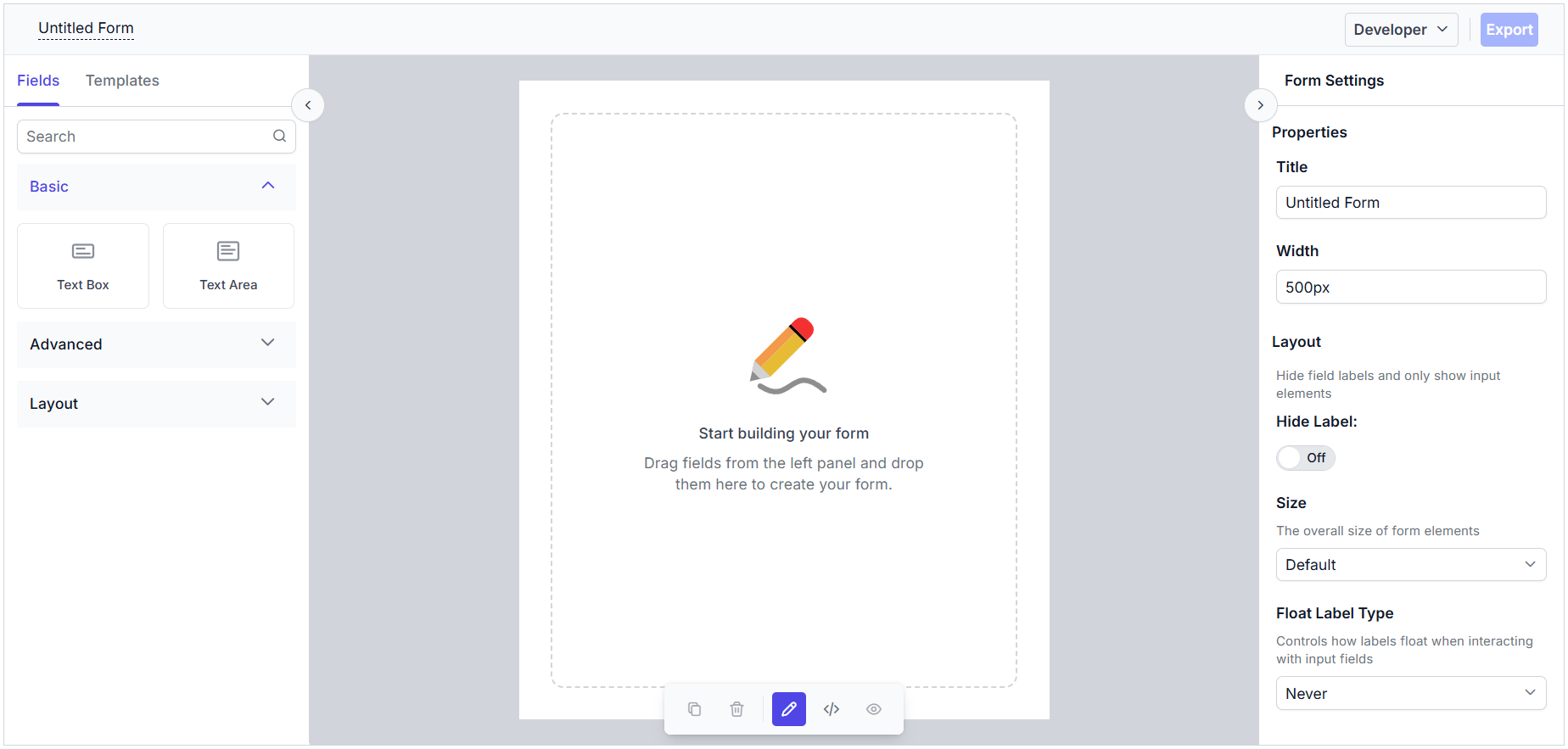
Drag and drop behavior
To add a component or template to the form, simply drag it from the toolbox onto the canvas. When you drop it onto the canvas, the component or template is added to your form, and you can immediately configure its properties in the property panel. You can also reorder the form fields within a layout component using drag and drop.