Methods in ASP.NET MVC Block Editor control
25 Mar 202624 minutes to read
The Block Editor control provides a comprehensive set of public methods that allow you to programmatically interact with and manipulate the editor content. These methods enable you to add, remove, update, and manage blocks, as well as control selection, formatting, and other editor operations.
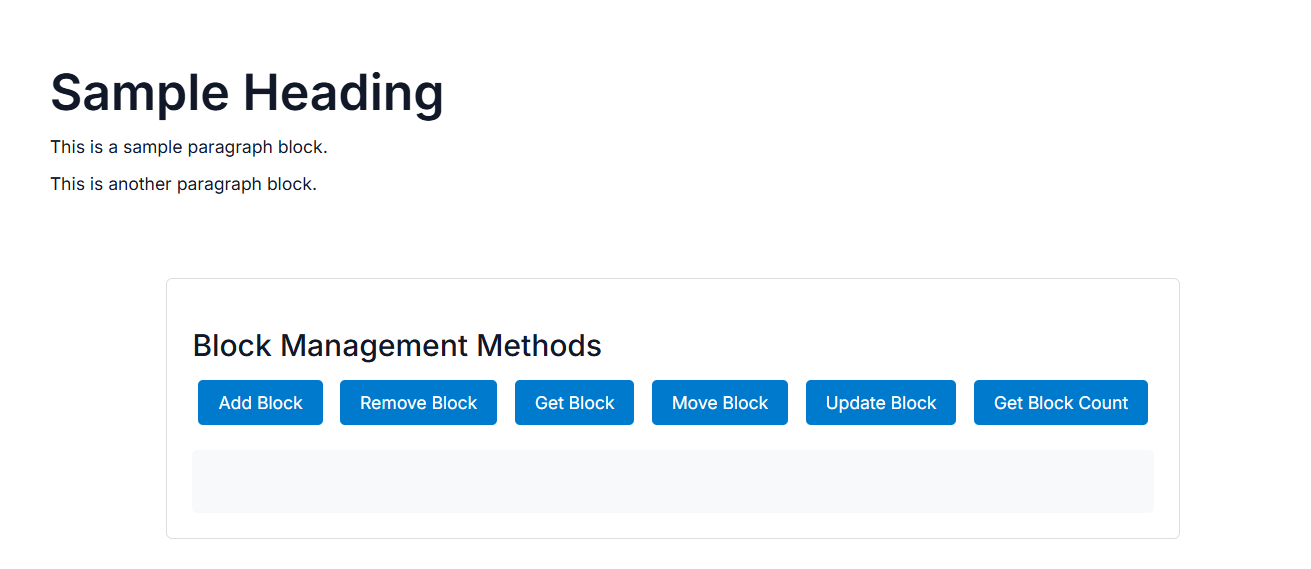
Block Management Methods
Adding a block
You can add a new block to the editor at a specified position using the addBlock method. You can also insert the block before or after a target block.
// Add a new paragraph block after a specific block
const newBlock = {
    id: 'new-block',
    blockType: 'Paragraph',
    content: [
        {
            contentType: "Text",
            content: 'This is a newly added block'
        }
    ]
};

blockEditorObj.addBlock(newBlock, 'target-block-id', true); // true = after, false = before
Removing a block
You can remove a block from the editor using the removeBlock method.
// Remove a block by its ID
blockEditorObj.removeBlock('block-to-remove-id');
Moving a block
You can move a block from one position to another within the editor using the moveBlock method.
// Move a block to a new position
blockEditorObj.moveBlock('source-block-id', 'target-block-id');
Updating a block
You can update the properties of an existing block using the updateBlock method. Only the specified properties are modified while others remain unchanged. Returns true if the update was successful, false otherwise.
// Update block properties
blockEditorObj.updateBlock('block-id', {
    isChecked: true
});
Getting a block
You can retrieve a block model by its unique identifier using the getBlock method. Returns null if the block is not found.
// Get a specific block
blockEditorObj.getBlock('block-id');
Getting block count
You can utilize the getBlockCount method to retrieve the total number of blocks in the editor.
// Get total block count
blockEditorObj.getBlockCount();
Below example demonstrates the usage of the above methods.
@using Syncfusion.EJ2.BlockEditor

<div id='blockeditor-container'>
    @Html.EJS().BlockEditor("block-editor").Blocks((List<BlockModel>)ViewData["BlocksData"]).Created("onCreated").Render()
    <div id="controls">
        <h3>Block Management Methods</h3>
        <div class="button-group">
            <button id="addBlockBtn" onclick="addBlockBtn()">Add Block</button>
            <button id="removeBlockBtn" onclick="removeBlockBtn()">Remove Block</button>
            <button id="getBlockBtn" onclick="getBlockBtn()">Get Block</button>
            <button id="moveBlockBtn" onclick="moveBlockBtn()">Move Block</button>
            <button id="updateBlockBtn" onclick="updateBlockBtn()">Update Block</button>
            <button id="getBlockCountBtn" onclick="getBlockCountBtn()">Get Block Count</button>
        </div>
        <div id="output"></div>
    </div>
</div>

<script>
    var blockEditorObj;
    function onCreated() {
        blockEditorObj = ej.base.getInstance(document.getElementById('block-editor'), ejs.blockeditor.BlockEditor);
    }
    function addBlockBtn() {
        const newBlock = {
            id: 'new-block',
            blockType: 'Paragraph',
            content: [
                {
                    contentType: "Text",
                    content: 'This is a newly added block'
                }
            ]
        };

        blockEditorObj.addBlock(newBlock, 'block-2', true);
        displayOutput(`Block added successfully with ID: ${newBlock.id}`);
    }

    // Remove Block Method
    function removeBlockBtn() {
        blockEditorObj.removeBlock('block-3');
        displayOutput('Block with ID "block-3" removed successfully');
    }

    // Get Block Method
    function getBlockBtn() {
        const block = blockEditorObj.getBlock('block-1');
        if (block && block.content) {
            displayOutput(`Block found:\nID: ${block.id}\nType: ${block.ype}\nContent: ${block.content[0].content}`);
        } else {
            displayOutput('Block with ID "block-1" not found');
        }
    }

    // Move Block Method
    function moveBlockBtn() {
        blockEditorObj.moveBlock('block-2', 'block-1');
        displayOutput('Block "block-2" moved successfully');
    }

    // Update Block Method
    function updateBlockBtn() {
        const success = blockEditorObj.updateBlock('block-2', {
            indent: 1,
            content: [
                {
                    content: 'Updated content'
                }
            ]
        });

        const updatedBlock = blockEditorObj.getBlock('block-2');
        if (success && updatedBlock && updatedBlock.content) {
            displayOutput(`Block ${updatedBlock.id} updated successfully\nNew content: "${updatedBlock.content[0].content} \nNew indent: ${updatedBlock.indent}"`);
        } else {
            displayOutput('Failed to update block');
        }
    }

    // Get Block Count Method
    function getBlockCountBtn() {
        const count = blockEditorObj.getBlockCount();
        displayOutput(`Total number of blocks: ${count}`);
    }

    function displayOutput(message) {
        const outputDiv = document.getElementById('output');
        if (outputDiv) {
            outputDiv.textContent = message;
        }
    }
</script>

<style>
    #blockeditor-container {
        margin: 20px auto;
        gap: 20px;
        display: flex;
        flex-direction: column;
        align-items: center;
    }

    #controls {
        width: 100%;
        margin-top: 20px;
        padding: 20px;
        border: 1px solid #ddd;
        border-radius: 5px;
    }

    .test-content {
        margin-bottom: 20px;
        padding: 15px;
        border-radius: 4px;
    }

    #sampleContent {
        padding: 10px;
        border: 1px solid #ccc;
        border-radius: 4px;
        background-color: #f8f9fa;
        min-height: 150px;
    }

    #output {
        margin-top: 15px;
        padding: 10px;
        background-color: #f8f9fa;
        border-radius: 4px;
        min-height: 50px;
        font-family: monospace;
        white-space: pre-wrap;
    }
</style>
using Syncfusion.EJ2.BlockEditor;
public List<BlockModel> BlocksData { get; set; } = new List<BlockModel>();
public class BlockModel
{
public string id { get; set; }
public string blockType { get; set; }
public object properties { get; set; }
public List<object> content { get; set; }
}
public ActionResult Block()
{
BlocksData.Add( new BlockModel
{
id = "block-1",
blockType = "Heading",
properties = new { level = 1},
content = new List<object>()
{
new
{
contentType = "Text",
content = "Sample Heading"
}
}
});
BlocksData.Add(new BlockModel
{
id = "block-2",
blockType = "Paragraph",
content = new List<object>()
{
new
{
contentType = "Text",
content = "This is a sample paragraph block."
}
}
});
BlocksData.Add(new BlockModel
{
id = "block-3",
blockType = "Paragraph",
content = new List<object>()
{
new
{
contentType = "Text",
content = "This is another paragraph block."
}
}
});
ViewBag.BlocksData = BlocksData;
return View();
}
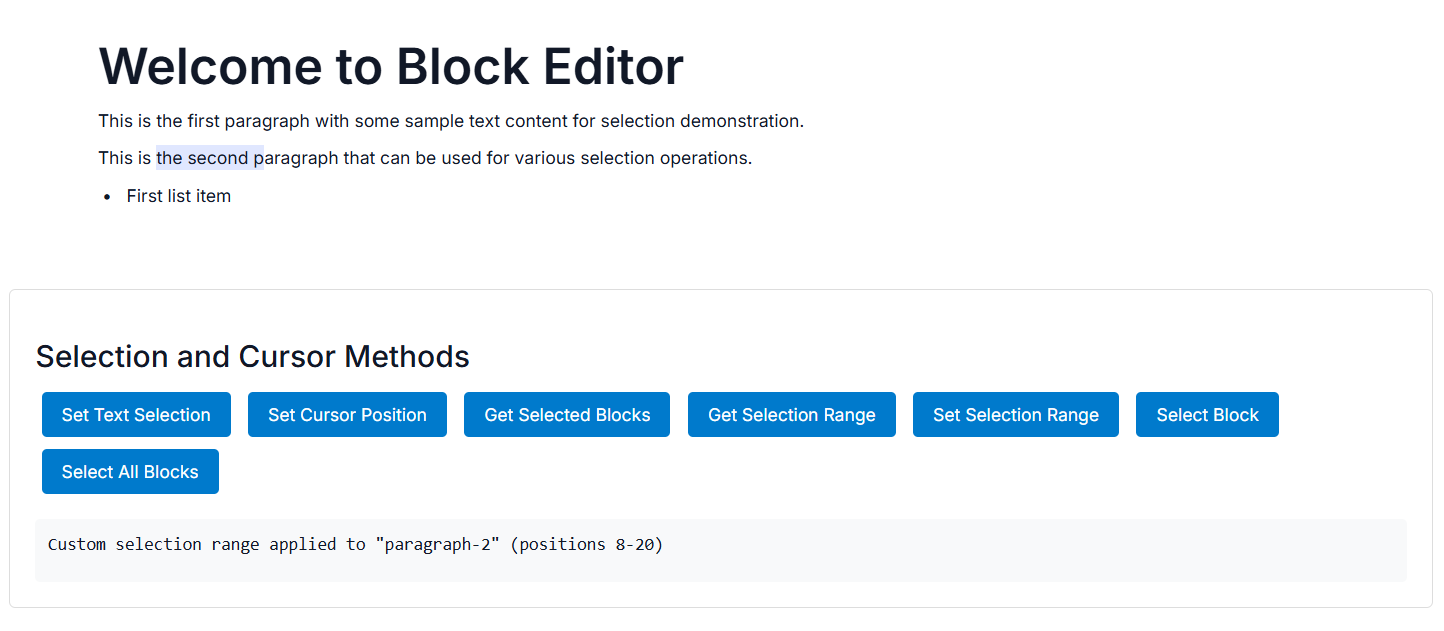
Selection and Cursor Methods
Setting text selection
You can set the text selection within a specific content element using start and end positions with the setSelection method.
// Select text from position 5 to 15 in a content element
blockEditorObj.setSelection('content-element-id', 5, 15);
Setting cursor position
You can place the cursor at a specific position within a block using the setCursorPosition method.
// Set cursor at position 10 in a block
blockEditorObj.setCursorPosition('block-id', 10);
Getting selected blocks
You can retrieve the currently selected blocks in the editor using the getSelectedBlocks method. Returns null if no blocks are selected.
// Get all selected blocks
blockEditorObj.getSelectedBlocks();
Getting selection range
You can get the current selection range in the editor using the getRange method. This method returns a Range object representing the selected text. Returns null if no selection is active.
// Get current selection range
blockEditorObj.getRange();
Setting selection range
You can set the selection range in the editor using the selectRange method. This method accepts a Range object that defines the start and end positions of the selection within the editor.
// Create and select a custom range
blockEditorObj.selectRange(customRange);
Selecting a block
You can select a specific block in the editor using the selectBlock method.
// Select a complete block
blockEditorObj.selectBlock('block-id');
Selecting all blocks
You can select all blocks in the editor using the selectAllBlocks method.
// Select all content in the editor
blockEditorObj.selectAllBlocks();
Below example demonstrates the usage of the above methods.
@using Syncfusion.EJ2.BlockEditor

<div id='blockeditor-container'>
    @Html.EJS().BlockEditor("block-editor").Blocks((List<BlockModel>)ViewData["BlocksData"]).Created("onCreated").Render()
    <div id="controls">
        <h3>Selection and Cursor Methods</h3>
        <div class="button-group">
            <button id="setSelectionBtn" onclick="setSelectionBtn()">Set Text Selection</button>
            <button id="setCursorBtn" onclick="setCursorBtn()">Set Cursor Position</button>
            <button id="getSelectedBlocksBtn" onclick="getSelectedBlocksBtn()">Get Selected Blocks</button>
            <button id="getRangeBtn" onclick="getRangeBtn()">Get Selection Range</button>
            <button id="selectRangeBtn" onclick="selectRangeBtn()">Set Selection Range</button>
            <button id="selectBlockBtn" onclick="selectBlockBtn()">Select Block</button>
            <button id="selectAllBtn" onclick="selectAllBtn()">Select All Blocks</button>
        </div>
        <div id="output"></div>
    </div>
</div>

<script>
    var blockEditorObj;
    function onCreated() {
        blockEditorObj = ej.base.getInstance(document.getElementById('block-editor'), ejs.blockeditor.BlockEditor);
    }
    function setSelectionBtn() {
        // Select text from position 5 to 15 in the first paragraph
        blockEditorObj.setSelection('paragraph1-content', 5, 15);
        displayOutput('Text selection set in "paragraph-1" block from position 5 to 15');
    }

    // Set Cursor Position Method
    function setCursorBtn() {
        // Set cursor at position 10 in the heading block
        blockEditorObj.setCursorPosition('heading-block', 10);
        displayOutput('Cursor position set at position 10 in "heading-block"');
    }

    // Get Selected Blocks Method
    function getSelectedBlocksBtn() {
        var selectedBlocks = blockEditorObj.getSelectedBlocks();
        if (selectedBlocks && selectedBlocks.length > 0) {
            var blockInfo = selectedBlocks.map(block =>
                `ID: ${block.id}, Type: ${block.btype}`
            ).join('\n');
            displayOutput(`Selected blocks (${selectedBlocks.length}):\n${blockInfo}`);
        } else {
            displayOutput('No blocks are currently selected');
        }
    }

    // Get Selection Range Method
    function getRangeBtn() {
        var range = blockEditorObj.getRange();
        if (range) {
            var parent = range.startContainer.nodeType === 3
                ? (range.startContainer.parentElement)
                : (range.startContainer);
            displayOutput(`Current selection range:
                blockId: ${(parent).closest('.e-block').id}
                Start Container: ${range.startContainer.nodeName}
                Start Offset: ${range.startOffset}
                End Container: ${range.endContainer.nodeName}
                End Offset: ${range.endOffset}
                Collapsed: ${range.collapsed}`);
        } else {
            displayOutput('No selection range found');
        }
    }

    // Set Selection Range Method
    function selectRangeBtn() {
        // Create a custom range for the second paragraph
        var paragraphElement = document.getElementById('paragraph-2');
        if (paragraphElement) {
            var range = document.createRange();
            var textNode = (paragraphElement.querySelector('.e-block-content')).firstChild;
            if (textNode) {
                range.setStart(textNode, 8);
                range.setEnd(textNode, 20);
                blockEditorObj.selectRange(range);
                displayOutput('Custom selection range applied to "paragraph-2" (positions 8-20)');
            } else {
                displayOutput('Could not find text content in paragraph-2');
            }
        }
    }

    // Select Block Method
    function selectBlockBtn() {
        // Select the entire heading block
        blockEditorObj.selectBlock('heading-block');
        displayOutput('Entire "heading-block" selected');
    }

    // Select All Blocks Method
    function selectAllBtn() {
        blockEditorObj.selectAllBlocks();
        displayOutput('All blocks in the editor have been selected');
    }

    // Output helper function
    function displayOutput(message) {
        var outputDiv = document.getElementById('output');
        if (outputDiv) {
            outputDiv.textContent = message;
        }
    }
</script>

<style>
    #blockeditor-container {
        margin: 20px auto;
        gap: 20px;
        display: flex;
        flex-direction: column;
        align-items: center;
    }

    #controls {
        margin-top: 20px;
        padding: 20px;
        border: 1px solid #ddd;
        border-radius: 5px;
    }

    .button-group {
        margin-bottom: 15px;
    }

    .button-group button {
        margin: 5px;
        padding: 8px 16px;
        background-color: #007acc;
        color: white;
        border: none;
        border-radius: 4px;
        cursor: pointer;
    }

    .button-group button:hover {
        background-color: #005a9e;
    }

    #output {
        margin-top: 15px;
        padding: 10px;
        background-color: #f8f9fa;
        border-radius: 4px;
        min-height: 50px;
        font-family: monospace;
        white-space: pre-wrap;
    }
</style>
using Syncfusion.EJ2.BlockEditor;
public List<BlockModel> BlocksData { get; set; } = new List<BlockModel>();
public class BlockModel
{
public string id { get; set; }
public string blockType { get; set; }
public object properties { get; set; }
public List<object> content { get; set; }
}
public ActionResult Selection()
{
BlocksData.Add(new BlockModel
{
id = "heading-block",
blockType = "Heading",
properties = new { level = 1},
content = new List<object>()
{
new
{
contentType = "Text",
content = "Welcome to Block Editor"
}
}
});
BlocksData.Add(new BlockModel
{
id = "paragraph-1",
blockType = "Paragraph",
content = new List<object>()
{
new
{
id = "paragraph1-content",
contentType = "Text",
content = "This is the first paragraph with some sample text content for selection demonstration."
}
}
});
BlocksData.Add(new BlockModel
{
id = "paragraph-2",
blockType = "Paragraph",
content = new List<object>()
{
new
{
contentType = "Text",
content = "This is the second paragraph that can be used for various selection operations."
}
}
});
BlocksData.Add(new BlockModel
{
id = "list-block",
blockType = "BulletList",
content = new List<object>()
{
new
{
contentType = "Text",
content = "First list item"
}
}
});
ViewBag.BlocksData = BlocksData;
return View();
}
Focus Management Methods
FocusIn
You can utilize the focusIn method to give focus to the editor. This method ensures that the editor is ready for user input.
// Focus the editor
blockEditorObj.focusIn();
FocusOut
You can remove focus from the editor using the focusOut method. This method clears any active selections and makes the editor inactive for user input.
// Remove focus from the editor
blockEditorObj.focusOut();
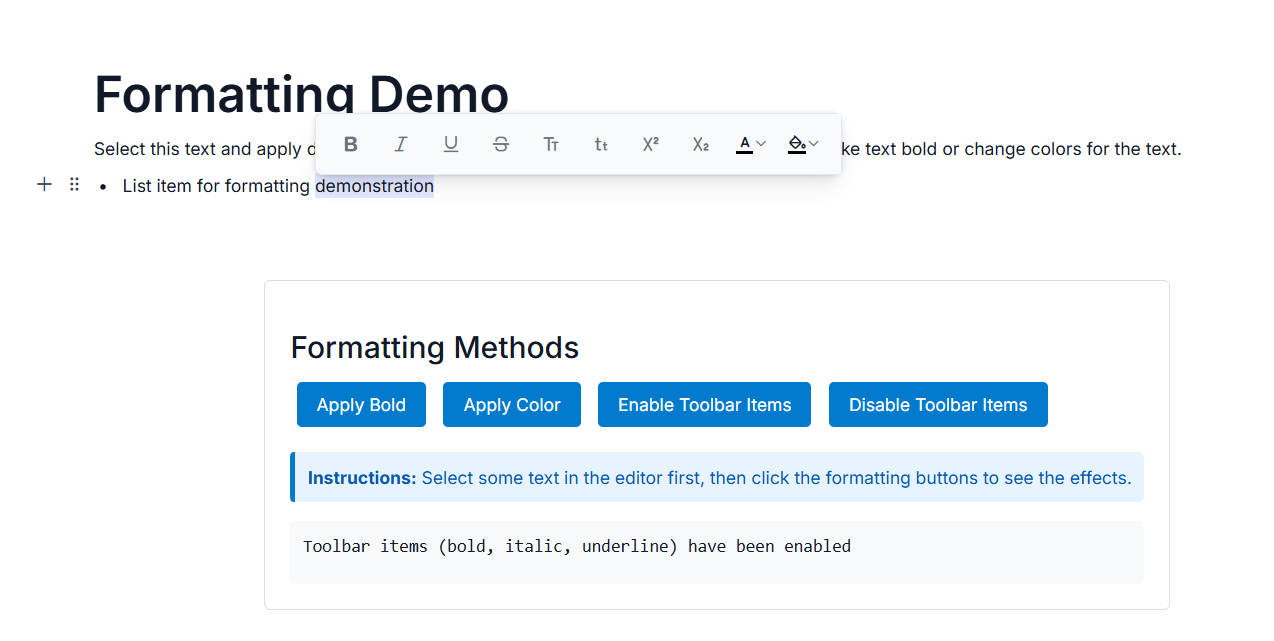
Formatting Methods
Executing toolbar action
You can execute a built-in toolbar formatting command using the executeToolbarAction method. This method is used to apply formatting such as bold, italic, or color to the selected text.
// Apply bold formatting
blockEditorObj.executeToolbarAction(BuiltInToolbar.Bold);

// Apply color formatting with a specific value
blockEditorObj.executeToolbarAction(BuiltInToolbar.Color, '#ff0000');
Enabling toolbar items
You can enable specific toolbar items in the inline toolbar using the enableToolbarItems method. This method accepts a single item or an array of items to be enabled.
// Enable specific toolbar item
blockEditorObj.enableToolbarItems('bold');

// Work with multiple items
blockEditorObj.enableToolbarItems(['bold', 'italic', 'underline']);
Disabling toolbar items
You can disable specific toolbar items in the inline toolbar using the disableToolbarItems method. This method accepts a single item or an array of items to be disabled.
// Disable specific toolbar items
blockEditorObj.disableToolbarItems('bold');

// Work with multiple items
blockEditorObj.disableToolbarItems(['bold', 'italic', 'underline']);
Below example demonstrates the usage of the above methods.
@using Syncfusion.EJ2.BlockEditor

<div id='blockeditor-container'>
    @Html.EJS().BlockEditor("block-editor").Blocks((List<BlockModel>)ViewData["BlocksData"]).Created("onCreated").Render()
    <div id="controls">
        <h3>Formatting Methods</h3>
        <div class="button-group">
            <button id="applyBoldBtn" onclick="applyBoldBtn()">Apply Bold </button>
            <button id="applyColorBtn" onclick="applyColorBtn()">Apply Color</button>
            <button id="enableToolbarBtn" onclick="enableToolbarBtn()">Enable Toolbar Items</button>
            <button id="disableToolbarBtn" onclick="disableToolbarBtn()">Disable Toolbar Items</button>
        </div>
        <div class="instruction">
            <p><strong>Instructions:</strong> Select some text in the editor first, then click the formatting buttons to see the effects.</p>
        </div>
        <div id="output"></div>
    </div>
</div>

<script>
    var blockEditorObj;
    function onCreated() {
        blockEditorObj = ej.base.getInstance(document.getElementById('block-editor'), ejs.blockeditor.BlockEditor);
    }

    function applyBoldBtn() {
        blockEditorObj.executeToolbarAction(ej.blockeditor.BuiltInToolbar.Bold);
        displayOutput('Bold formatting applied to selected text');
    }

    // Apply Color Formatting
    function applyColorBtn() {
        blockEditorObj.executeToolbarAction(ej.blockeditor.BuiltInToolbar.Color, '#ff6b35');
        displayOutput('Orange color (#ff6b35) applied to selected text');
    }

    // Enable Toolbar Items
    function enableToolbarBtn() {
        // Enable specific toolbar items
        blockEditorObj.enableToolbarItems(['bold', 'italic', 'underline']);
        displayOutput('Toolbar items (bold, italic, underline) have been enabled');
    }

    // Disable Toolbar Items
    function disableToolbarBtn() {
        // Disable specific toolbar items
        blockEditorObj.disableToolbarItems(['bold', 'italic']);
        displayOutput('Toolbar items (bold, italic) have been disabled');
    }

    // Output helper function
    function displayOutput(message) {
        var outputDiv = document.getElementById('output');
        if (outputDiv) {
            outputDiv.textContent = message;
        }
    }
</script>

<style>
    #blockeditor-container {
        margin: 20px auto;
        gap: 20px;
        display: flex;
        flex-direction: column;
        align-items: center;
    }

    #controls {
        margin-top: 20px;
        padding: 20px;
        border: 1px solid #ddd;
        border-radius: 5px;
    }

    .button-group {
        margin-bottom: 15px;
    }

    .button-group button {
        margin: 5px;
        padding: 8px 16px;
        background-color: #007acc;
        color: white;
        border: none;
        border-radius: 4px;
        cursor: pointer;
    }

    .button-group button:hover {
        background-color: #005a9e;
    }

    #output {
        margin-top: 15px;
        padding: 10px;
        background-color: #f8f9fa;
        border-radius: 4px;
        min-height: 50px;
        font-family: monospace;
        white-space: pre-wrap;
    }

    .instruction {
        margin-bottom: 15px;
        padding: 10px;
        background-color: #e7f3ff;
        border-left: 4px solid #007acc;
        border-radius: 4px;
    }

    .instruction p {
        margin: 0;
        color: #0056b3;
    }
</style>
using Syncfusion.EJ2.BlockEditor;
public List<BlockModel> BlocksData { get; set; } = new List<BlockModel>();
public class BlockModel
{
public string id { get; set; }
public string blockType { get; set; }
public object properties { get; set; }
public List<object> content { get; set; }
}
public ActionResult Formatting()
{
BlocksData.Add(new BlockModel
{
id = "sample-heading",
blockType = "Heading",
properties = new { level = 1},
content = new List<object>()
{
new
{
contentType = "Text",
content = "Formatting Demo"
}
}
});
BlocksData.Add(new BlockModel
{
id = "sample-paragraph-1",
blockType = "Paragraph",
content = new List<object>()
{
new
{
contentType = "Text",
content = "Select this text and apply different formatting options using the buttons below. You can make text bold or change colors for the text."
}
}
});
BlocksData.Add(new BlockModel
{
id = "sample-list",
blockType = "BulletList",
content = new List<object>()
{
new
{
contentType = "Text",
content = "List item for formatting demonstration"
}
}
});
ViewBag.BlocksData = BlocksData;
return View();
}
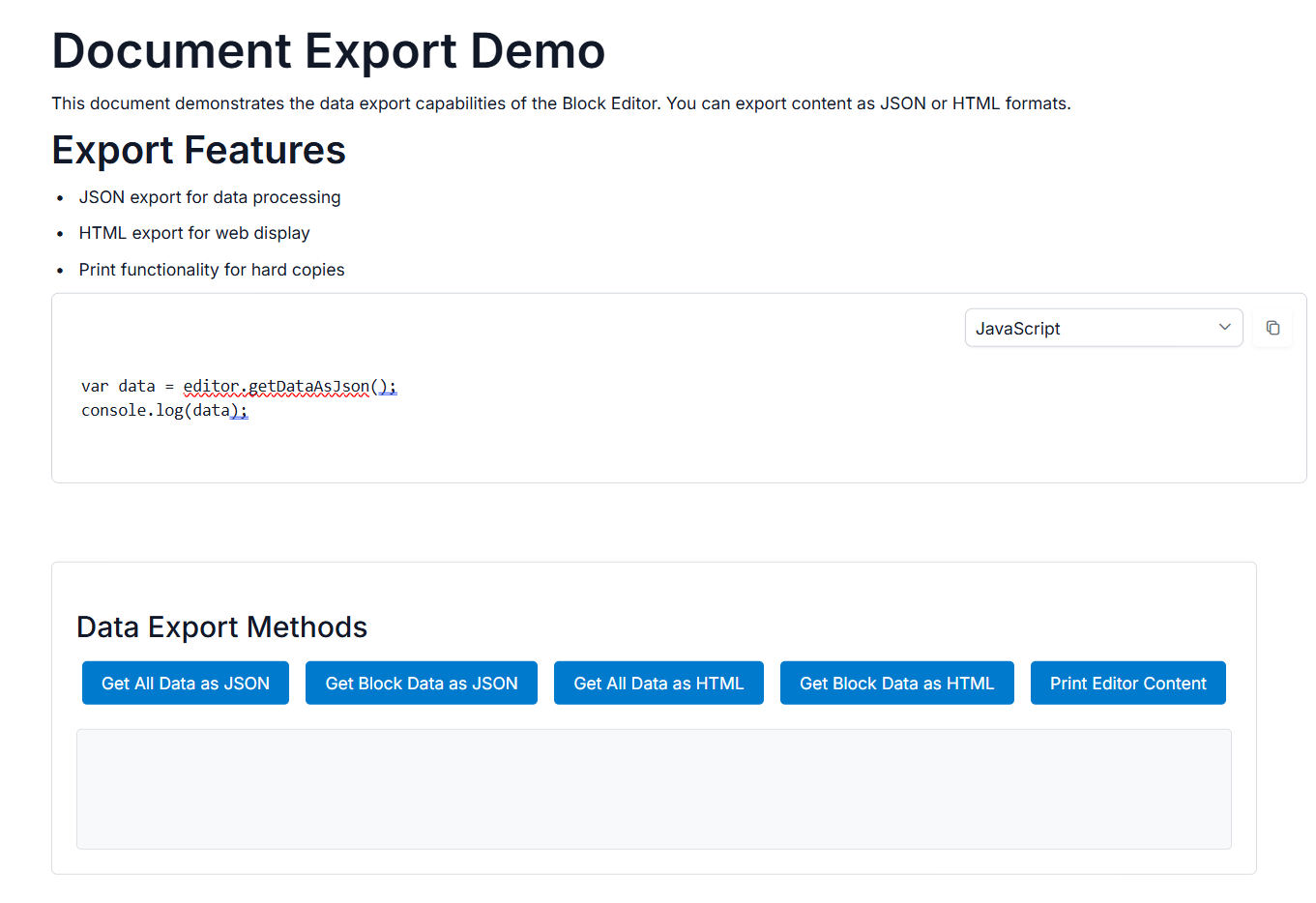
Data Export Methods
Getting data as JSON
You can export the editor content in JSON format using the getDataAsJson method. This method allows you to export all blocks or a specific block.
// Get all blocks as JSON
var allBlocksJson = blockEditorObj.getDataAsJson();

// Get a specific block as JSON
var specificBlockJson = blockEditorObj.getDataAsJson('block-id');
Getting data as HTML
You can export the editor content in HTML format using the getDataAsHtml method. This method allows you to export all blocks or a specific block.
// Get all blocks as HTML
var allBlocksHtml = blockEditorObj.getDataAsHtml();

// Get a specific block as HTML
var specificBlockHtml = blockEditorObj.getDataAsHtml('block-id');
Rendering Blocks from JSON
Renders blocks from JSON data using the renderBlocksFromJson method. This method allows either replacing all existing content or inserting at the cursor position.
// Replace all existing content
blockEditorObj.renderBlocksFromJson(jsonData, true);

// Insert at cursor without replacing existing blocks (default behavior)
blockEditorObj.renderBlocksFromJson(jsonData);

// Insert after a specific block (only applicable when replace = false)
blockEditorObj.renderBlocksFromJson(jsonData, false, 'target-block-id');
Parsing HTML to Blocks
Convert an HTML string into an array of BlockModel objects using the parseHtmlToBlocks method. This method allows transforming HTML content into structured editor blocks.
// Parse HTML into block
var blocksData = blockEditorObj.parseHtmlToBlocks(html);
Printing editor content
You can print the editor content using the print method. This method opens a print dialog with the current editor content formatted for printing.
// Print the editor content
blockEditorObj.print();
Below example demonstrates the usage of the above methods.
@using Syncfusion.EJ2.BlockEditor

<div id='blockeditor-container'>
    @Html.EJS().BlockEditor("block-editor").Blocks((List<BlockModel>)ViewData["BlocksData"]).Created("onCreated").Render()
    <div id="controls">
        <h3>Data Export Methods</h3>
        <div class="button-group">
            <button id="getJsonAllBtn" onclick="getJsonAllBtn()">Get All Data as JSON</button>
            <button id="getJsonBlockBtn" onclick="getJsonBlockBtn()">Get Block Data as JSON</button>
            <button id="getHtmlAllBtn" onclick="getHtmlAllBtn()">Get All Data as HTML</button>
            <button id="getHtmlBlockBtn" onclick="getHtmlBlockBtn()">Get Block Data as HTML</button>
            <button id="printContentBtn" onclick="printContentBtn()">Print Editor Content</button>
        </div>
        <div id="output"></div>
    </div>
</div>

<script>
    var blockEditorObj;
    function onCreated() {
        blockEditorObj = ej.base.getInstance(document.getElementById('block-editor'), ejs.blockeditor.BlockEditor);
    }
    function getJsonAllBtn()  {
        var jsonData = blockEditorObj.getDataAsJson();
        var formattedJson = JSON.stringify(jsonData, null, 2);
        displayOutput(`All blocks as JSON:\n\n${formattedJson}`);
    }

    // Get Specific Block Data as JSON
    function getJsonBlockBtn()  {
        var blockData = blockEditorObj.getDataAsJson('title-block');
        var formattedJson = JSON.stringify(blockData, null, 2);
        displayOutput(`Block "title-block" as JSON:\n\n${formattedJson}`);
    }

    // Get All Data as HTML
    function getHtmlAllBtn()  {
        var htmlData = blockEditorObj.getDataAsHtml();
        displayOutput(`All blocks as HTML:\n\n${htmlData}`);
    }

    // Get Specific Block Data as HTML
    function getHtmlBlockBtn()  {
        var blockHtml = blockEditorObj.getDataAsHtml('intro-paragraph');
        displayOutput(`Block "intro-paragraph" as HTML:\n\n${blockHtml}`);
    }

    // Print Editor Content
    function printContentBtn()  {
        blockEditorObj.print();
        displayOutput('Print dialog opened. Check for a new browser window/tab with the printable content.');
    }

    // Output helper function
    function displayOutput(message) {
        var outputDiv = document.getElementById('output');
        if (outputDiv) {
            outputDiv.textContent = message;
        }
    }
</script>

<style>
    #blockeditor-container {
        margin: 20px auto;
        gap: 20px;
        display: flex;
        flex-direction: column;
        align-items: center;
    }

    #controls {
        margin-top: 20px;
        padding: 20px;
        border: 1px solid #ddd;
        border-radius: 5px;
    }

    .button-group {
        margin-bottom: 15px;
    }

    .button-group button {
        margin: 5px;
        padding: 8px 16px;
        background-color: #007acc;
        color: white;
        border: none;
        border-radius: 4px;
        cursor: pointer;
    }

    .button-group button:hover {
        background-color: #005a9e;
    }

    #output {
        margin-top: 15px;
        padding: 10px;
        background-color: #f8f9fa;
        border-radius: 4px;
        min-height: 100px;
        font-family: monospace;
        white-space: pre-wrap;
        max-height: 400px;
        overflow-y: auto;
        border: 1px solid #dee2e6;
    }
</style>
using Syncfusion.EJ2.BlockEditor;
public List<BlockModel> BlocksData { get; set; } = new List<BlockModel>();
public class BlockModel
{
public string id { get; set; }
public string blockType { get; set; }
public object properties { get; set; }
public List<object> content { get; set; }
}
public ActionResult Data()
{
BlocksData.Add(new BlockModel
{
id = "title-block",
blockType = "Heading",
properties = new { level = 1},
content = new List<object>()
{
new
{
contentType = "Text",
content = "Document Export Demo"
}
}
});
BlocksData.Add(new BlockModel
{
id = "intro-paragraph",
blockType = "Paragraph",
content = new List<object>()
{
new
{
contentType = "Text",
content = "This document demonstrates the data export capabilities of the Block Editor. You can export content as JSON or HTML formats."
}
}
});
BlocksData.Add(new BlockModel
{
id = "features-heading",
blockType = "Heading",
properties = new { level = 2},
content = new List<object>()
{
new
{
contentType = "Text",
content = "Export Features"
}
}
});
BlocksData.Add(new BlockModel
{
id = "features-list",
blockType = "BulletList",
content = new List<object>()
{
new
{
contentType = "Text",
content = "JSON export for data processing"
}
}
});
BlocksData.Add(new BlockModel
{
id = "features-list-2",
blockType = "BulletList",
content = new List<object>()
{
new
{
contentType = "Text",
content = "HTML export for web display"
}
}
});
BlocksData.Add(new BlockModel
{
id = "features-list-3",
blockType = "BulletList",
content = new List<object>()
{
new
{
contentType = "Text",
content = "Print functionality for hard copies"
}
}
});
BlocksData.Add(new BlockModel
{
id = "code-example",
blockType = "Code",
content = new List<object>()
{
new
{
contentType = "Text",
content = "var data = editor.getDataAsJson();\nconsole.log(data);"
}
}
});
ViewBag.BlocksData = BlocksData;
return View();
}