Drag and drop in ASP.NET MVC Block Editor control
25 Mar 20268 minutes to read
The drag and drop feature in Block Editor allows users to easily rearrange blocks within the editor by dragging them to different positions.
Enable Drag and Drop
You can control drag and drop operations within Block Editor using the EnableDragAndDrop property. By default, it is set to true.
Dragging blocks
When drag and drop is enabled, users can rearrange blocks in the following ways:
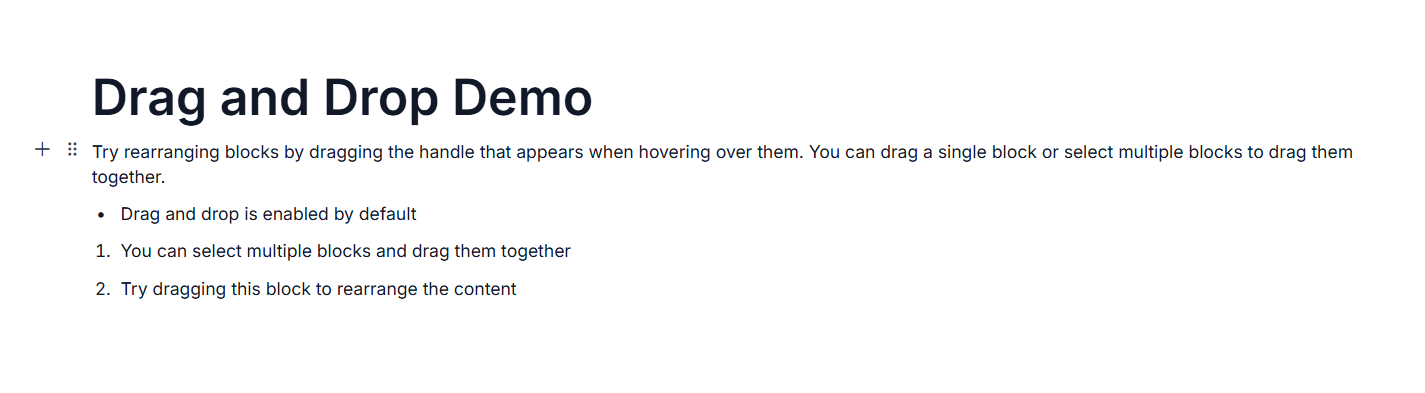
The Block Editor supports both single and multiple block dragging. Users can drag individual blocks or select multiple blocks and drag them together to a new position.
-
Single Block Dragging: For single block, users can hover over a block to reveal the drag handle, then click and drag to move it to a new position.
-
Multiple Block Dragging: For multiple blocks, users first select the blocks they want to move. Once selected, users can drag the entire group to a new position.
During the drag operation, the editor provides visual cues to indicate where the blocks will be positioned when dropped. This helps users precisely place blocks where they want it.
@using Syncfusion.EJ2.BlockEditor

<div id='blockeditor-container'>
    @Html.EJS().BlockEditor("block-editor").Blocks((List<BlockModel>)ViewBag["BlocksData"]).EnableDragAndDrop(true).Render()
</div>

<style>
    #blockeditor-container {
       margin: 20px auto;
    }
</style>
public List<BlockModel> BlocksData { get; set; } = new List<BlockModel>();
public class BlockModel
{
public string id { get; set; }
public string blockType { get; set; }
public object properties { get; set; }
public List<object> content { get; set; }
}
public ActionResult DragDrop()
{
BlocksData.Add(new BlockModel() {
blockType = "Heading",
properties = new { level = 1},
content = new List<object>()
{
new{
contentType = "Text",
content = "Drag and Drop Demo"
}
}
});
BlocksData.Add(new BlockModel() {
blockType = "Paragraph",
content = new List<object>()
{
new {
contentType = "Text",
content = "Try rearranging blocks by dragging the handle that appears when hovering over them. You can drag a single block or select multiple blocks to drag them together."
}
}
});
BlocksData.Add(new BlockModel() {
blockType = "BulletList",
content = new List<object>()
{
new {
contentType = "Text",
content = "Drag and drop is enabled by default"
}
}
});
BlocksData.Add(new BlockModel() {
blockType = "NumberedList",
content = new List<object>()
{
new {
contentType = "Text",
content = "You can select multiple blocks and drag them together"
}
}
});
BlocksData.Add(new BlockModel() {
blockType = "NumberedList",
content = new List<object>()
{
new {
contentType = "Text",
content = "Try dragging this block to rearrange the content"
}
}
});
ViewBag.BlocksData = BlocksData;
return View();
}