How can I help you?
Typography Blocks in ASP.NET MVC Block Editor control
26 Mar 202620 minutes to read
Typography blocks are essential for organizing and presenting text-based content in your documents. The BlockEditor component supports various structural blocks—such as Paragraph, Heading, Collapsible Block, Divider, Quote, and Callout to help you format and structure content effectively.
Configure paragraph block
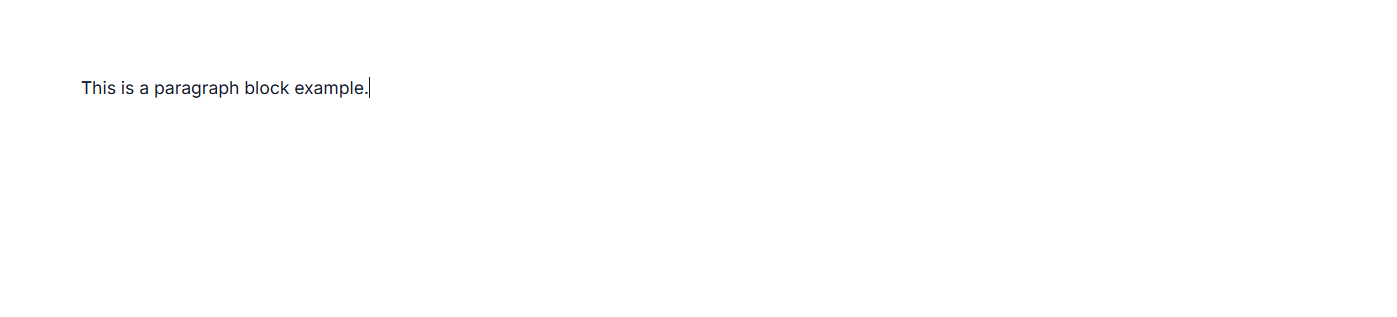
You can render Paragraph blocks by setting the blockType property as Paragraph. Paragraph blocks are the most common type, used for regular text content. They provide standard text formatting options and serve as the default block type.
BlockType
// Adding paragraph block
{
    blockType = 'Paragraph',
    content = new List<object>
    {
        new
            {
                contentType = 'Text',
                content = 'This is a paragraph block example.'
            }
    }
}
The below sample demonstrates the configuration of paragraph block in the Block Editor.
@using Syncfusion.EJ2.BlockEditor

<div id='blockeditor-container'>
    @Html.EJS().BlockEditor("block-editor").Blocks((List<BlockModel>)ViewBag["BlocksData"]).Render()
</div>

<style>
    #blockeditor-container {
       margin: 20px auto;
    }
</style>
using Syncfusion.EJ2.BlockEditor;
public List<BlockModel> BlocksData { get; set; } = new List<BlockModel>();
public class BlockModel
{
public string id { get; set; }
public string blockType { get; set; }
public object properties { get; set; }
public List<object> content { get; set; }
}
public ActionResult Paragraph()
{
BlocksData.Add(new BlockModel
{
blockType = "Paragraph",
content = new List<object>()
{
new
{
contentType = "Text",
content = "This is a paragraph block example."
}
}
});
ViewBag.BlocksData = BlocksData;
return View();
}
Configure placeholder
You can configure placeholder text for block using the placeholder in the properties property. This text appears when the block is empty. The default placeholder for the paragraph block is Write something or ‘/’ for commands..
Block type & properties
// Adding placeholder
 {
    blockType = 'Paragraph',
    properties = new { placeholder = "Start typing ..." }
}
The below sample demonstrates the configuration of placeholder in the Block Editor for the paragraph block.
@using Syncfusion.EJ2.BlockEditor

<div id='blockeditor-container'>
    @Html.EJS().BlockEditor("block-editor").Blocks((List<BlockModel>)ViewBag["BlocksData"]).Render()
</div>

<style>
    #blockeditor-container {
       margin: 20px auto;
    }
</style>
using Syncfusion.EJ2.BlockEditor;
public List<BlockModel> BlocksData { get; set; } = new List<BlockModel>();
public class BlockModel
{
public string id { get; set; }
public string blockType { get; set; }
public object properties { get; set; }
public List<object> content { get; set; }
}
public ActionResult Placeholder()
{
BlocksData.Add(new BlockModel() {
blockType = "Paragraph",
content = new List<object>(){
new{
contentType = "Text",
content = "This is a sample paragraph block."
}
}
});
BlocksData.Add(new BlockModel()
{
blockType = "Paragraph",
properties = new { placeholder = "Start typing your notes or press \"/\" for commands..." }
});
ViewBag.BlocksData = BlocksData;
return View();
}
Configure heading block
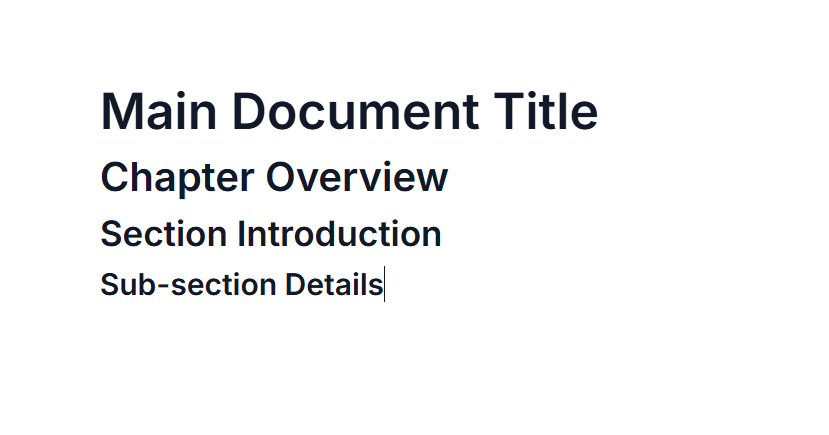
You can render Heading blocks by setting the blockType property as Heading. Heading blocks are used to create document titles and section headers of varying importance. These blocks help structure your content hierarchically, making it easier to read and navigate.
Configure levels
You can configure the heading blocks using the property level in the properties property.
The heading level representing a title level: 1, heading level: 2, subheading level: 3 and a subsection by level: 4.
Block type & properties
// Adding heading block
{
    blockType = "Heading",
    content = new List<object>
    {
        new { contentType = "Text", content = "Heading" }
    },
     // levels range from 1 to 4
    properties = new { level = 4 }
}
The below sample demonstrates the configuration of heading block in the Block Editor.
@using Syncfusion.EJ2.BlockEditor

<div id='blockeditor-container'>
    @Html.EJS().BlockEditor("block-editor").Blocks((List<BlockModel>)ViewBag["BlocksData"]).Render()
</div>

<style>
    #blockeditor-container {
       margin: 20px auto;
    }
</style>
using Syncfusion.EJ2.BlockEditor;
public List<BlockModel> BlocksData { get; set; } = new List<BlockModel>();
public class BlockModel
{
public string id { get; set; }
public string blockType { get; set; }
public object properties { get; set; }
public List<object> content { get; set; }
}
public ActionResult Heading()
{
BlocksData.Add(new BlockModel
{
blockType = "Heading",
properties = new { level = 1 },
content = new List<object>()
{
new
{
contentType = "Text",
content = "Main Document Title"
}
}
});
BlocksData.Add(new BlockModel
{
blockType = "Heading",
properties = new { level = 2 },
content = new List<object>()
{
new
{
contentType = "Text",
content = "Chapter Overview"
}
}
});
BlocksData.Add(new BlockModel
{
blockType = "Heading",
properties = new { level = 3 },
content = new List<object>()
{
new
{
contentType = "Text",
content = "Section Introduction"
}
}
});
BlocksData.Add(new BlockModel
{
blockType = "Heading",
properties = new { level = 4 },
content = new List<object>()
{
new
{
contentType = "Text",
content = "Sub-section Details"
}
}
});
ViewBag.BlocksData = BlocksData;
return View();
}
Configure placeholder
You can configure placeholder text for block using the placeholder in the properties property. This text appears when the block is empty. The default placeholder for heading block is Heading{level}.
Block type & properties
// Adding placeholder
 {
    blockType = 'Paragraph',
    properties = new {level = 4 , placeholder = "Heading block" }
}
Configure divider block
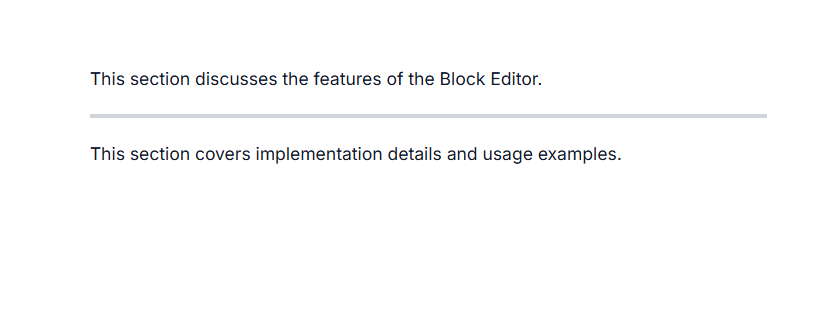
Divider blocks insert horizontal lines that separate different sections of content. You can render Divider blocks by setting the blockType property as Divider.
BlockType
// Adding divider block
{
    blockType = "Divider"
},
The below sample demonstrates the configuration of divider block in the Block Editor.
@using Syncfusion.EJ2.BlockEditor

<div id='blockeditor-container'>
    @Html.EJS().BlockEditor("block-editor").Blocks((List<BlockModel>)ViewBag["BlocksData"]).Render()
</div>

<style>
    #blockeditor-container {
       margin: 20px auto;
    }
</style>
using Syncfusion.EJ2.BlockEditor;
public List<BlockModel> BlocksData { get; set; } = new List<BlockModel>();
public class BlockModel
{
public string id { get; set; }
public string blockType { get; set; }
public object properties { get; set; }
public List<object> content { get; set; }
}
public ActionResult Divider()
{
BlocksData.Add(new BlockModel()
{
blockType = "Paragraph",
content = new List<object>()
{
new
{
contentType = "Text",
content = "This section discusses the features of the Block Editor."
}
}
});
BlocksData.Add(new BlockModel()
{
blockType = "Divider",
});
BlocksData.Add(new BlockModel()
{
blockType = "Paragraph",
content = new List<object>()
{
new
{
contentType = "Text",
content = "This section covers implementation details and usage examples."
}
}
});
ViewBag.BlocksData = BlocksData;
return View();
}