Table Blocks in ASP.NET MVC Block Editor control
26 Mar 202620 minutes to read
The Block Editor control allows you to render structured data in rows and columns by setting the block’s blockType property to Table. You can customize the table layout, header, row numbers, and define columns and rows using the properties property. In addition, you can format cells with keyboard shortcuts, use slash commands inside cells to add blocks, and manage rows and columns quickly with dot and plus buttons.
Configure table block
For Table blocks, you can configure layout and structure using the properties property. This property supports the following options:
| Property | Description | Default Value |
|---|---|---|
| width | Specifies the display width of the table. | 100% |
| enableHeader | Specifies whether to enable header for the table. | true |
| enableRowNumbers | Specifies whether to enable row numbers for the table. | true |
| readOnly | Specifies whether to render the table in read-only mode, disabling edits. | false |
| columns | Defines the columns of the table, including their types and headers. | [] |
| rows | Defines the rows of the table, each containing cells tied to columns. | [] |
This sample demonstrates the configuration of the Table block in the Block Editor.
@using Syncfusion.EJ2.BlockEditor

<div id='blockeditor-container'>
    @Html.EJS().BlockEditor("block-editor").Blocks((List<BlockModel>)ViewBag["BlocksData"]).Render()
</div>

<style>
    #blockeditor-container {
       margin: 20px auto;
    }
</style>
using Syncfusion.EJ2.BlockEditor;
public List<BlockModel> BlocksData { get; set; } = new List<BlockModel>();
public class BlockModel
{
public string blockType { get; set; }
public object properties { get; set; }
public List<object> content { get; set; }
}
public ActionResult Quote()
{
BlockData.Add(new BlockModel
{
blockType = "Paragraph",
content = new List<object>
{
new { contentType = "Text", content = "You can resize table columns by dragging column borders and can do multi-row column selection and perform deletion via popup." }
}
});
BlockData.Add(new BlockModel
{
blockType = "Table",
properties = new
{
columns = new List<object>
{
new { id = "col1", headerText="Column 1" },
new { id = "col2", headerText="Column 2" }
}
,
rows = new List<object>
{
new
{
cells = new List<object>
{
new { columnId = "col1", blocks = new List<BlockModel> { new BlockModel { blockType = "Paragraph", content = new List<object> { new { contentType = "Text", content = "Cell 1" } } } } },
new { columnId = "col2", blocks = new List<BlockModel> { new BlockModel { blockType = "Paragraph", content = new List<object> { new { contentType = "Text", content = "Cell 2" } } } } },
}
},
new
{
cells = new List<object>
{
new { columnId = "col1", blocks = new List<BlockModel> { new BlockModel { blockType = "Paragraph", content = new List<object> { new { contentType = "Text", content = "Cell 3" } } } } },
new { columnId = "col2", blocks = new List<BlockModel> { new BlockModel { blockType = "Paragraph", content = new List<object> { new { contentType = "Text", content = "Cell 4" } } } } },
}
}
}
}
});
ViewBag.BlocksData = BlocksData;
return View();
}
Table resizing
The Block Editor supports table column resizing. You can drag column borders to adjust column width dynamically, or auto‑fit based on content. Only columns can be resized, and if resizing exceeds the layout width, a scrollbar will appear to maintain structure and layout integrity.
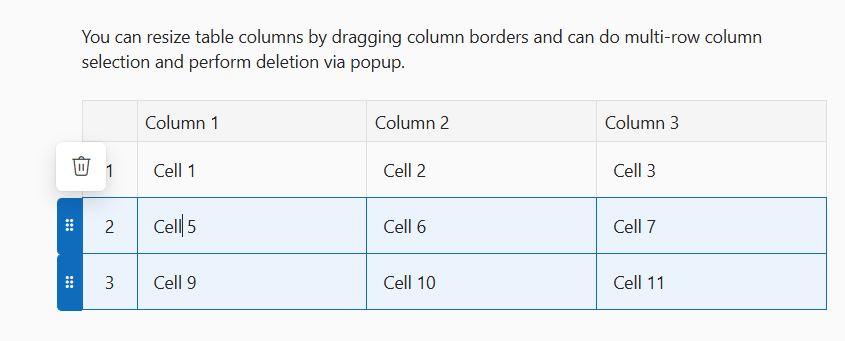
Table multiple row column selection and deletion
The Block Editor supports selecting full rows, single or multiple using the mouse or with Shift + arrow key actions, which activate grippers for easy control. Shift based multiple selection is also supported: select a row, hold Shift, and click a non adjacent row (e.g., the third), and all rows in between are included. Selected rows or columns can then be deleted through the Delete popup, and full table deletion is also supported for complete removal.
This sample demonstrates the Table block multiple row and column selection and deletion support in the Block Editor.
@using Syncfusion.EJ2.BlockEditor

<div id='blockeditor-container'>
    @Html.EJS().BlockEditor("block-editor").Blocks((List<BlockModel>)ViewBag["BlockData"]).Render()
</div>

<style>
    #blockeditor-container {
       margin: 20px auto;
    }
</style>
using Syncfusion.EJ2.BlockEditor;
public List<BlockModel> BlocksData { get; set; } = new List<BlockModel>();
public class BlockModel
{
public string blockType { get; set; }
public object properties { get; set; }
public List<object> content { get; set; }
}
public ActionResult Table()
{
BlockData.Add(new BlockModel
{
blockType = "Paragraph",
content = new List<object>
{
new { contentType = "Text", content = "You can resize table columns by dragging column borders and can do multi-row column selection and perform deletion via popup." }
}
});
BlockData.Add(new BlockModel
{
blockType = "Table",
properties = new
{
columns = new List<object>
{
new { id = "col1", headerText="Column 1" },
new { id = "col2", headerText="Column 2" },
new { id = "col3", headerText="Column 3" }
}
,
rows = new List<object>
{
new
{
cells = new List<object>
{
new { columnId = "col1", blocks = new List<BlockModel> { new BlockModel { blockType = "Paragraph", content = new List<object> { new { contentType = "Text", content = "Cell 1" } } } } },
new { columnId = "col2", blocks = new List<BlockModel> { new BlockModel { blockType = "Paragraph", content = new List<object> { new { contentType = "Text", content = "Cell 2" } } } } },
new { columnId = "col3", blocks = new List<BlockModel> { new BlockModel { blockType = "Paragraph", content = new List<object> { new { contentType = "Text", content = "Cell 3" } } } } },
new { columnId = "col4", blocks = new List<BlockModel> { new BlockModel { blockType = "Paragraph", content = new List<object> { new { contentType = "Text", content = "Cell 4" } } } } }
}
},
new
{
cells = new List<object>
{
new { columnId = "col1", blocks = new List<BlockModel> { new BlockModel { blockType = "Paragraph", content = new List<object> { new { contentType = "Text", content = "Cell 5" } } } } },
new { columnId = "col2", blocks = new List<BlockModel> { new BlockModel { blockType = "Paragraph", content = new List<object> { new { contentType = "Text", content = "Cell 6" } } } } },
new { columnId = "col3", blocks = new List<BlockModel> { new BlockModel { blockType = "Paragraph", content = new List<object> { new { contentType = "Text", content = "Cell 7" } } } } },
new { columnId = "col4", blocks = new List<BlockModel> { new BlockModel { blockType = "Paragraph", content = new List<object> { new { contentType = "Text", content = "Cell 8" } } } } }
}
},
new
{
cells = new List<object>
{
new { columnId = "col1", blocks = new List<BlockModel> { new BlockModel { blockType = "Paragraph", content = new List<object> { new { contentType = "Text", content = "Cell 9" } } } } },
new { columnId = "col2", blocks = new List<BlockModel> { new BlockModel { blockType = "Paragraph", content = new List<object> { new { contentType = "Text", content = "Cell 10" } } } } },
new { columnId = "col3", blocks = new List<BlockModel> { new BlockModel { blockType = "Paragraph", content = new List<object> { new { contentType = "Text", content = "Cell 11" } } } } },
new { columnId = "col4", blocks = new List<BlockModel> { new BlockModel { blockType = "Paragraph", content = new List<object> { new { contentType = "Text", content = "Cell 12" } } } } }
}
}
}
}
});
ViewBag.BlocksData = BlocksData;
return View();
}