How can I help you?
Methods in ASP.NET MVC AI AssistView control
17 Sep 20246 minutes to read
Adding prompt response
You can use the addPromptResponse public method to add the prompts and responses to the AI AssistView. You can add the it either as a string or object collection.
Adding responses as string.
You can add string response, by passing it as argument for the addPromptResponse('Response') method which adds as the response of last added prompt.
@using Syncfusion.EJ2.InteractiveChat

<div class="aiassist-container" style="height: 350px; width: 650px;">
    <button id="addStringResponse" onclick="getPromptResponse()">Add String Response</button>
    @Html.EJS().AIAssistView("aiAssistView").PromptRequest("onPromptRequest").Created("onCreated").Render()
</div>

<script>
    var assistObj;
    function onCreated() {
        assistObj = this;
    }
    function onPromptRequest(args) {
        setTimeout(function () {
            var defaultResponse = 'For real-time prompt processing, connect the AI AssistView control to your preferred AI service, such as OpenAI or Azure Cognitive Services. Ensure you obtain the necessary API credentials to authenticate and enable seamless integration.';
            assistObj.addPromptResponse(defaultResponse);
        }, 2000);
    }
    function getPromptResponse() {
        assistObj.addPromptResponse('Dynamic response');
    }
</script>

<style>
    #addStringResponse {
        margin-bottom: 10px;
    }
</style>
public ActionResult ResponseString()
{
return View();
}
Adding responses as object.
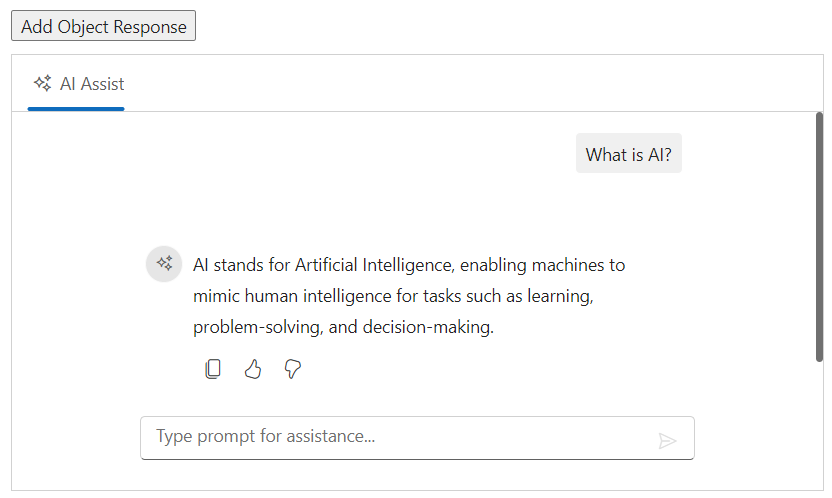
You can add object response, by passing the prompt and response as a collection as argument for the addPromptResponse({prompt: 'Prompt text', response: 'Response text'}) method which adds as a new prompt and response in the AI AssistView.
@using Syncfusion.EJ2.InteractiveChat

<div class="aiassist-container" style="height: 350px; width: 650px;">
    <button id="addObjectResponse" onclick="getPromptResponse()">Add Object Response</button>
    @Html.EJS().AIAssistView("aiAssistView").PromptRequest("onPromptRequest").Created("onCreated").Render()
</div>

<script>
    var assistObj;
    function onCreated() {
        assistObj = this;
    }
    function onPromptRequest(args) {
        setTimeout(function () {
            var defaultResponse = 'For real-time prompt processing, connect the AI AssistView control to your preferred AI service, such as OpenAI or Azure Cognitive Services. Ensure you obtain the necessary API credentials to authenticate and enable seamless integration.';
            assistObj.addPromptResponse(defaultResponse);
        }, 2000);
    }
    function getPromptResponse() {
        assistObj.addPromptResponse({ prompt: 'What is AI?', response: 'AI stands for Artificial Intelligence, enabling machines to mimic human intelligence for tasks such as learning, problem-solving, and decision-making.' });
    }
</script>

<style>
    #addObjectResponse {
        margin-bottom: 10px;
    }
</style>
public ActionResult ResponseObject()
{
return View();
}
Executing prompt
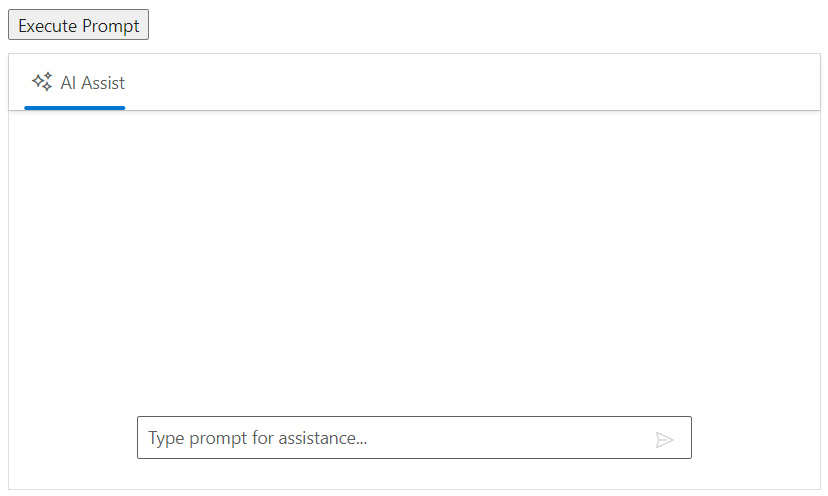
You can use the executePrompt method to execute the prompts dynamically in the AI AssistView. It accepts prompts as string values, which triggers the promptRequest event and performs the callback actions.
@using Syncfusion.EJ2.InteractiveChat

<div class="aiassist-container" style="height: 350px; width: 650px;">
    <button id="executePrompt" onclick="executePrompt()">Execute Prompt</button>
    @Html.EJS().AIAssistView("aiAssistView").PromptRequest("onPromptRequest").Created("onCreated").Render()
</div>

<script>
    var assistObj;
    var prompts = @Html.Raw(promptsJson);
    function onCreated() {
        assistObj = this;
    }
    function onPromptRequest(args) {
        setTimeout(function () {
            var defaultResponse = 'For real-time prompt processing, connect the AI AssistView control to your preferred AI service, such as OpenAI or Azure Cognitive Services. Ensure you obtain the necessary API credentials to authenticate and enable seamless integration.';
            assistObj.addPromptResponse(defaultResponse);
        }, 2000);
    }
    function executePrompt() {
        assistObj.executePrompt('What is the current temperature?');
    }
</script>

<style>
    #executePrompt {
        margin-bottom: 10px;
    }
</style>
public ActionResult ExecutePrompt()
{
return View();
}