How can I help you?
Resizable Editor in the ASP.NET CORE Rich Text Editor Control
2 May 20253 minutes to read
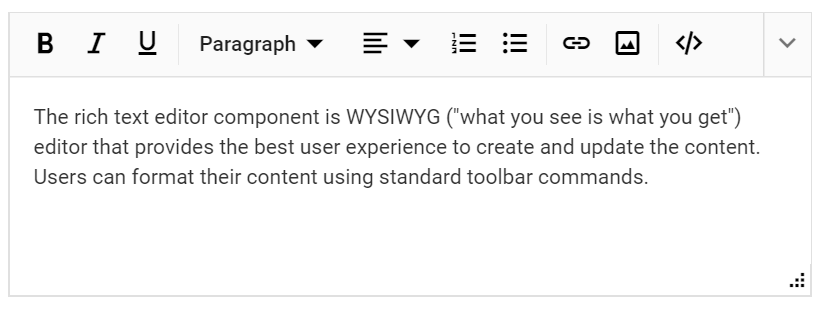
The resizable editor feature allows dynamic resizing of the editor. Enable or disable this feature using the enableResize property in the Rich Text Editor. When enableResize is set to true, a grip appears at the bottom right corner for diagonal resizing.
The following sample demonstrates the resizable feature.
<ejs-richtexteditor id="resizable"  enableResize="true" >
    <e-content-template>
<p>The Rich Text Editor component is WYSIWYG ('what you see is what you get') editor that provides the best user experience to create and update the content.
                    Users can format their content using standard toolbar commands.</p>
    </e-content-template>
</ejs-richtexteditor>
public class HomeController : Controller
{
public ActionResult Index()
{
return View();
}
}
Setting Editor Resize Limits
To restrict the resizable area of the Rich Text Editor, set the min-width, max-width, min-height, and max-height CSS properties for the component’s wrapper element.
By default, the control resizes up to the current viewport size. Apply these styles using the e-richtexteditor CSS class in the component’s wrapper.
.e-richtexteditor {
  max-width: 880px;
  min-width: 250px;
  min-height: 250px;
  max-height: 400px;
}<ejs-richtexteditor id="resizable" enableResize="true" value="@ViewBag.value">
</ejs-richtexteditor>
<style>
.e-richtexteditor {
min-width: 200px;
max-width: 800px;
min-height: 100px;
max-height: 300px;
}
</style>public class HomeController : Controller
{
public ActionResult Index()
{
ViewBag.value = @"<p>The Rich Text Editor component is WYSIWYG ('what you see is what you get') editor that provides the best user experience to create and update the content. Users can format their content using standard toolbar commands.</p>";
return View();
}
}