Downloading Syncfusion ASP.NET Core Web Installer
14 Sep 20265 minutes to read
The Syncfusion® ASP.NET Core - EJ2 Installer can be downloaded from the Syncfusion® website. You can either download the licensed installer or try our trial installer depending on your license. This guide covers the following options:
- Trial Installer
- Licensed Installer
Prerequisites
- A registered Syncfusion® account. To create one, see the Syncfusion downloads page.
- A Windows machine with administrator privileges (required when running the installer).
- A valid Syncfusion® account, or a Syncfusion® unlock key for the target version.
Download the Trial Version
The 30-day trial can be downloaded in two ways:
- Download Free Trial Setup
- Start Trials if using components through NuGet.org
Download Free Trial Setup
-
Evaluate the 30-day free trial by visiting the Download Free Trial page and selecting the ASP.NET Core platform.
-
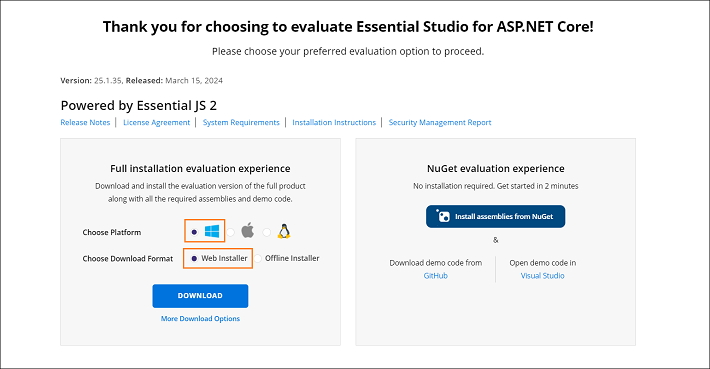
After completing the required form or logging in with your registered Syncfusion® account, download the ASP.NET Core EJ2 trial installer from the confirmation page (see the screenshot below).
-
With a trial license, only the latest version’s trial installer can be downloaded.
-
After downloading, the Syncfusion® ASP.NET Core - EJ2 trial installer can be unlocked using either the trial unlock key or the Syncfusion® registered login credentials. For more information on generating an unlock key, see this article.
-
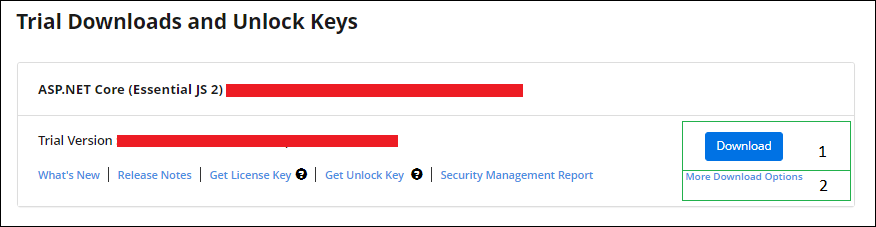
Before the trial expires, you can download the trial installer at any time from your registered account’s Trials & Downloads page (see the screenshot below).
-
Click Download (element 1 in the screenshot above) to get the Syncfusion® Essential Studio® ASP.NET Core - EJ2 web installer.
Start Trials if Using Components Through NuGet.org
If you have already obtained Syncfusion® components through NuGet.org, initiate an evaluation as follows:
-
Start your 30-day free trial for ASP.NET Core - EJ2 from the Start Trial page in your account.

-
To access this page, you must sign up or log in with your Syncfusion® account.
-
Begin your trial by selecting the ASP.NET Core - EJ2 product.
If you’ve already used the trial products and they haven’t expired, you won’t be able to start the trial for the same product again.
-
After you’ve started the trial, go to the Trials & Downloads page to get the latest version trial installer. You can generate the unlock key and license key at any time before the trial period expires (see the screenshot below).
-
You can find your current active trial products on the Trials & Downloads page.
Download the License Version
-
Syncfusion® licensed products are available on the License & Downloads page under your registered Syncfusion® account.
-
You can view all the licenses (both active and expired) associated with your account.
-
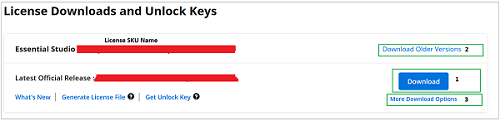
Click Download (element 1 in the screenshot below) to download the respective product’s installer.
-
The most recent version of the installer is downloaded from this page.
-
To download older version installers, go to Downloads - Older Versions (element 2 in the screenshot below).
-
Download other platform / add-on installers by selecting More Download Options (element 3 in the screenshot below).
-
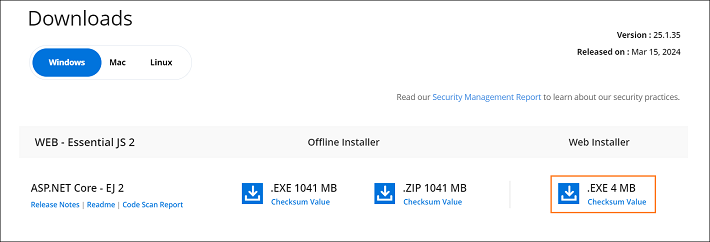
Before the license expires, you can download the installer at any time from your registered account’s License & Downloads page (see the screenshot below).
-
After downloading, the Syncfusion® ASP.NET Core EJ2 web installer can be unlocked using your Syncfusion® registered login credentials.
For Syncfusion® trial and licensed products, there is no separate web installer. Based on your account license, the Syncfusion® trial or licensed product will be installed via the web installer.
For step-by-step installation guidelines, refer to the Web installer documentation.
Troubleshooting
| Issue | Possible Cause | Suggested Fix |
|---|---|---|
| The web installer is not listed under Downloads. | The signed-in account does not own a license, or the product filter is set to a different platform. | Confirm the account owns an ASP.NET Core license, then filter the list to the ASP.NET Core / Web platform. |
| Installer fails with “Another installation is in progress.” | Another MSI installation is currently running. | End the running msiexec.exe process in Task Manager, or wait for the other install to finish. See Common Installation Errors. |
| “Controlled folder access seems to be enabled” alert. | Windows Controlled folder access is blocking the install/samples location. | See the Unable to install due to controlled folder access section. |
| License warning appears after install. | The unlock key was not applied, or the trial expired. | Re-run the installer and sign in with the licensed account. See Common Installation Errors. |