Templates in ASP.NET CORE DropdownTree
26 Aug 202624 minutes to read
The DropdownTree provides support to customize each list item, header, and footer elements. It uses the Essential® JS 2 Template engine to compile and render the elements properly.
Item template
The content of each list item within the DropdownTree can be customized with the help of itemTemplate property.
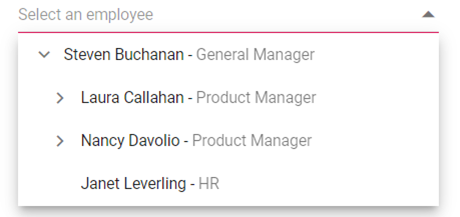
In the following sample, the DropdownTree list items are customized with employee information such as name and job using the itemTemplate property.
The template expression should be provided inside the ${…} interpolation syntax.
@{
    var itemTemplate = "<div><span class='ename'> ${name} - </span><span class='ejob'>${job}</span></div>";
}
<div id='container' style="margin:0 auto; width:250px;">
    <ejs-dropdowntree id="treedata" popupHeight="270px" placeholder="Select an employee" cssClass="custom" itemTemplate="@itemTemplate">
        <e-dropdowntree-fields dataSource="ViewBag.localData" expanded="expanded" value="id" parentValue="pid" hasChildren="hasChild" text="name"></e-dropdowntree-fields>
    </ejs-dropdowntree>
</div>
<style>
    .custom .ejob {
        opacity: .60;
    }
</style>
using System;
using System.Collections.Generic;
using System.Linq;
using System.Web;
using System.Web.Mvc;
using itemtemplates.Models;
using Syncfusion.EJ2.DropDowns;
namespace itemtemplates.Controllers
{
public class HomeController : Controller
{
DropDownTreeFields templateData = new DropDownTreeFields();
public ActionResult Index()
{
DropDownTreeTemplate dropdownTreeTemplate = new DropDownTreeTemplate();
templateData.DataSource = dropdownTreeTemplate.Template();
templateData.Value = "id";
templateData.Text = "name";
templateData.Expanded = "expanded";
templateData.HasChildren = "hasChild";
templateData.ParentValue = "pid";
ViewBag.templateData = templateData;
ViewBag.localData = templateData.DataSource;
return View();
}
}
}using System;
using System.Collections.Generic;
using System.Linq;
using System.Web;
namespace itemtemplates.Models
{
public class DropDownTreeTemplate
{
public List<Object> Template()
{
List<object> localData = new List<object>();
localData.Add(new { id = 1, name = "Steven Buchanan", hasChild = true, expanded = true, job = "General Manager" });
localData.Add(new { id = 2, pid = 1, name = "Laura Callahan", job = "Product Manager", hasChild = true });
localData.Add(new { id = 3, pid = 2, name = "Andrew Fuller", job = "Team Lead", hasChild = true });
localData.Add(new { id = 4, pid = 3, name = "Anne Dodsworth", job = "Developer" });
localData.Add(new { id = 5, pid = 3, name = "Lilly", job = "Developer", status = "online" });
localData.Add(new { id = 6, pid = 1, name = "Nancy Davolio", job = "Product Manager", hasChild = true });
localData.Add(new { id = 7, pid = 6, name = "Michael Suyama", job = "Team Lead", hasChild = true });
localData.Add(new { id = 8, pid = 7, name = "Robert King", job = "Developer" });
localData.Add(new { id = 9, pid = 7, name = "Mary", job = "Developer" });
localData.Add(new { id = 10, pid = 1, name = "Janet Leverling", job = "HR" });
return localData;
}
}
}
Value template
The currently selected value that is displayed by default on the DropdownTree input element can be customized using the valueTemplate property.
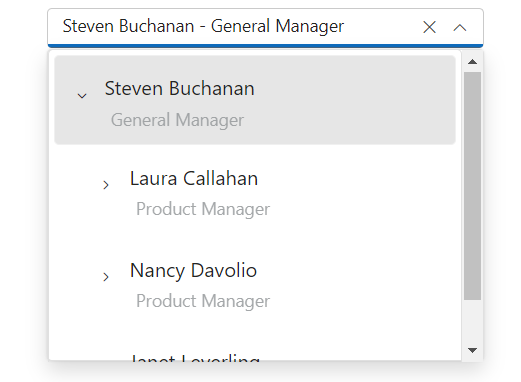
In the following sample, the selected value is displayed as a combined text of both Name and Job in the DropdownTree input, which is separated by a hyphen.
The template expression should be provided inside the ${…} interpolation syntax.
@{
    var valueTemplate = "<div><span class='ename'> ${name} - </span><span class='ejob'>${job}</span></div>";
    var itemTemplate = "<div><span class='ename'> ${name} - </span><span class='ejob'>${job}</span></div>";
}
<div id='container' style="margin:0 auto; width:250px;">
    <ejs-dropdowntree id="treedata" popupHeight="270px" placeholder="Select an employee" cssClass="custom" itemTemplate="@itemTemplate" valueTemplate="@valueTemplate">
        <e-dropdowntree-fields dataSource="ViewBag.localData" expanded="expanded" value="id" parentValue="pid" hasChildren="hasChild" text="name"></e-dropdowntree-fields>
    </ejs-dropdowntree>
</div>
<style>
    .custom .ejob {
        opacity: .60;
    }
</style>
using System;
using System.Collections.Generic;
using System.Linq;
using System.Web;
using System.Web.Mvc;
using itemtemplates.Models;
using Syncfusion.EJ2.DropDowns;
namespace itemtemplates.Controllers
{
public class HomeController : Controller
{
DropDownTreeFields templateData = new DropDownTreeFields();
public ActionResult Index()
{
DropDownTreeTemplate dropdownTreeTemplate = new DropDownTreeTemplate();
templateData.DataSource = dropdownTreeTemplate.Template();
templateData.Value = "id";
templateData.Text = "name";
templateData.Expanded = "expanded";
templateData.HasChildren = "hasChild";
templateData.ParentValue = "pid";
ViewBag.templateData = templateData;
ViewBag.localData = templateData.DataSource;
return View();
}
}
}using System;
using System.Collections.Generic;
using System.Linq;
using System.Web;
namespace itemtemplates.Models
{
public class DropDownTreeTemplate
{
public List<Object> Template()
{
List<object> localData = new List<object>();
localData.Add(new { id = 1, name = "Steven Buchanan", hasChild = true, expanded = true, job = "General Manager" });
localData.Add(new { id = 2, pid = 1, name = "Laura Callahan", job = "Product Manager", hasChild = true });
localData.Add(new { id = 3, pid = 2, name = "Andrew Fuller", job = "Team Lead", hasChild = true });
localData.Add(new { id = 4, pid = 3, name = "Anne Dodsworth", job = "Developer" });
localData.Add(new { id = 5, pid = 3, name = "Lilly", job = "Developer", status = "online" });
localData.Add(new { id = 6, pid = 1, name = "Nancy Davolio", job = "Product Manager", hasChild = true });
localData.Add(new { id = 7, pid = 6, name = "Michael Suyama", job = "Team Lead", hasChild = true });
localData.Add(new { id = 8, pid = 7, name = "Robert King", job = "Developer" });
localData.Add(new { id = 9, pid = 7, name = "Mary", job = "Developer" });
localData.Add(new { id = 10, pid = 1, name = "Janet Leverling", job = "HR" });
return localData;
}
}
}
Header template
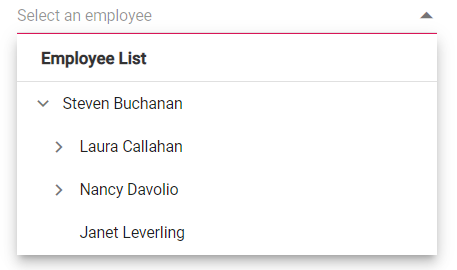
The header element is shown statically at the top of the popup list items within the DropdownTree. A custom element can be placed as the header element using the headerTemplate property.
@{
    var headerTemplate = "<div class='head'> Employee List </div>";
}
<div id='container' style="margin:0 auto; width:250px;">
    <ejs-dropdowntree id="treedata" popupHeight="250px" placeholder="Select an employee" cssClass="custom" headerTemplate="@headerTemplate">
        <e-dropdowntree-fields dataSource="ViewBag.localData" expanded="expanded" value="id" parentValue="pid" hasChildren="hasChild" text="name"></e-dropdowntree-fields>
    </ejs-dropdowntree>
</div>
<style>
    .custom .head {
        height: 40px;
        line-height: 40px;
        font-size: 14px;
        margin: 0 auto;
        width: 100%;
        padding: 0 20px;
        font-weight: bold;
        border-bottom: 1px solid #e0e0e0;
    }
</style>
using System;
using System.Collections.Generic;
using System.Linq;
using System.Web;
using System.Web.Mvc;
using itemtemplates.Models;
using Syncfusion.EJ2.DropDowns;
namespace itemtemplates.Controllers
{
public class HomeController : Controller
{
DropDownTreeFields templateData = new DropDownTreeFields();
public ActionResult Index()
{
DropDownTreeTemplate dropdownTreeTemplate = new DropDownTreeTemplate();
templateData.DataSource = dropdownTreeTemplate.Template();
templateData.Value = "id";
templateData.Text = "name";
templateData.Expanded = "expanded";
templateData.HasChildren = "hasChild";
templateData.ParentValue = "pid";
ViewBag.templateData = templateData;
ViewBag.localData = templateData.DataSource;
return View();
}
}
}using System;
using System.Collections.Generic;
using System.Linq;
using System.Web;
namespace itemtemplates.Models
{
public class DropDownTreeTemplate
{
public List<Object> Template()
{
List<object> localData = new List<object>();
localData.Add(new { id = 1, name = "Steven Buchanan", hasChild = true, expanded = true, job = "General Manager" });
localData.Add(new { id = 2, pid = 1, name = "Laura Callahan", job = "Product Manager", hasChild = true });
localData.Add(new { id = 3, pid = 2, name = "Andrew Fuller", job = "Team Lead", hasChild = true });
localData.Add(new { id = 4, pid = 3, name = "Anne Dodsworth", job = "Developer" });
localData.Add(new { id = 5, pid = 3, name = "Lilly", job = "Developer", status = "online" });
localData.Add(new { id = 6, pid = 1, name = "Nancy Davolio", job = "Product Manager", hasChild = true });
localData.Add(new { id = 7, pid = 6, name = "Michael Suyama", job = "Team Lead", hasChild = true });
localData.Add(new { id = 8, pid = 7, name = "Robert King", job = "Developer" });
localData.Add(new { id = 9, pid = 7, name = "Mary", job = "Developer" });
localData.Add(new { id = 10, pid = 1, name = "Janet Leverling", job = "HR" });
return localData;
}
}
}
Footer template
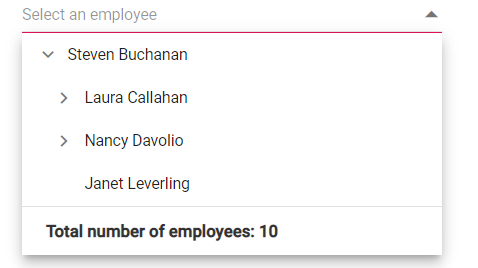
The DropdownTree has options to show a footer element at the bottom of the list items in the popup list. Here, you can place any custom element as a footer element using the footerTemplate property.
@{
    var footerTemplate = "<span class='foot'> Total number of employees: 10</span>";
}
<div id='container' style="margin:0 auto; width:250px;">
    <ejs-dropdowntree id="treedata" popupHeight="250px" placeholder="Select an employee" cssClass="custom" footerTemplate="@footerTemplate">
        <e-dropdowntree-fields dataSource="ViewBag.localData" expanded="expanded" value="id" parentValue="pid" hasChildren="hasChild" text="name"></e-dropdowntree-fields>
    </ejs-dropdowntree>
</div>
<style>
    .custom .foot {
        height: 40px;
        line-height: 40px;
        font-size: 14px;
        margin: 0 auto;
        width: 100%;
        padding: 0 20px;
        font-weight: bold;
    }
    .custom .e-ddt-footer {
        border-top: 1px solid #e0e0e0;
    }
</style>
using System;
using System.Collections.Generic;
using System.Linq;
using System.Web;
using System.Web.Mvc;
using itemtemplates.Models;
using Syncfusion.EJ2.DropDowns;
namespace itemtemplates.Controllers
{
public class HomeController : Controller
{
DropDownTreeFields templateData = new DropDownTreeFields();
public ActionResult Index()
{
DropDownTreeTemplate dropdownTreeTemplate = new DropDownTreeTemplate();
templateData.DataSource = dropdownTreeTemplate.Template();
templateData.Value = "id";
templateData.Text = "name";
templateData.Expanded = "expanded";
templateData.HasChildren = "hasChild";
templateData.ParentValue = "pid";
ViewBag.templateData = templateData;
ViewBag.localData = templateData.DataSource;
return View();
}
}
}using System;
using System.Collections.Generic;
using System.Linq;
using System.Web;
namespace itemtemplates.Models
{
public class DropDownTreeTemplate
{
public List<Object> Template()
{
List<object> localData = new List<object>();
localData.Add(new { id = 1, name = "Steven Buchanan", hasChild = true, expanded = true, job = "General Manager" });
localData.Add(new { id = 2, pid = 1, name = "Laura Callahan", job = "Product Manager", hasChild = true });
localData.Add(new { id = 3, pid = 2, name = "Andrew Fuller", job = "Team Lead", hasChild = true });
localData.Add(new { id = 4, pid = 3, name = "Anne Dodsworth", job = "Developer" });
localData.Add(new { id = 5, pid = 3, name = "Lilly", job = "Developer", status = "online" });
localData.Add(new { id = 6, pid = 1, name = "Nancy Davolio", job = "Product Manager", hasChild = true });
localData.Add(new { id = 7, pid = 6, name = "Michael Suyama", job = "Team Lead", hasChild = true });
localData.Add(new { id = 8, pid = 7, name = "Robert King", job = "Developer" });
localData.Add(new { id = 9, pid = 7, name = "Mary", job = "Developer" });
localData.Add(new { id = 10, pid = 1, name = "Janet Leverling", job = "HR" });
return localData;
}
}
}
No records template
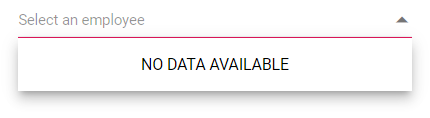
The DropdownTree supports displaying custom design in the popup list content using the noRecordsTemplate property when no matches are found during search.
@{
    var nodataTemplate = "<span class='norecord'> NO DATA AVAILABLE</span>";
}
<div id='container' style="margin:0 auto; width:250px;">
    <ejs-dropdowntree id="treedata" popupHeight="250px" placeholder="Select an employee" cssClass="custom" noRecordsTemplate="@nodataTemplate">
        <e-dropdowntree-fields dataSource="ViewBag.localData" expanded="expanded" value="id" parentValue="pid" hasChildren="hasChild" text="name"></e-dropdowntree-fields>
    </ejs-dropdowntree>
</div>
<style>
    .custom .foot {
        height: 40px;
        line-height: 40px;
        font-size: 14px;
        margin: 0 auto;
        width: 100%;
        padding: 0 20px;
        font-weight: bold;
    }
    .custom .e-ddt-footer {
        border-top: 1px solid #e0e0e0;
    }
</style>
using System;
using System.Collections.Generic;
using System.Linq;
using System.Web;
using System.Web.Mvc;
using itemtemplates.Models;
using Syncfusion.EJ2.DropDowns;
namespace itemtemplates.Controllers
{
public class HomeController : Controller
{
DropDownTreeFields templateData = new DropDownTreeFields();
public ActionResult Index()
{
DropDownTreeTemplate dropdownTreeTemplate = new DropDownTreeTemplate();
templateData.DataSource = dropdownTreeTemplate.Template();
templateData.Value = "id";
templateData.Text = "name";
templateData.Expanded = "expanded";
templateData.HasChildren = "hasChild";
templateData.ParentValue = "pid";
ViewBag.templateData = templateData;
ViewBag.localData = templateData.DataSource;
return View();
}
}
}using System;
using System.Collections.Generic;
using System.Linq;
using System.Web;
namespace itemtemplates.Models
{
public class DropDownTreeTemplate
{
public List<Object> Template()
{
List<object> localData = new List<object>();
return localData;
}
}
}
Action failure template
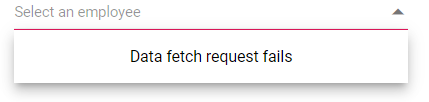
The DropdownTree provides an option to custom design the popup list content using actionFailureTemplate property, when the data fetch request fails at the remote server.
@{
    var actionFailureTemplate = "<span class='action-failure'> Data fetch request fails</span>";
}
<div id='container' style="margin:0 auto; width:250px;">
    <ejs-dropdowntree id="tree" popupHeight="200px" placeholder="Select a Name" actionFailureTemplate="@actionFailureTemplate">
        <e-dropdowntree-fields child="ViewBag.child" query="new ej.data.Query().from('Employees').select('EmployeeID,FirstName,Title').take(5)" value="EmployeeID" text="FirstName" hasChildren="EmployeeID">
            <e-data-manager url="https://services.odata.org/V4/Northwind/Northwind.svs" adaptor="ODataV4Adaptor" crossDomain="true"></e-data-manager>
        </e-dropdowntree-fields>
    </ejs-dropdowntree>
</div>
using System;
using System.Collections.Generic;
using System.Linq;
using System.Web;
using System.Web.Mvc;
using itemtemplates.Models;
using Syncfusion.EJ2.DropDowns;
using Syncfusion.EJ2;
namespace itemtemplates.Controllers
{
public class HomeController : Controller
{
DropDownTreeFields parentData = new DropDownTreeFields();
DropDownTreeFields childData = new DropDownTreeFields();
public ActionResult Index()
{
object data = new Syncfusion.EJ2.DataManager
{
Url = "https://services.odata.org/V4/Northwind/Northwind.svs",
Adaptor = "ODataV4Adaptor",
CrossDomain = true
};
parentData.Query = "new ej.data.Query().from('Employees').select('EmployeeID,FirstName,Title').take(5)";
parentData.Value = "EmployeeID";
parentData.Text = "FirstName";
parentData.HasChildren = "EmployeeID";
parentData.Child = childData;
parentData.DataSource = data;
childData.Query = "new ej.data.Query().from('Orders').select('OrderID,EmployeeID,ShipName').take(5)";
childData.Value = "OrderID";
childData.Text = "ShipName";
childData.ParentValue = "EmployeeID";
childData.DataSource = data;
ViewBag.remoteFields = parentData;
DropDownTreeFields childDatas = new DropDownTreeFields();
childDatas.Query = "new ej.data.Query().from('Orders').select('OrderID,EmployeeID,ShipName').take(5)";
childDatas.Value = "OrderID";
childDatas.Text = "ShipName";
childDatas.ParentValue = "EmployeeID";
childDatas.DataSource = new DataManager
{
Url = "https://services.odata.org/V4/Northwind/Northwind.svc",
Adaptor = "ODataV4Adaptor",
CrossDomain = true
};
ViewBag.child = childDatas;
return View();
}
}
}using System;
using System.Collections.Generic;
using System.Linq;
using System.Web;
namespace itemtemplates.Models
{
public class DropDownTreeTemplate
{
public List<Object> Template()
{
List<object> localData = new List<object>();
localData.Add(new { id = 1, name = "Steven Buchanan", hasChild = true, expanded = true, job = "General Manager" });
localData.Add(new { id = 2, pid = 1, name = "Laura Callahan", job = "Product Manager", hasChild = true });
localData.Add(new { id = 3, pid = 2, name = "Andrew Fuller", job = "Team Lead", hasChild = true });
localData.Add(new { id = 4, pid = 3, name = "Anne Dodsworth", job = "Developer" });
localData.Add(new { id = 5, pid = 3, name = "Lilly", job = "Developer", status = "online" });
localData.Add(new { id = 6, pid = 1, name = "Nancy Davolio", job = "Product Manager", hasChild = true });
localData.Add(new { id = 7, pid = 6, name = "Michael Suyama", job = "Team Lead", hasChild = true });
localData.Add(new { id = 8, pid = 7, name = "Robert King", job = "Developer" });
localData.Add(new { id = 9, pid = 7, name = "Mary", job = "Developer" });
localData.Add(new { id = 10, pid = 1, name = "Janet Leverling", job = "HR" });
return localData;
}
}
}
Custom template to show selected items in input
In DropdownTree, while selecting more than one item via checkbox or multi selection support, all the selected items will be displayed in the input. Instead of displaying all the selected item text, the custom template can be displayed by setting the mode property as Custom and customTemplate property.
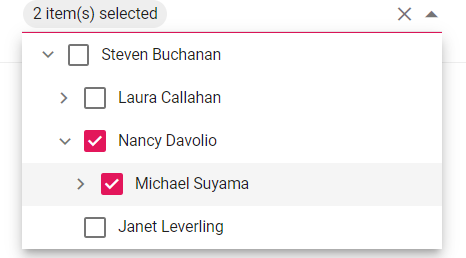
When the mode property is set to Custom, the DropdownTree displays the default template value (${value.length} item(s) selected) like 1 item(s) selected or 2 item(s) selected. The default template can be customized by setting customTemplate property.
In the following sample, the DropdownTree is rendered with default value of the customTemplate property like “1 item(s) selected or 2 item(s) selected”.
@{
    var customTemplate = "${value.length} item(s) selected";
}
<div id='container' style="margin:0 auto; width:250px;">
    <ejs-dropdowntree id="treedata" popupHeight="250px" placeholder="Select items" treeSettings="new Syncfusion.EJ2.DropDowns.DropDownTreeTreeSettings() { AutoCheck = true }" showCheckBox="true" cssClass="custom" mode="Custom" customTemplate="@customTemplate">
        <e-dropdowntree-fields dataSource="ViewBag.localData" expanded="expanded" value="id" parentValue="pid" hasChildren="hasChild" text="name"></e-dropdowntree-fields>
    </ejs-dropdowntree>
</div>
using System;
using System.Collections.Generic;
using System.Linq;
using System.Web;
using System.Web.Mvc;
using itemtemplates.Models;
using Syncfusion.EJ2.DropDowns;
namespace itemtemplates.Controllers
{
public class HomeController : Controller
{
DropDownTreeFields templateData = new DropDownTreeFields();
public ActionResult Index()
{
DropDownTreeTemplate dropdownTreeTemplate = new DropDownTreeTemplate();
templateData.DataSource = dropdownTreeTemplate.Template();
templateData.Value = "id";
templateData.Text = "name";
templateData.Expanded = "expanded";
templateData.HasChildren = "hasChild";
templateData.ParentValue = "pid";
ViewBag.templateData = templateData;
//ASP.NET Core Code Blocks
ViewBag.localData = templateData.DataSource;
return View();
}
}
}using System;
using System.Collections.Generic;
using System.Linq;
using System.Web;
namespace itemtemplates.Models
{
public class DropDownTreeTemplate
{
public List<Object> Template()
{
List<object> localData = new List<object>();
localData.Add(new { id = 1, name = "Steven Buchanan", hasChild = true, expanded = true, job = "General Manager" });
localData.Add(new { id = 2, pid = 1, name = "Laura Callahan", job = "Product Manager", hasChild = true });
localData.Add(new { id = 3, pid = 2, name = "Andrew Fuller", job = "Team Lead", hasChild = true });
localData.Add(new { id = 4, pid = 3, name = "Anne Dodsworth", job = "Developer" });
localData.Add(new { id = 5, pid = 3, name = "Lilly", job = "Developer", status = "online" });
localData.Add(new { id = 6, pid = 1, name = "Nancy Davolio", job = "Product Manager", hasChild = true });
localData.Add(new { id = 7, pid = 6, name = "Michael Suyama", job = "Team Lead", hasChild = true });
localData.Add(new { id = 8, pid = 7, name = "Robert King", job = "Developer" });
localData.Add(new { id = 9, pid = 7, name = "Mary", job = "Developer" });
localData.Add(new { id = 10, pid = 1, name = "Janet Leverling", job = "HR" });
return localData;
}
}
}
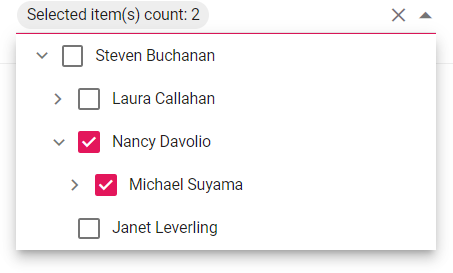
In the following sample, the DropdownTree is rendered with custom value of the customTemplate property like Selected items count: 2.
@{
    var customTemplate = "Selected items count: ${value.length}";
}
<ejs-dropdowntree id="treedata" popupHeight="250px" placeholder="Select items" treeSettings="new Syncfusion.EJ2.DropDowns.DropDownTreeTreeSettings() { AutoCheck = true }" showCheckBox="true" cssClass="custom" mode="Custom" customTemplate="@customTemplate">
    <e-dropdowntree-fields dataSource="ViewBag.localData" expanded="expanded" value="id" parentValue="pid" hasChildren="hasChild" text="name"></e-dropdowntree-fields>
</ejs-dropdowntree>
using System;
using System.Collections.Generic;
using System.Linq;
using System.Web;
using System.Web.Mvc;
using itemtemplates.Models;
using Syncfusion.EJ2.DropDowns;
namespace itemtemplates.Controllers
{
public class HomeController : Controller
{
DropDownTreeFields templateData = new DropDownTreeFields();
public ActionResult Index()
{
//ASP.NET MVC Code Blocks
DropDownTreeTemplate dropdownTreeTemplate = new DropDownTreeTemplate();
templateData.DataSource = dropdownTreeTemplate.Template();
templateData.Value = "id";
templateData.Text = "name";
templateData.Expanded = "expanded";
templateData.HasChildren = "hasChild";
templateData.ParentValue = "pid";
ViewBag.templateData = templateData;
//ASP.NET Core Code Blocks
ViewBag.localData = templateData.DataSource;
return View();
}
}
}using System;
using System.Collections.Generic;
using System.Linq;
using System.Web;
namespace itemtemplates.Models
{
public class DropDownTreeTemplate
{
public List<Object> Template()
{
List<object> localData = new List<object>();
localData.Add(new { id = 1, name = "Steven Buchanan", hasChild = true, expanded = true, job = "General Manager" });
localData.Add(new { id = 2, pid = 1, name = "Laura Callahan", job = "Product Manager", hasChild = true });
localData.Add(new { id = 3, pid = 2, name = "Andrew Fuller", job = "Team Lead", hasChild = true });
localData.Add(new { id = 4, pid = 3, name = "Anne Dodsworth", job = "Developer" });
localData.Add(new { id = 5, pid = 3, name = "Lilly", job = "Developer", status = "online" });
localData.Add(new { id = 6, pid = 1, name = "Nancy Davolio", job = "Product Manager", hasChild = true });
localData.Add(new { id = 7, pid = 6, name = "Michael Suyama", job = "Team Lead", hasChild = true });
localData.Add(new { id = 8, pid = 7, name = "Robert King", job = "Developer" });
localData.Add(new { id = 9, pid = 7, name = "Mary", job = "Developer" });
localData.Add(new { id = 10, pid = 1, name = "Janet Leverling", job = "HR" });
return localData;
}
}
}