Customization in ASP.NET CORE Chips
17 Aug 20267 minutes to read
This section explains the customization of styles, leading icons, avatars, and trailing icons in the Chips control.
Styles
The Chips control has the following predefined styles that can be defined using the cssClass property.
| Class | Description |
|---|---|
| e-primary | Represents a primary Chips. |
| e-success | Represents a positive Chips. |
| e-info | Represents an informative Chips. |
| e-warning | Represents a Chips with caution. |
| e-danger | Represents a negative Chips. |
<ejs-chiplist id="chip-avatar" enableDelete="true">
    <e-chips>
      <e-chip text="Primary" cssClass="e-primary" enabled="true"></e-chip>
      <e-chip text="Success" cssClass="e-success" enabled="true"></e-chip>
      <e-chip text="Info" cssClass="e-info" enabled="true"></e-chip>
      <e-chip text="Warning" cssClass="e-warning" enabled="true"></e-chip>
      <e-chip text="Danger" cssClass="e-danger" enabled="true"></e-chip>
    </e-chips>
</ejs-chiplist>
Leading Icon
You can add and customize the leading icon of Chips using the leadingIconCss property.
<ejs-chiplist id="chip-avatar">
  <e-chips>
    <e-chip text="Andrew" leadingIconCss="andrew" enabled="true"></e-chip>
    <e-chip text="Janet" leadingIconCss="janet" enabled="true"></e-chip>
    <e-chip text="Laura" leadingIconCss="laura" enabled="true"></e-chip>
    <e-chip text="Margaret" leadingIconCss="margaret" enabled="true"></e-chip>
  </e-chips>
</ejs-chiplist>

<style>
  #chip-avatar .andrew {
    background-image: url('https://ej2.syncfusion.com/aspnetcore/css/chips/images/andrew.png')
  }

  #chip-avatar .margaret {
    background-image: url('https://ej2.syncfusion.com/aspnetcore/css/chips/images/margaret.png')
  }

  #chip-avatar .laura {
    background-image: url('https://ej2.syncfusion.com/aspnetcore/css/chips/images/laura.png')
  }

  #chip-avatar .janet {
    background-image: url('https://ej2.syncfusion.com/aspnetcore/css/chips/images/janet.png')
  }
</style>
Avatar
You can add and customize the avatar of Chips using the avatarIconCss property.
<ejs-chiplist id="chip-avatar">
  <e-chips>
    <e-chip text="Andrew" avatarIconCss="andrew" enabled="true"></e-chip>
    <e-chip text="Janet" avatarIconCss="janet" enabled="true"></e-chip>
    <e-chip text="Laura" avatarIconCss="laura" enabled="true"></e-chip>
    <e-chip text="Margaret" avatarIconCss="margaret" enabled="true"></e-chip>
  </e-chips>
</ejs-chiplist>

<style>
  #chip-avatar .andrew {
    background-image: url('https://ej2.syncfusion.com/aspnetcore/css/chips/images/andrew.png')
  }

  #chip-avatar .margaret {
    background-image: url('https://ej2.syncfusion.com/aspnetcore/css/chips/images/margaret.png')
  }

  #chip-avatar .laura {
    background-image: url('https://ej2.syncfusion.com/aspnetcore/css/chips/images/laura.png')
  }

  #chip-avatar .janet {
    background-image: url('https://ej2.syncfusion.com/aspnetcore/css/chips/images/janet.png')
  }
</style>
Avatar Content
You can add and customize the avatar content of Chips using the avatarText property.
<ejs-chiplist id="chip-avatar">
    <e-chips>
      <e-chip text="Andrew" AvatarText="A" enabled="true"></e-chip>
      <e-chip text="Janet" AvatarText="J" enabled="true"></e-chip>
      <e-chip text="Laura" AvatarText="L" enabled="true"></e-chip>
      <e-chip text="Margaret" AvatarText="M" enabled="true"></e-chip>
    </e-chips>
</ejs-chiplist>
Trailing Icon
You can add and customize the trailing icon of Chips using the trailingIconCss property.
<ejs-chiplist id="chip-avatar">
    <e-chips>
      <e-chip text="Andrew" trailingIconCss="e-dlt-btn" enabled="true"></e-chip>
      <e-chip text="Janet" trailingIconCss="e-dlt-btn" enabled="true"></e-chip>
      <e-chip text="Laura" trailingIconCss="e-dlt-btn" enabled="true"></e-chip>
      <e-chip text="Margaret" trailingIconCss="e-dlt-btn" enabled="true"></e-chip>
    </e-chips>
</ejs-chiplist>
Outline Chips
Outline Chips have a border with a transparent background. It can be set using the cssClass property.
<div>
    <ejs-chiplist id="chip1" cssClass="e-outline">
        <e-chips>
            <e-chip text="Chai"></e-chip>
            <e-chip text="Chang"></e-chip>
            <e-chip text="Aniseed Syrup"></e-chip>
            <e-chip text="Ikura"></e-chip>
        </e-chips>
    </ejs-chiplist>
    <ejs-chiplist id="chip2" cssClass="e-outline" enableDelete="true">
        <e-chips>
            <e-chip text="Andrew"></e-chip>
            <e-chip text="Janet"></e-chip>
            <e-chip text="Laura"></e-chip>
            <e-chip text="Margaret"></e-chip>
        </e-chips>
    </ejs-chiplist>
</div>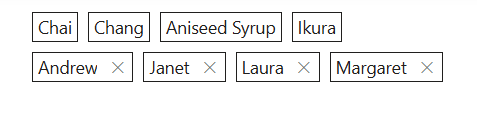
Template
The Template property of the Chips control allows users to fully customize the layout and design of each Chips. By using the Template property, users can include custom HTML elements such as links, icons, or additional content.
<ejs-chiplist id="chip-avatar">
    <e-chips>
      <e-chip  leadingIconCss="trendingIcon"
      template = '<a href="https://timesofindia.indiatimes.com/news" target="_blank" class="anchorElement">#BreakingNews</a><span class="textElement">125k posts</span>' enabled="true"></e-chip>
      <e-chip leadingIconCss="cameraIcon"
      template ='<a href="https://blog.google/products/photos/" target="_blank" class="anchorElement">#PhotoOfTheDay</a>' enabled="true"></e-chip>
      <e-chip  leadingIconCss="trendingIcon"
      template='<a href="https://indianexpress.com/section/technology/" target="_blank" class="anchorElement">#TechNews</a><span class="textElement">107k posts</span>' enabled="true"></e-chip>
    </e-chips>
</ejs-chiplist>

<style>
#chip-avatar .trendingIcon {
	margin: 4px 0 4px 6px;
	width: 16px;
	height: 16px;
	background-image: url('data:image/svg+xml;utf8;base64,PHN2ZyB4bWxucz0iaHR0cDovL3d3dy53My5vcmcvMjAwMC9zdmciIGhlaWdodD0iNDgiIHdpZHRoPSI0OCI+PHBhdGggZD0ibTMyIDEyIDQuNTkgNC41OS05Ljc2IDkuNzUtOC04TDQgMzMuMTcgNi44MyAzNmwxMi0xMiA4IDggMTIuNTgtMTIuNTlMNDQgMjRWMTJ6Ii8+PHBhdGggZD0iTTAgMGg0OHY0OEgweiIgZmlsbD0ibm9uZSIvPjwvc3ZnPg==');
  }

  #chip-avatar .cameraIcon {
	margin: 4px 0 4px 6px;
	width: 16px;
	height: 16px;
	background-image: url('data:image/svg+xml;utf8;base64,PHN2ZyB4bWxucz0iaHR0cDovL3d3dy53My5vcmcvMjAwMC9zdmciIHZpZXdCb3g9IjAgMCAyNCAyNCI+PHBhdGggZD0iTTE5LDYuNUgxNy43MmwtLjMyLTFhMywzLDAsMCwwLTIuODQtMkg5LjQ0QTMsMywwLDAsMCw2LjYsNS41NWwtLjMyLDFINWEzLDMsMCwwLDAtMywzdjhhMywzLDAsMCwwLDMsM0gxOWEzLDMsMCwwLDAsMy0zdi04QTMsMywwLDAsMCwxOSw2LjVabTEsMTFhMSwxLDAsMCwxLTEsMUg1YTEsMSwwLDAsMS0xLTF2LThhMSwxLDAsMCwxLDEtMUg3YTEsMSwwLDAsMCwxLS42OGwuNTQtMS42NGExLDEsMCwwLDEsLjk1LS42OGg1LjEyYTEsMSwwLDAsMSwuOTUuNjhsLjU0LDEuNjRBMSwxLDAsMCwwLDE3LDguNWgyYTEsMSwwLDAsMSwxLDFabS04LTlhNCw0LDAsMSwwLDQsNEE0LDQsMCwwLDAsMTIsOC41Wm0wLDZhMiwyLDAsMSwxLDItMkEyLDIsMCwwLDEsMTIsMTQuNVoiLz48L3N2Zz4=');
  }

  #chip-avatar .anchorElement {
	margin: 0 4px;
	font-weight: 600;
	height: 16px;
	line-height: 16px;
	font-size: 12px;
	color: #0f6cbd;
	text-decoration: none;
  }

  #chip-avatar .textElement {
	font-weight: 400;
	height: 14px;
	line-height: 14px;
	font-size: 10px;
	margin-right: 6px;
  }
</style>