Attachments in ASP.NET CORE AI AssistView control
15 Dec 20257 minutes to read
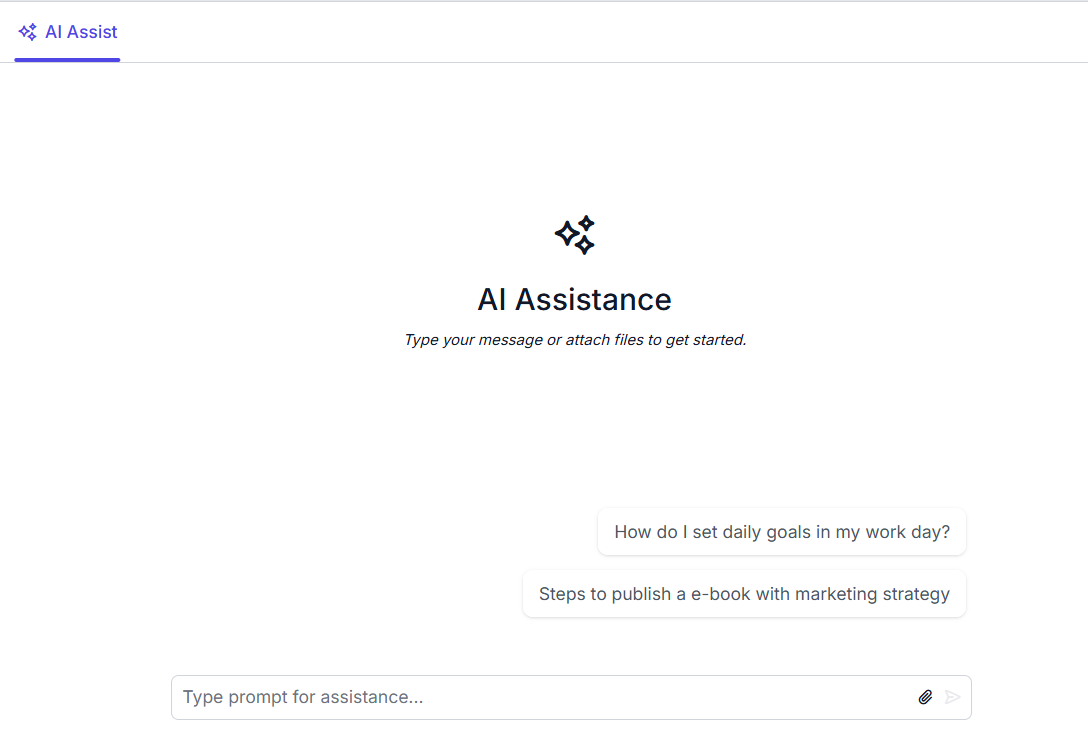
The Attachment support in AI AssistView specifies user to include file attachments along with their prompts in the AI AssistView. This enhances the interaction by allowing users to provide additional context through files. You can enable this feature using the enableAttachments property, and customize its behavior using the e-aiassistview-attachmentsettings tag helper.
Enable attachment
You can enable the attachment by using the enableAttachments property. By default, it is set to false.
@using Syncfusion.EJ2.InteractiveChat

<div class="aiassist-container" style="height: 350px; width: 650px;">
    @Html.EJS().AIAssistView("aiAssistView").EnableAttachments(true).PromptRequest("onPromptRequest").Created("onCreated").Render()
</div>

<script>
    var assistObj;
    function onCreated() {
        assistObj = this;
    }
    function onPromptRequest() {
        setTimeout(function () {
            var defaultResponse = 'For real-time prompt processing, connect the AI AssistView control to your preferred AI service, such as OpenAI or Azure Cognitive Services. Ensure you obtain the necessary API credentials to authenticate and enable seamless integration.';
            assistObj.addPromptResponse(defaultResponse);
        }, 2000);
    }
</script>
public ActionResult EnableAttachments()
{
return View();
}
Configuring attachments
You can use the e-aiassistview-attachmentsettings tag to configure the attachments in the AI AssistView.
Setting saveUrl and removeUrl
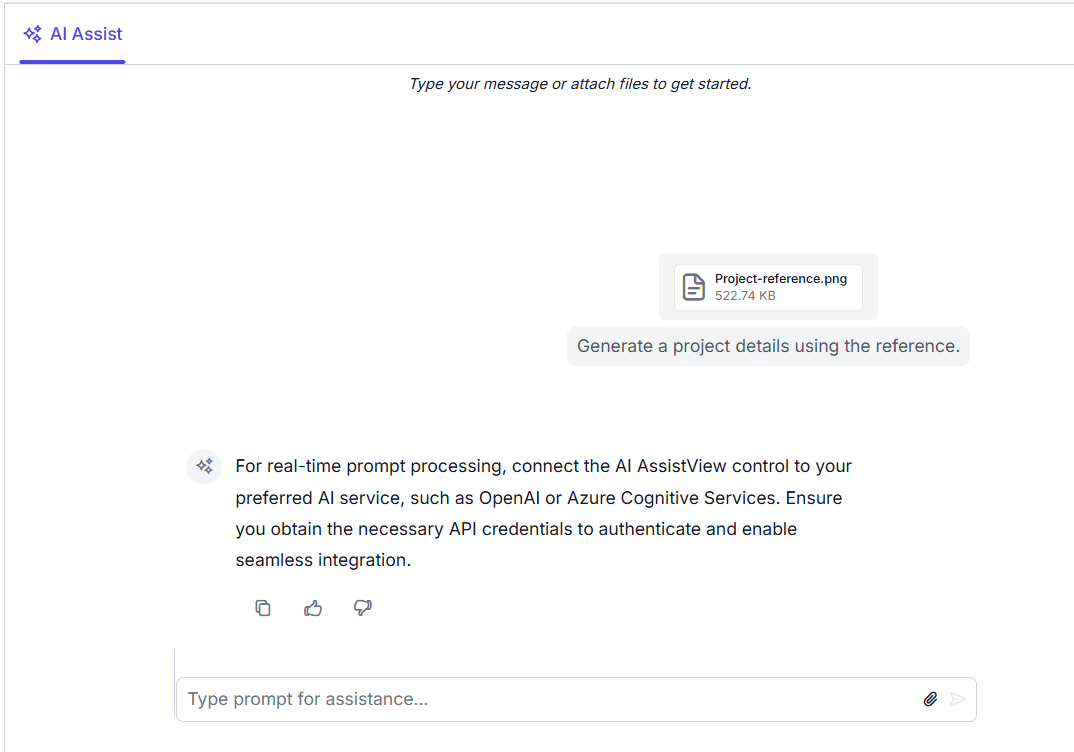
You can use the saveUrl and removeUrl property to add the save and remove the URL for the file uploaded in the AI AssistView.
@using Syncfusion.EJ2.InteractiveChat

<div class="aiassist-container" style="height: 350px; width: 650px;">
    @Html.EJS().AIAssistView("aiAssistView").EnableAttachments(true).PromptRequest("onPromptRequest").Created("onCreated").AttachmentSettings(new AIAssistViewAttachmentSettings() { SaveUrl = @Url.Content("https://services.syncfusion.com/aspnet/production/api/FileUploader/Save"), RemoveUrl = @Url.Content("https://services.syncfusion.com/aspnet/production/api/FileUploader/Remove") }).Render()
</div>

<script>
    var assistObj;
    function onCreated() {
        assistObj = this;
    }
    function onPromptRequest() {
        setTimeout(function () {
            var defaultResponse = 'For real-time prompt processing, connect the AI AssistView control to your preferred AI service, such as OpenAI or Azure Cognitive Services. Ensure you obtain the necessary API credentials to authenticate and enable seamless integration.';
            assistObj.addPromptResponse(defaultResponse);
        }, 2000);
    }
</script>
public ActionResult SaveRemoveUrl()
{
return View();
}
Setting file type
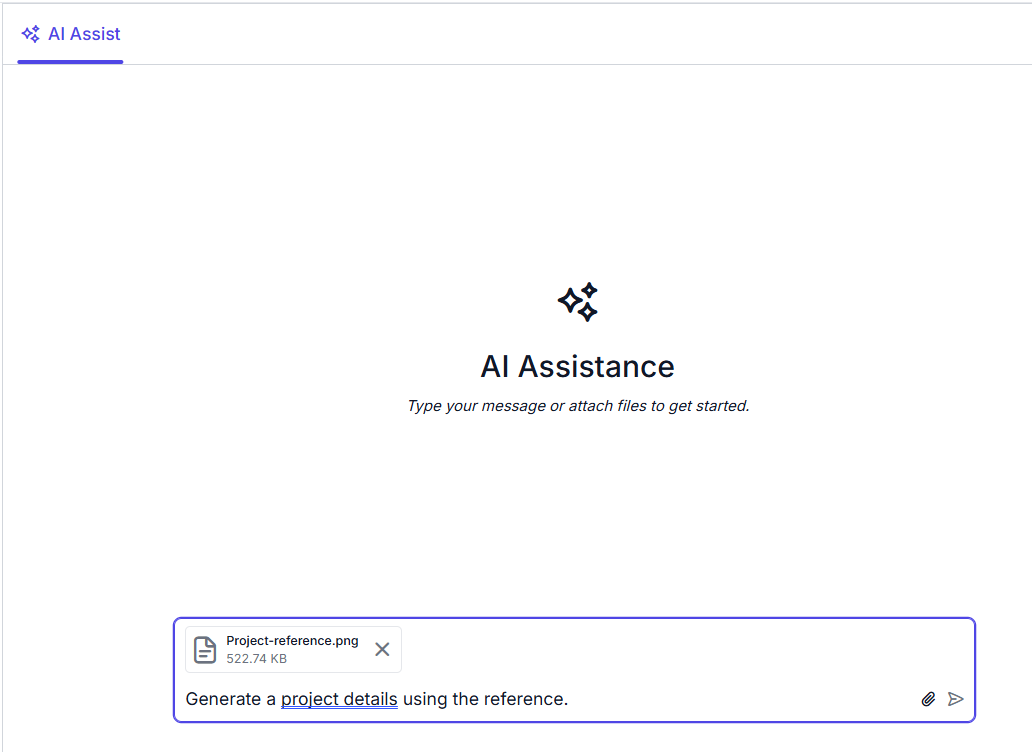
You can use the allowedFileType property to upload the specific file types in the attachment.
@using Syncfusion.EJ2.InteractiveChat

<div class="aiassist-container" style="height: 350px; width: 650px;">
    @Html.EJS().AIAssistView("aiAssistView").EnableAttachments(true).PromptRequest("onPromptRequest").Created("onCreated").AttachmentSettings(new AIAssistViewAttachmentSettings() { SaveUrl = @Url.Content("https://services.syncfusion.com/aspnet/production/api/FileUploader/Save"), RemoveUrl = @Url.Content("https://services.syncfusion.com/aspnet/production/api/FileUploader/Remove"), AllowedFileType(".png") }).Render()
</div>

<script>
    var assistObj;
    function onCreated() {
        assistObj = this;
    }
    function onPromptRequest() {
        setTimeout(function () {
            var defaultResponse = 'For real-time prompt processing, connect the AI AssistView control to your preferred AI service, such as OpenAI or Azure Cognitive Services. Ensure you obtain the necessary API credentials to authenticate and enable seamless integration.';
            assistObj.addPromptResponse(defaultResponse);
        }, 2000);
    }
</script>
public ActionResult FileType()
{
return View();
}
Setting file size
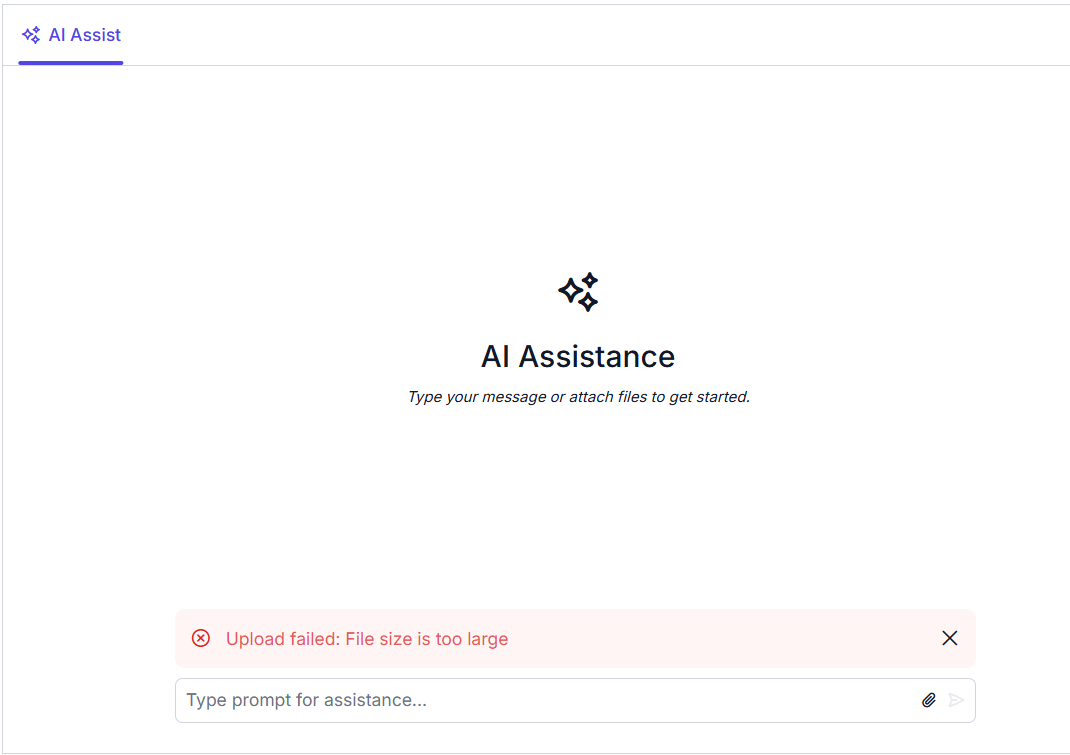
You can use the maxFileSize property to allowed a maximum file size of the upload file in the AI AssistView. By default, it is set to 2000000 bytes.
@using Syncfusion.EJ2.InteractiveChat

<div class="aiassist-container" style="height: 350px; width: 650px;">
    @Html.EJS().AIAssistView("aiAssistView").EnableAttachments(true).PromptRequest("onPromptRequest").Created("onCreated").AttachmentSettings(new AIAssistViewAttachmentSettings() { SaveUrl = @Url.Content("https://services.syncfusion.com/aspnet/production/api/FileUploader/Save"), RemoveUrl = @Url.Content("https://services.syncfusion.com/aspnet/production/api/FileUploader/Remove"), MaxFileSize(1000000) }).Render()
</div>

<script>
    var assistObj;
    function onCreated() {
        assistObj = this;
    }
    function onPromptRequest() {
        setTimeout(function () {
            var defaultResponse = 'For real-time prompt processing, connect the AI AssistView control to your preferred AI service, such as OpenAI or Azure Cognitive Services. Ensure you obtain the necessary API credentials to authenticate and enable seamless integration.';
            assistObj.addPromptResponse(defaultResponse);
        }, 2000);
    }
</script>
public ActionResult FileSize()
{
return View();
}
Setting maximum count
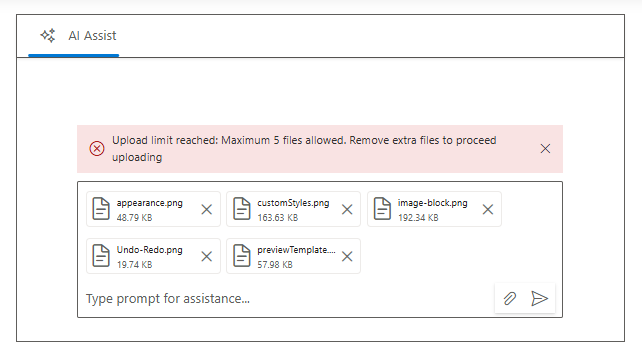
Restrict how many files can be attached at once using maximumCount property. The default value is 10. If users select more than the allowed count, the maximum count reached error will be displayed.
@using Syncfusion.EJ2.InteractiveChat

<div class="aiassist-container" style="height: 350px; width: 650px;">
    @Html.EJS().AIAssistView("aiAssistView").EnableAttachments(true).PromptRequest("onPromptRequest").Created("onCreated").AttachmentSettings(new AIAssistViewAttachmentSettings() { SaveUrl = @Url.Content("https://services.syncfusion.com/aspnet/production/api/FileUploader/Save"), RemoveUrl = @Url.Content("https://services.syncfusion.com/aspnet/production/api/FileUploader/Remove"), MaximumCount = 5 }).Render()
</div>

<script>
    var assistObj;
    function onCreated() {
        assistObj = this;
    }
    function onPromptRequest() {
        setTimeout(function () {
            var defaultResponse = 'For real-time prompt processing, connect the AI AssistView control to your preferred AI service, such as OpenAI or Azure Cognitive Services. Ensure you obtain the necessary API credentials to authenticate and enable seamless integration.';
            assistObj.addPromptResponse(defaultResponse);
        }, 2000);
    }
</script>
public ActionResult MaximumCount()
{
return View();
}