# Views in Angular Schedule component
The Scheduler includes a wide variety of view modes, each with unique configuration options. Available view modes are Day, Week, Work Week, Month, Year, Agenda, Month Agenda, Timeline Day, Timeline Week, Timeline Work Week, Timeline Month, and Timeline Year. By default, the `Week` view is active.
To navigate between different views and dates, navigation options are available in the Scheduler header bar. The active view is highlighted by default. The date range of the current view is displayed at the left corner of the header bar; clicking this opens a calendar popup for easy date selection.
For guidance on customizing individual views in the Angular Scheduler, watch the following video:
{% youtube "https://www.youtube.com/watch?v=FRwDcpJLWOo" %}
> By default, the Scheduler displays calendar views such as day, week, work week, month, and agenda.
## Setting a specific view on the Scheduler
The Scheduler displays the `week` view by default. To change the active view, set the [`currentView`](https://helpej2.syncfusion.com/angular/documentation/api/schedule/#currentview) property to the desired view name. The supported view names are:
* Day
* Week
* WorkWeek
* Month
* Year
* Agenda
* MonthAgenda
* TimelineDay
* TimelineWeek
* TimelineWorkWeek
* TimelineMonth
* TimelineYear
To use these view modes, import and inject the relevant view modules in your application. You can also display only the desired views on the Scheduler. To define and configure specific views, use the [`views`](https://ej2.syncfusion.com/angular/documentation/api/schedule/views/) property.
In the following example, the Scheduler displays four views: Week, Month, TimelineWeek, and TimelineMonth. The necessary view modules are imported and injected correctly to render these views.
{% tabs %}
{% highlight ts tabtitle="app.component.ts" %}
import { NgModule } from '@angular/core'
import { BrowserModule } from '@angular/platform-browser'
import { ScheduleModule } from '@syncfusion/ej2-angular-schedule'
import { ButtonModule } from '@syncfusion/ej2-angular-buttons'
import { DayService, WorkWeekService, AgendaService, MonthAgendaService} from '@syncfusion/ej2-angular-schedule'
import { Component } from '@angular/core';
import { EventSettingsModel, WeekService, TimelineViewsService, MonthService, TimelineMonthService } from '@syncfusion/ej2-angular-schedule';
import { scheduleData } from './datasource';
@Component({
imports: [
ScheduleModule,
ButtonModule
],
providers: [DayService,
WeekService,
WorkWeekService,
TimelineViewsService, MonthService, TimelineMonthService,
AgendaService,
MonthAgendaService],
standalone: true,
selector: 'app-root',
// specifies the template string for the Schedule component
template: ``
})
export class AppComponent {
public selectedDate: Date = new Date(2018, 1, 15);
public eventSettings: EventSettingsModel = { dataSource: scheduleData };
}
{% endhighlight %}
{% highlight ts tabtitle="main.ts" %}
import { bootstrapApplication } from '@angular/platform-browser';
import { AppComponent } from './app.component';
import 'zone.js';
bootstrapApplication(AppComponent).catch((err) => console.error(err));
{% endhighlight %}
{% endtabs %}
To configure the Scheduler with two views that each have different configurations, refer to the following example. Here, the Week view displays dates in `dd-MM-yyyy` format, while the Month view hides weekend days and is set to read-only mode.
{% tabs %}
{% highlight ts tabtitle="app.component.ts" %}
import { NgModule } from '@angular/core'
import { BrowserModule } from '@angular/platform-browser'
import { ScheduleModule } from '@syncfusion/ej2-angular-schedule'
import { ButtonModule } from '@syncfusion/ej2-angular-buttons'
import { DayService, WeekService, WorkWeekService, MonthService, AgendaService, MonthAgendaService} from '@syncfusion/ej2-angular-schedule'
import { Component } from '@angular/core';
import { EventSettingsModel} from '@syncfusion/ej2-angular-schedule';
import { scheduleData } from './datasource';
@Component({
imports: [
ScheduleModule,
ButtonModule
],
providers: [DayService,
WeekService,
WorkWeekService,
MonthService,
AgendaService,
MonthAgendaService],
standalone: true,
selector: 'app-root',
// specifies the template string for the Schedule component
template: ``
})
export class AppComponent {
public selectedDate: Date = new Date(2018, 1, 15);
public showWeekend: Boolean = true;
public isReadOnly: number = 3;
public eventSettings: EventSettingsModel = { dataSource: scheduleData };
}
{% endhighlight %}
{% highlight ts tabtitle="main.ts" %}
import { bootstrapApplication } from '@angular/platform-browser';
import { AppComponent } from './app.component';
import 'zone.js';
bootstrapApplication(AppComponent).catch((err) => console.error(err));
{% endhighlight %}
{% endtabs %}
## View specific configuration
There are scenarios where each view may need to have different configurations. For such cases, you can define the applicable scheduler properties within the [`views`](https://helpej2.syncfusion.com/angular/documentation/api/schedule/views/) Property for each view option as depicted in the following examples. The fields available to be used within each view options are as follows.
| Property | Type | Description | Applicable views |
|-------------|--------|-------------|------------------|
| [`option`](https://helpej2.syncfusion.com/angular/documentation/api/schedule/views/#option) | View | It accepts the Scheduler view name, based on which we can define its related properties. The view names can be `Day`, `Week` and so on. | All views.|
| [`isSelected`](https://helpej2.syncfusion.com/angular/documentation/api/schedule/views/#isselected) | Boolean | It acts similar to the `currentView` property and defines the active view of the Scheduler.| All views. |
| [`dateFormat`](https://helpej2.syncfusion.com/angular/documentation/api/schedule/views/#dateformat) | Date | By default, Scheduler follows the date format as per the default culture assigned to it. When it is defined under specific view, only those assigned views follows this date format. | All views. |
| [`readonly`](https://helpej2.syncfusion.com/angular/documentation/api/schedule/views/#readonly) | Boolean | When set to `true`, prevents the CRUD actions on the respective view under where it is defined. | All views. |
| [`resourceHeaderTemplate`](https://helpej2.syncfusion.com/angular/documentation/api/schedule/views/#resourceheadertemplate) | String | The template option which is used to customize the resource header cells on the Scheduler. It gets applied only on the views, wherever it is defined.| All views. |
| [`dateHeaderTemplate`](https://helpej2.syncfusion.com/angular/documentation/api/schedule/views/#dayheadertemplate) | String | The template option which is used to customize the date header cells and is applied only on the views, wherever it is defined. | All views. |
| [`eventTemplate`](https://helpej2.syncfusion.com/angular/documentation/api/schedule/views/#eventtemplate) | String | The template option to customize the events background. It will get applied to the events of the view to which it is currently being defined. | All views. |
| [`showWeekend`](https://helpej2.syncfusion.com/angular/documentation/api/schedule/views/#showweekend) | Boolean | When set to `false`, it hides the weekend days of a week from the views on which it is defined.| All views. |
| [`group`](https://helpej2.syncfusion.com/angular/documentation/api/schedule/group/) | [GroupModel](https://ej2.syncfusion.com/angular/documentation/api/schedule/groupModel/) | Allows to set different resource grouping options on all available Scheduler view modes. | All views. |
| [`cellTemplate`](https://helpej2.syncfusion.com/angular/documentation/api/schedule/views/#celltemplate) | String | The template option to customize the work cells of the Scheduler and is applied only on the views, on which it is defined. | Applicable on all views except Agenda view. |
| [`workDays`](https://helpej2.syncfusion.com/angular/documentation/api/schedule/views/#workdays) | Number[] | It is used to set the working days on the Scheduler views. | Applicable on all views except Agenda view. |
| [`displayName`](https://helpej2.syncfusion.com/angular/documentation/api/schedule/views/#displayname) | String | When a particular view is customized to display with different intervals, this property allows the user to set different display name for each of the views. | Applicable on all views except Agenda and Month Agenda. |
| [`interval`](https://helpej2.syncfusion.com/angular/documentation/api/schedule/views/#interval) | Number | It allows to customize the default Scheduler views with different set of days, weeks, work weeks or months on the applicable view type. | Applicable on all views except Agenda and Month Agenda. |
| [`startHour`](https://helpej2.syncfusion.com/angular/documentation/api/schedule/views/#starthour) | String | It is used to specify the start hour, from which the Scheduler should be displayed. It accepts the time string in a short skeleton format and also, hides the time beyond the specified start time. | Applicable on Day, Week, Work Week, Timeline Day, Timeline Week and Timeline Work Week views. |
| [`endHour`](https://helpej2.syncfusion.com/angular/documentation/api/schedule/views/#endhour) | String | It is used to specify the end hour, at which the Scheduler ends. It accepts the time string in a short skeleton format. | Applicable on Day, Week, Work Week, Timeline Day, Timeline Week, and Timeline Work Week views. |
| [`timeScale`](https://helpej2.syncfusion.com/angular/documentation/api/schedule/views/#timescale) | [TimeScaleModel](https://ej2.syncfusion.com/angular/documentation/api/schedule/timeScaleModel/) | Allows to set different timescale configuration on each applicable view modes. | Applicable on Day, Week, Work Week, Timeline Day, Timeline Week, and Timeline Work Week views. |
| [`showWeekNumber`](https://helpej2.syncfusion.com/angular/documentation/api/schedule/views/#showweeknumber) | Boolean | When set to `true`, shows the week number on the respective weeks.| Applicable on Day, Week, Work Week, and Month views. |
| [`allowVirtualScrolling`](https://helpej2.syncfusion.com/angular/documentation/api/schedule/views/#allowvirtualscrolling) | Boolean | It is used to enable or disable the virtual scrolling functionality. | Applicable on Agenda and Timeline views. |
| [`headerRows`](https://helpej2.syncfusion.com/angular/documentation/api/schedule/views/#headerrows) | [HeaderRowsModel](https://ej2.syncfusion.com/angular/documentation/api/schedule/headerRowsModel/) | Allows defining the custom header rows on timeline views of the Scheduler to display the year, month, week, date and hour label as an individual row. | Applicable only on all timeline views. |
### Day view
The Day view displays a single day with its appointments. You can extend the Day view to show multiple days by setting the [`interval`](https://helpej2.syncfusion.com/angular/documentation/api/schedule/views/#interval) property within the [`views`](https://helpej2.syncfusion.com/angular/documentation/api/schedule/views/) configuration. Any of the above properties can be applied to the day view as needed.
{% tabs %}
{% highlight ts tabtitle="app.component.ts" %}
import { NgModule } from '@angular/core'
import { BrowserModule } from '@angular/platform-browser'
import { ScheduleModule } from '@syncfusion/ej2-angular-schedule'
import { ButtonModule } from '@syncfusion/ej2-angular-buttons'
import { DayService, WeekService, WorkWeekService, MonthService, AgendaService, MonthAgendaService} from '@syncfusion/ej2-angular-schedule'
import { Component } from '@angular/core';
import { EventSettingsModel, TimeScaleModel } from '@syncfusion/ej2-angular-schedule';
import { scheduleData } from './datasource';
@Component({
imports: [
ScheduleModule,
ButtonModule
],
providers: [DayService,
WeekService,
WorkWeekService,
MonthService,
AgendaService,
MonthAgendaService],
standalone: true,
selector: 'app-root',
// specifies the template string for the Schedule component
template: ``
})
export class AppComponent {
public selectedDate: Date = new Date(2018, 1, 15);
public timeScaleOptions: TimeScaleModel = { enable: true, slotCount: 5 };
public eventSettings: EventSettingsModel = { dataSource: scheduleData };
}
{% endhighlight %}
{% highlight ts tabtitle="main.ts" %}
import { bootstrapApplication } from '@angular/platform-browser';
import { AppComponent } from './app.component';
import 'zone.js';
bootstrapApplication(AppComponent).catch((err) => console.error(err));
{% endhighlight %}
{% endtabs %}
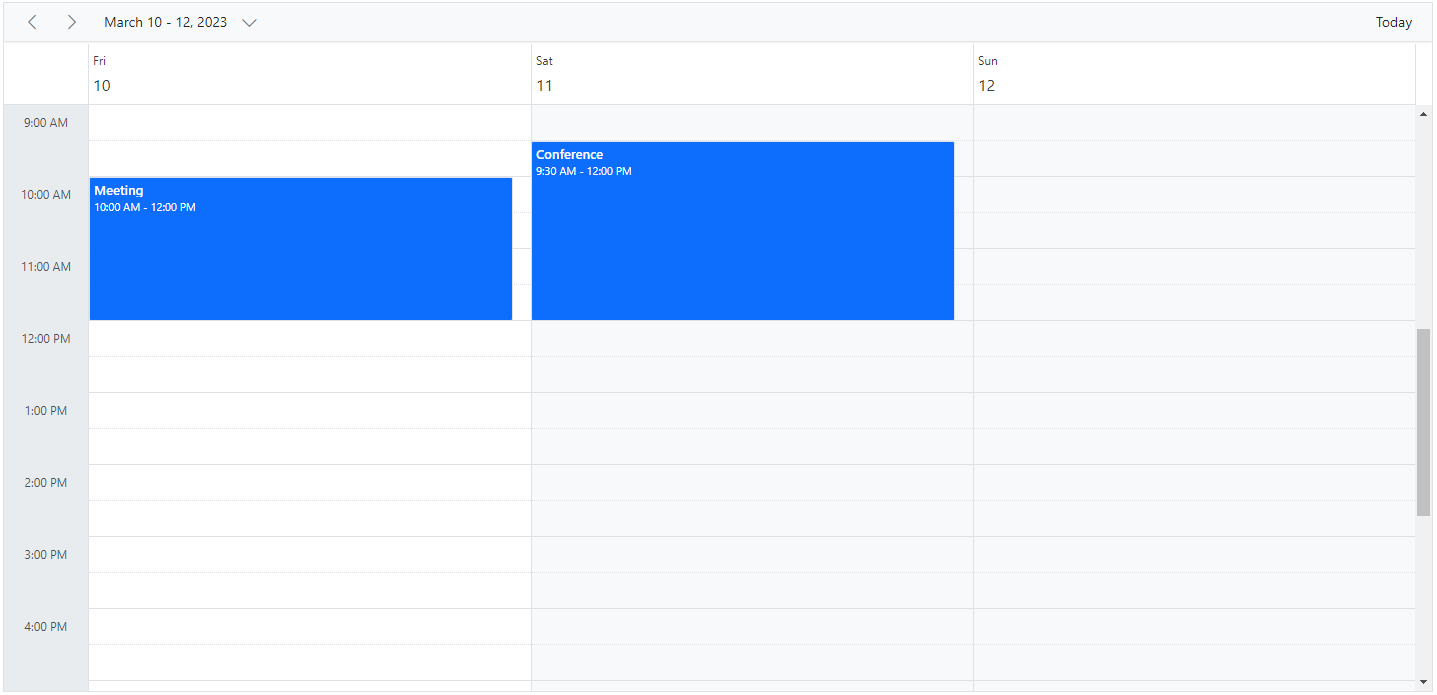
> All properties listed above can be used in the Day view except [`allowVirtualScrolling`](https://helpej2.syncfusion.com/angular/documentation/api/schedule/views/#allowvirtualscrolling) and [`headerRows`](https://helpej2.syncfusion.com/angular/documentation/api/schedule/views/#headerrows).
### Week view
The Week view displays a count of 7 days (from Sunday to Saturday) with all its related appointments. The first day of the week can be changed using the [`firstDayOfWeek`](https://helpej2.syncfusion.com/angular/documentation/api/schedule/views/#firstdayofweek) which accepts the integer (Sunday=0, Monday=1, Tuesday=2 and so on) value. You can navigate to a particular date in day view from the week view by clicking on the appropriate dates on the date header bar.
{% tabs %}
{% highlight ts tabtitle="app.component.ts" %}
import { NgModule } from '@angular/core'
import { BrowserModule } from '@angular/platform-browser'
import { ScheduleModule } from '@syncfusion/ej2-angular-schedule'
import { ButtonModule } from '@syncfusion/ej2-angular-buttons'
import { DayService, WeekService, WorkWeekService, MonthService, AgendaService, MonthAgendaService} from '@syncfusion/ej2-angular-schedule'
import { Component } from '@angular/core';
import { EventSettingsModel, TimeScaleModel } from '@syncfusion/ej2-angular-schedule';
import { scheduleData } from './datasource';
@Component({
imports: [
ScheduleModule,
ButtonModule
],
providers: [DayService,
WeekService,
WorkWeekService,
MonthService,
AgendaService,
MonthAgendaService],
standalone: true,
selector: 'app-root',
// specifies the template string for the Schedule component
template: ``
})
export class AppComponent {
public selectedDate: Date = new Date(2018, 1, 15);
public viewInterval: number= 2;
public showWeekend: boolean = false;
public isSelected: boolean = true;
public timeScaleOptions: TimeScaleModel = { enable: true, slotCount: 5 };
public eventSettings: EventSettingsModel = { dataSource: scheduleData };
}
{% endhighlight %}
{% highlight ts tabtitle="main.ts" %}
import { bootstrapApplication } from '@angular/platform-browser';
import { AppComponent } from './app.component';
import 'zone.js';
bootstrapApplication(AppComponent).catch((err) => console.error(err));
{% endhighlight %}
{% endtabs %}
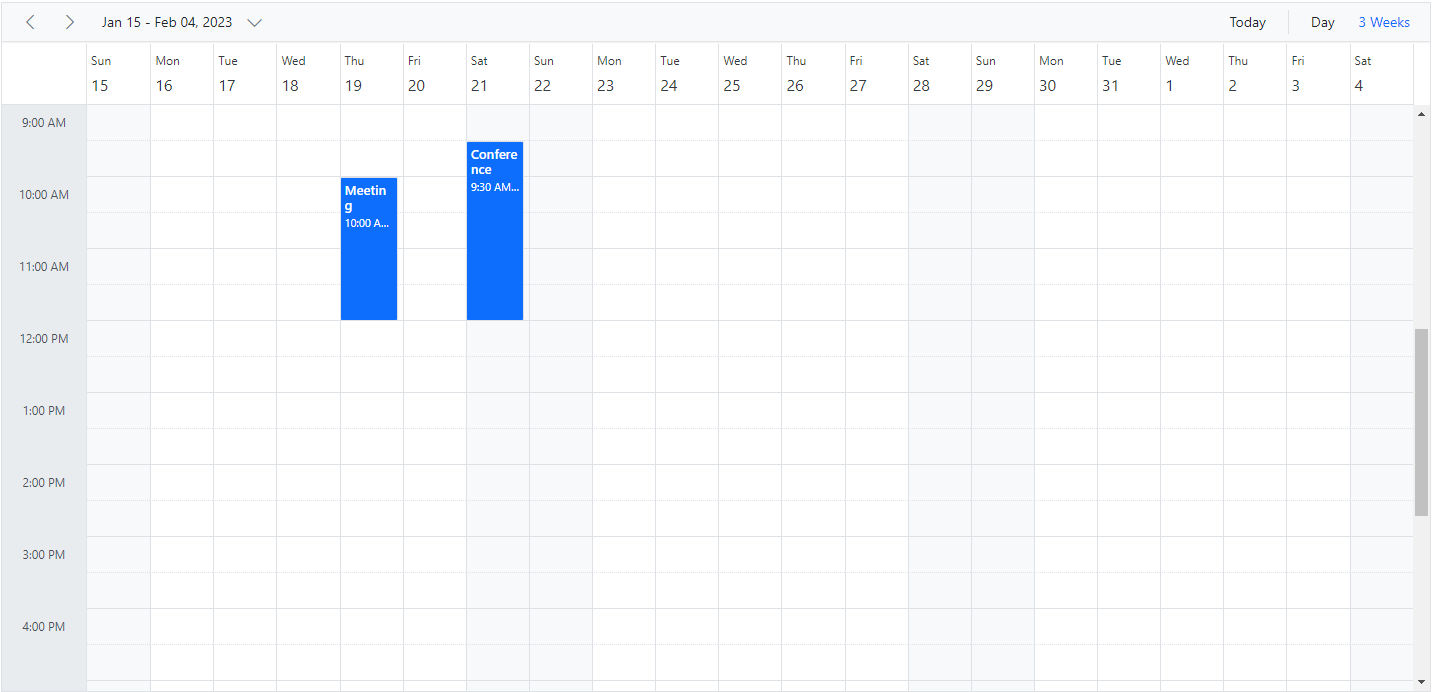
> All the above defined properties in the table can be accessed within Week and Work week views except [`allowVirtualScrolling`](https://helpej2.syncfusion.com/angular/documentation/api/schedule/views/#allowvirtualscrolling) and [`headerRows`](https://helpej2.syncfusion.com/angular/documentation/api/schedule/views/#headerrows).
### Work Week view
The Work week view displays only the working days of a week (count of 5 days) and its associated appointments. It is possible to customize the working days on the work week view by using the [`workDays`](https://helpej2.syncfusion.com/angular/documentation/api/schedule/views/#workdays) property which accepts an array of integer values (such as Sunday=0, Monday=1, Tuesday=2 and so on). By default, it displays from Monday to Friday (5 days). You can also navigate to a particular date in the day view from the work week view by clicking on the appropriate dates in the date header bar.
The following code example depicts how to change the working days only on the `Work Week` view of the Scheduler.
{% tabs %}
{% highlight ts tabtitle="app.component.ts" %}
import { NgModule } from '@angular/core'
import { BrowserModule } from '@angular/platform-browser'
import { ScheduleModule } from '@syncfusion/ej2-angular-schedule'
import { ButtonModule } from '@syncfusion/ej2-angular-buttons'
import { DayService, WeekService, WorkWeekService, MonthService, AgendaService, MonthAgendaService} from '@syncfusion/ej2-angular-schedule'
import { Component } from '@angular/core';
import { EventSettingsModel } from '@syncfusion/ej2-angular-schedule';
import { scheduleData } from './datasource';
@Component({
imports: [
ScheduleModule,
ButtonModule
],
providers: [DayService,
WeekService,
WorkWeekService,
MonthService,
AgendaService,
MonthAgendaService],
standalone: true,
selector: 'app-root',
// specifies the template string for the Schedule component
template: ``
})
export class AppComponent {
public selectedDate: Date = new Date(2018, 1, 15);
public workWeekDays: number[]= [2, 3, 5];
public eventSettings: EventSettingsModel = { dataSource: scheduleData };
}
{% endhighlight %}
{% highlight ts tabtitle="main.ts" %}
import { bootstrapApplication } from '@angular/platform-browser';
import { AppComponent } from './app.component';
import 'zone.js';
bootstrapApplication(AppComponent).catch((err) => console.error(err));
{% endhighlight %}
{% endtabs %}
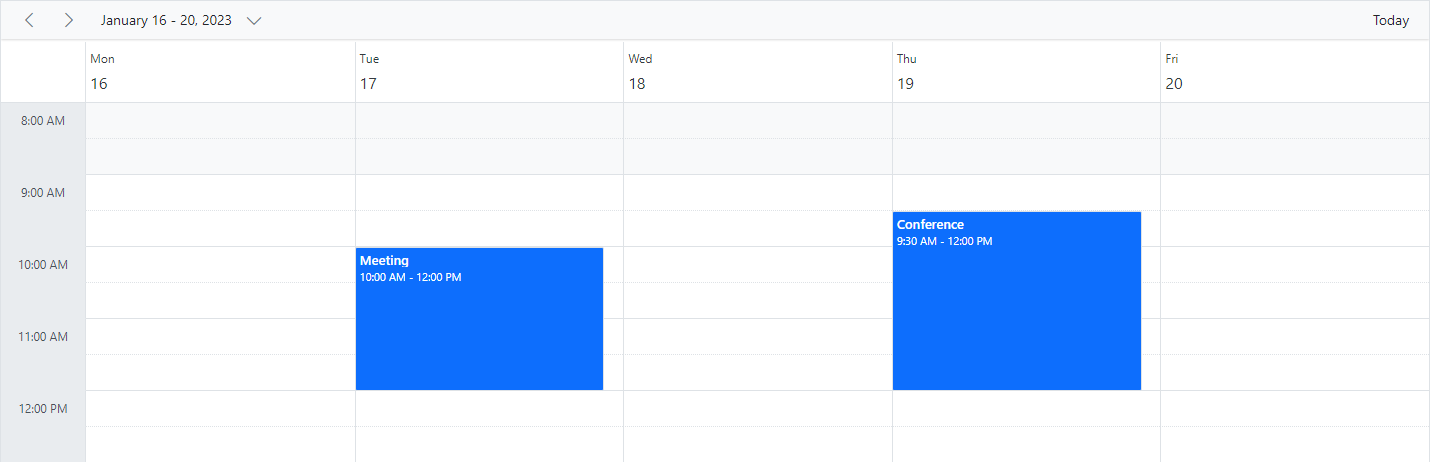
> The Week, Work week and Day views can display the all-day row appointments in a separate all-day row with an expand/collapse option to view it.
### Month view
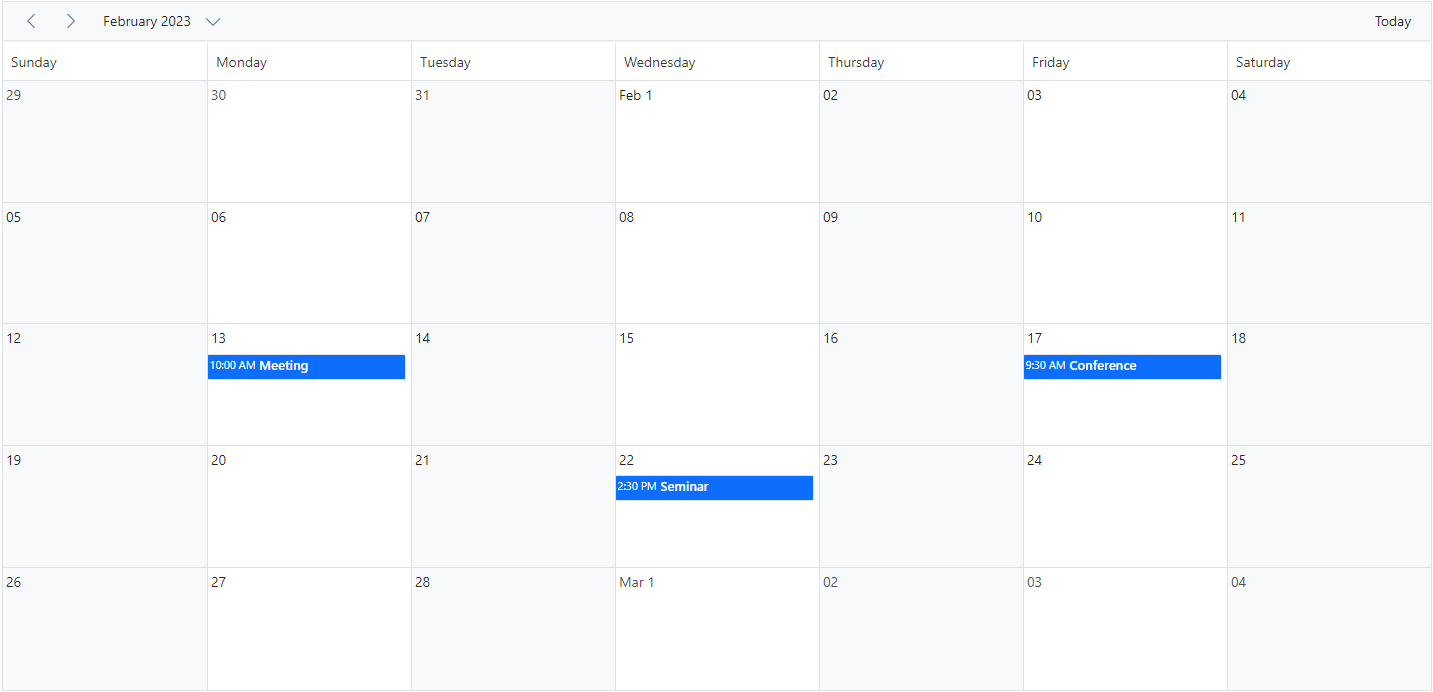
The Month view displays all days of the selected month and their appointments. By clicking a date in the month cells, you can navigate to the corresponding Day view.
By default, when you try to create an appointment through Month view, it is considered as created for an entire day. You can explicitly change this behavior by unchecking the `All-day` option from editor window, so that it defaults to the start time duration as 9.00 AM and end time as 9.30 AM.
You can also have the `+ more` text indicator on each day cell of a Month view, clicking on which will allows you to view the hidden appointments of a day.
{% tabs %}
{% highlight ts tabtitle="app.component.ts" %}
import { NgModule } from '@angular/core'
import { BrowserModule } from '@angular/platform-browser'
import { ScheduleModule } from '@syncfusion/ej2-angular-schedule'
import { ButtonModule } from '@syncfusion/ej2-angular-buttons'
import { DayService, WeekService, WorkWeekService, MonthService, AgendaService, MonthAgendaService} from '@syncfusion/ej2-angular-schedule'
import { Component } from '@angular/core';
import { EventSettingsModel } from '@syncfusion/ej2-angular-schedule';
import { scheduleData } from './datasource';
@Component({
imports: [
ScheduleModule,
ButtonModule
],
providers: [DayService,
WeekService,
WorkWeekService,
MonthService,
AgendaService,
MonthAgendaService],
standalone: true,
selector: 'app-root',
// specifies the template string for the Schedule component
template: ``
})
export class AppComponent {
public selectedDate: Date = new Date(2018, 1, 15);
public showWeekNumber: boolean = true;
public isReadOnly: boolean = true;
public eventSettings: EventSettingsModel = { dataSource: scheduleData };
}
{% endhighlight %}
{% highlight ts tabtitle="main.ts" %}
import { bootstrapApplication } from '@angular/platform-browser';
import { AppComponent } from './app.component';
import 'zone.js';
bootstrapApplication(AppComponent).catch((err) => console.error(err));
{% endhighlight %}
{% endtabs %}
### Year view
A Year view displays all the days of a particular year with months and all its related appointments. You can navigate to a particular date in the day view by clicking on the appropriate date text on the year cells.
Year view is available in both the `Horizontal` and `Vertical` orientations. You can manage the orientation of year view through [`views`](https://helpej2.syncfusion.com/angular/documentation/api/schedule/views/#orientation) property.
{% tabs %}
{% highlight ts tabtitle="app.component.ts" %}
import { NgModule } from '@angular/core'
import { BrowserModule } from '@angular/platform-browser'
import { ScheduleModule } from '@syncfusion/ej2-angular-schedule'
import { ButtonModule } from '@syncfusion/ej2-angular-buttons'
import { DayService, WeekService, WorkWeekService, MonthService, AgendaService, MonthAgendaService} from '@syncfusion/ej2-angular-schedule'
import { Component } from '@angular/core';
import { EventSettingsModel, YearService } from '@syncfusion/ej2-angular-schedule';
import { scheduleData } from './datasource';
@Component({
imports: [
ScheduleModule,
ButtonModule
],
providers: [DayService,
WeekService,
WorkWeekService,
MonthService,
AgendaService,
MonthAgendaService,
YearService],
standalone: true,
selector: 'app-root',
// specifies the template string for the Schedule component
template: ``
})
export class AppComponent {
public selectedDate: Date = new Date(2018, 1, 15);
public showWeekNumber: boolean = true;
public isReadOnly: boolean = true;
public eventSettings: EventSettingsModel = { dataSource: scheduleData };
}
{% endhighlight %}
{% highlight ts tabtitle="main.ts" %}
import { bootstrapApplication } from '@angular/platform-browser';
import { AppComponent } from './app.component';
import 'zone.js';
bootstrapApplication(AppComponent).catch((err) => console.error(err));
{% endhighlight %}
{% endtabs %}
> The year view also has module support. In that, you can get all the months of a particular year in a calendar view format. In that calendar view, appointment contained dates are highlighted with dots placed under the individual date. When you click on the date, the event popup will be displayed and the events will be listed.
### Agenda view
The Agenda view lists out the appointments in a grid-like view for the next 7 days by default from the current date. The count of the days can be changed using the API [`agendaDaysCount`](https://helpej2.syncfusion.com/angular/documentation/api/schedule/#agendadayscount). It allows virtual scrolling of dates by enabling the [`allowVirtualScrolling`](https://helpej2.syncfusion.com/angular/documentation/api/schedule/views/#allowvirtualscrolling) property. Also, you can enable or disable the display of days on Scheduler that has no appointments by setting true or false to the [`hideEmptyAgendaDays`](https://helpej2.syncfusion.com/angular/documentation/api/schedule/#hideemptyagendadays) property.
The following code example depicts how to customize the display of events within Agenda view alone.
{% tabs %}
{% highlight ts tabtitle="app.component.ts" %}
import { NgModule } from '@angular/core'
import { BrowserModule } from '@angular/platform-browser'
import { ScheduleModule } from '@syncfusion/ej2-angular-schedule'
import { ButtonModule } from '@syncfusion/ej2-angular-buttons'
import { DayService, WeekService, WorkWeekService, MonthService, MonthAgendaService} from '@syncfusion/ej2-angular-schedule'
import { Component } from '@angular/core';
import { Internationalization } from '@syncfusion/ej2-base';
import { EventSettingsModel, AgendaService } from '@syncfusion/ej2-angular-schedule';
import { scheduleData } from './datasource';
@Component({
imports: [
ScheduleModule,
ButtonModule
],
providers: [DayService,
WeekService,
WorkWeekService,
MonthService,
AgendaService,
MonthAgendaService],
standalone: true,
selector: 'app-root',
// specifies the template string for the Schedule component
template: `
`
})
export class AppComponent {
public selectedDate: Date = new Date(2018, 1, 15);
public allowVirtualScroll: boolean = true;
public eventSettings: EventSettingsModel = { dataSource: scheduleData };
private instance: Internationalization = new Internationalization();
getTimeString(value: Date): string {
return this.instance.formatDate(value, { skeleton: 'hm' });
};
}
{% endhighlight %}
{% highlight ts tabtitle="main.ts" %}
import { bootstrapApplication } from '@angular/platform-browser';
import { AppComponent } from './app.component';
import 'zone.js';
bootstrapApplication(AppComponent).catch((err) => console.error(err));
{% endhighlight %}
{% endtabs %}

> Schedule height must be set in pixels for the Agenda view.
### Month Agenda view
The Month Agenda view displays a calendar for the month; clicking on a day shows the appointments for that date below the calendar. Days with appointments are indicated by a circular dot under the date.
The following code example shows how to hide the weekend days on `MonthAgenda` view as well as the working days list is modified on Month Agenda view alone.
{% tabs %}
{% highlight ts tabtitle="app.component.ts" %}
import { NgModule } from '@angular/core'
import { BrowserModule } from '@angular/platform-browser'
import { ScheduleModule } from '@syncfusion/ej2-angular-schedule'
import { ButtonModule } from '@syncfusion/ej2-angular-buttons'
import { DayService, WeekService, WorkWeekService, MonthService, AgendaService} from '@syncfusion/ej2-angular-schedule'
import { Component } from '@angular/core';
import { EventSettingsModel, MonthAgendaService } from '@syncfusion/ej2-angular-schedule';
import { scheduleData } from './datasource';
@Component({
imports: [
ScheduleModule,
ButtonModule
],
providers: [DayService,
WeekService,
WorkWeekService,
MonthService,
AgendaService,
MonthAgendaService],
standalone: true,
selector: 'app-root',
// specifies the template string for the Schedule component
template: ``
})
export class AppComponent {
public selectedDate: Date = new Date(2018, 1, 14);
public showWeekend: boolean = false;
public workDays: number[] = [1, 2, 3];
public eventSettings: EventSettingsModel = { dataSource: scheduleData };
}
{% endhighlight %}
{% highlight ts tabtitle="main.ts" %}
import { bootstrapApplication } from '@angular/platform-browser';
import { AppComponent } from './app.component';
import 'zone.js';
bootstrapApplication(AppComponent).catch((err) => console.error(err));
{% endhighlight %}
{% endtabs %}
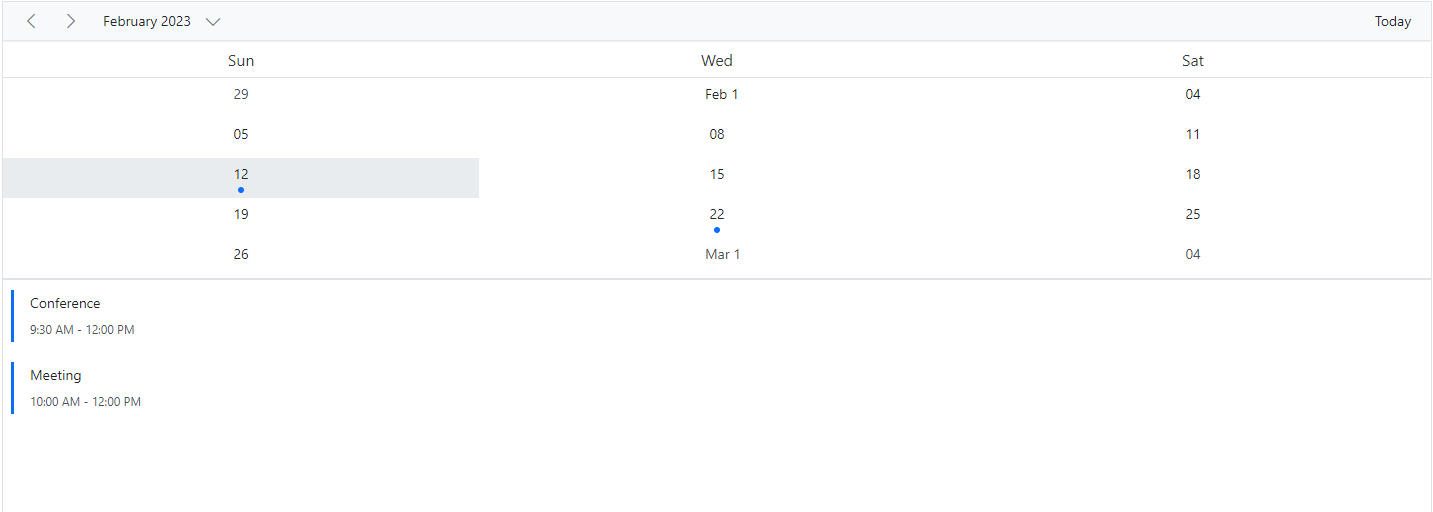
> Schedule height must be set in pixels for Month Agenda view.
### Timeline views – Day, Week, Work Week
Similar to the day view, it shows a single day with all its appointments where the time slots are displayed horizontally. By default, the cell height adjusts as per the height set to Scheduler. When the number of appointments exceeds the visible area of the cells, the `+ more` text indicator will be displayed at the bottom to denote the presence of few more appointments in that time range.
To use timeline views (Timeline Day, Timeline Week, Timeline Work Week), import and inject the `TimelineViews` module from the `@syncfusion/ej2-angular-schedule` package.
{% tabs %}
{% highlight ts tabtitle="app.component.ts" %}
import { NgModule } from '@angular/core'
import { BrowserModule } from '@angular/platform-browser'
import { ScheduleModule } from '@syncfusion/ej2-angular-schedule'
import { ButtonModule } from '@syncfusion/ej2-angular-buttons'
import { DayService, WeekService, WorkWeekService, MonthService, AgendaService, MonthAgendaService} from '@syncfusion/ej2-angular-schedule'
import { Component } from '@angular/core';
import { EventSettingsModel, TimelineViewsService } from '@syncfusion/ej2-angular-schedule';
import { scheduleData } from './datasource';
@Component({
imports: [
ScheduleModule,
ButtonModule
],
providers: [DayService,
WeekService,
WorkWeekService,
MonthService,
AgendaService,
MonthAgendaService,
TimelineViewsService],
standalone: true,
selector: 'app-root',
// specifies the template string for the Schedule component
template: ``
})
export class AppComponent {
public selectedDate: Date = new Date(2018, 1, 15);
public eventSettings: EventSettingsModel = { dataSource: scheduleData };
}
{% endhighlight %}
{% highlight ts tabtitle="main.ts" %}
import { bootstrapApplication } from '@angular/platform-browser';
import { AppComponent } from './app.component';
import 'zone.js';
bootstrapApplication(AppComponent).catch((err) => console.error(err));
{% endhighlight %}
{% endtabs %}
Similar to the Week view, the timeline week view shows 7 days with its associated appointments with the time slots displayed horizontally.
{% tabs %}
{% highlight ts tabtitle="app.component.ts" %}
import { NgModule } from '@angular/core'
import { BrowserModule } from '@angular/platform-browser'
import { ScheduleModule } from '@syncfusion/ej2-angular-schedule'
import { ButtonModule } from '@syncfusion/ej2-angular-buttons'
import { DayService, WeekService, WorkWeekService, MonthService, AgendaService, MonthAgendaService} from '@syncfusion/ej2-angular-schedule'
import { Component } from '@angular/core';
import { EventSettingsModel, TimelineViewsService, TimeScaleModel } from '@syncfusion/ej2-angular-schedule';
import { scheduleData } from './datasource';
@Component({
imports: [
ScheduleModule,
ButtonModule
],
providers: [DayService,
WeekService,
WorkWeekService,
MonthService,
AgendaService,
MonthAgendaService,
TimelineViewsService],
standalone: true,
selector: 'app-root',
// specifies the template string for the Schedule component
template: ``
})
export class AppComponent {
public selectedDate: Date = new Date(2018, 1, 15);
public timeScaleOptions: TimeScaleModel = { enable: false };
public eventSettings: EventSettingsModel = { dataSource: scheduleData };
}
{% endhighlight %}
{% highlight ts tabtitle="main.ts" %}
import { bootstrapApplication } from '@angular/platform-browser';
import { AppComponent } from './app.component';
import 'zone.js';
bootstrapApplication(AppComponent).catch((err) => console.error(err));
{% endhighlight %}
{% endtabs %}
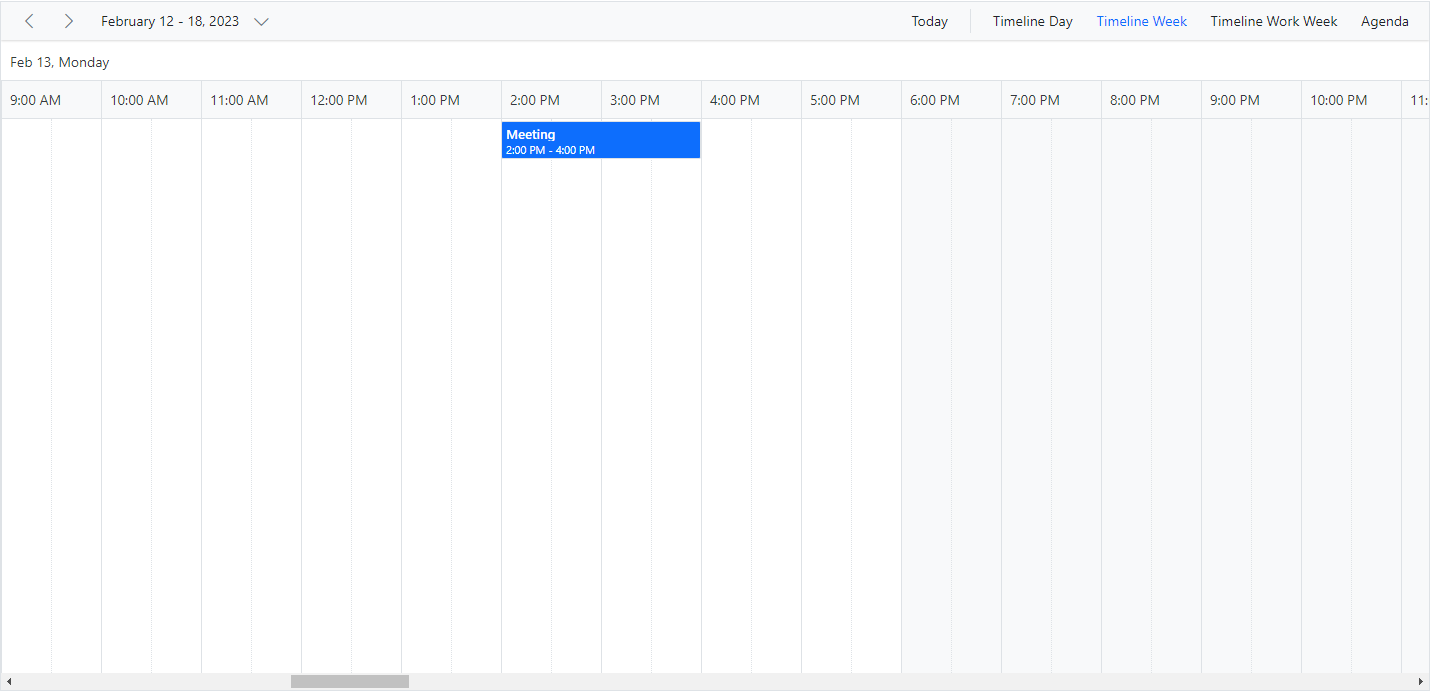
The following code example depicts how to display the timeline work week view on Scheduler:
{% tabs %}
{% highlight ts tabtitle="app.component.ts" %}
import { NgModule } from '@angular/core'
import { BrowserModule } from '@angular/platform-browser'
import { ScheduleModule } from '@syncfusion/ej2-angular-schedule'
import { ButtonModule } from '@syncfusion/ej2-angular-buttons'
import { DayService, WeekService, WorkWeekService, MonthService, AgendaService, MonthAgendaService} from '@syncfusion/ej2-angular-schedule'
import { Component } from '@angular/core';
import { EventSettingsModel, TimelineViewsService } from '@syncfusion/ej2-angular-schedule';
import { scheduleData } from './datasource';
@Component({
imports: [
ScheduleModule,
ButtonModule
],
providers: [DayService,
WeekService,
WorkWeekService,
MonthService,
AgendaService,
MonthAgendaService,
TimelineViewsService],
standalone: true,
selector: 'app-root',
// specifies the template string for the Schedule component
template: ``
})
export class AppComponent {
public selectedDate: Date = new Date(2018, 1, 14);
public viewInterval: number = 3;
public workweekDays: number[] = [1, 3, 5];
public eventSettings: EventSettingsModel = { dataSource: scheduleData };
}
{% endhighlight %}
{% highlight ts tabtitle="main.ts" %}
import { bootstrapApplication } from '@angular/platform-browser';
import { AppComponent } from './app.component';
import 'zone.js';
bootstrapApplication(AppComponent).catch((err) => console.error(err));
{% endhighlight %}
{% endtabs %}
> Clicking on dates in the date header bar of Timeline Day, Timeline Week, and Timeline Work Week navigates to the Agenda view.
### Timeline Month view
Timeline Month view displays days of the current month and their appointments horizontally. To use Timeline Month view, import and inject the `TimelineMonth` module from the `@syncfusion/ej2-angular-schedule` package.
{% tabs %}
{% highlight ts tabtitle="app.component.ts" %}
import { NgModule } from '@angular/core'
import { BrowserModule } from '@angular/platform-browser'
import { ScheduleModule } from '@syncfusion/ej2-angular-schedule'
import { ButtonModule } from '@syncfusion/ej2-angular-buttons'
import { DayService, WeekService, WorkWeekService, MonthService, AgendaService, MonthAgendaService} from '@syncfusion/ej2-angular-schedule'
import { Component } from '@angular/core';
import { EventSettingsModel, TimelineMonthService } from '@syncfusion/ej2-angular-schedule';
import { scheduleData } from './datasource';
@Component({
imports: [
ScheduleModule,
ButtonModule
],
providers: [DayService,
WeekService,
WorkWeekService,
MonthService,
AgendaService,
MonthAgendaService,
TimelineMonthService],
standalone: true,
selector: 'app-root',
// specifies the template string for the Schedule component
template: ``
})
export class AppComponent {
public selectedDate: Date = new Date(2018, 1, 15);
public showWeekend: boolean = false;
public eventSettings: EventSettingsModel = { dataSource: scheduleData };
}
{% endhighlight %}
{% highlight ts tabtitle="main.ts" %}
import { bootstrapApplication } from '@angular/platform-browser';
import { AppComponent } from './app.component';
import 'zone.js';
bootstrapApplication(AppComponent).catch((err) => console.error(err));
{% endhighlight %}
{% endtabs %}
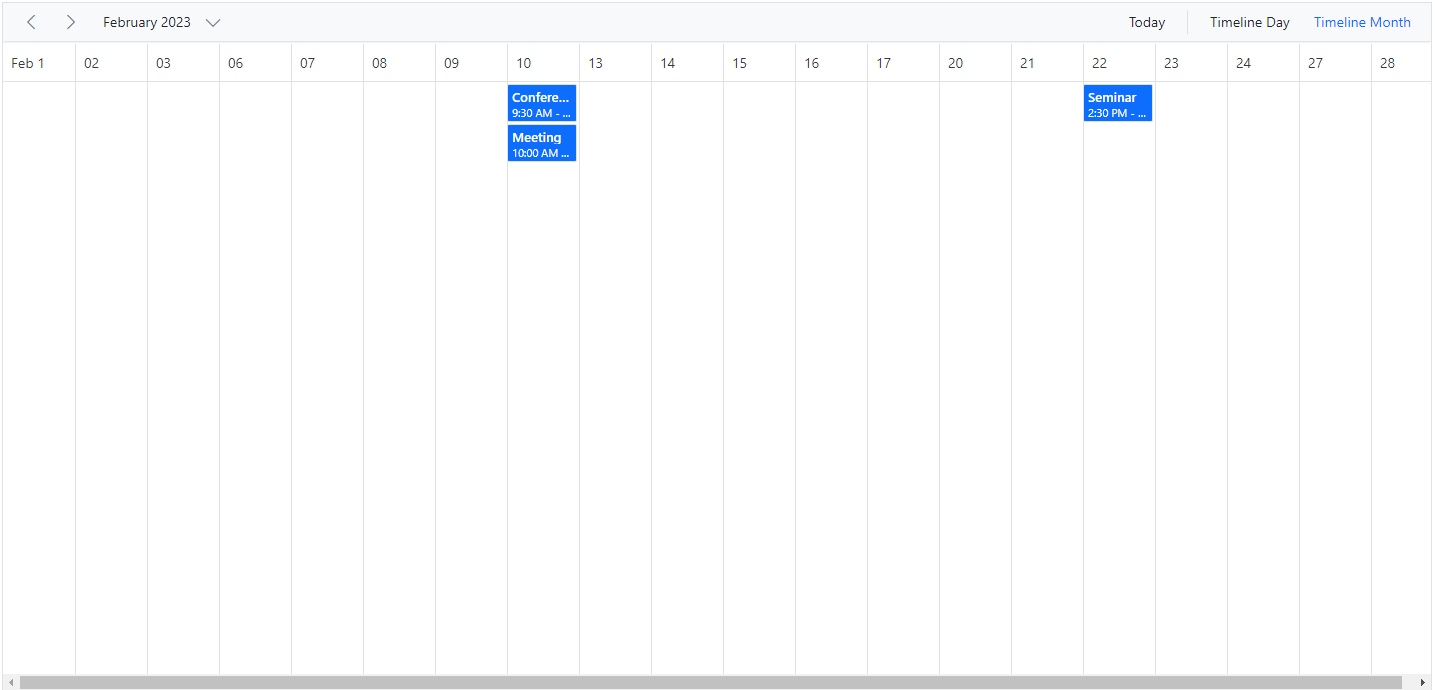
> Clicking on the dates in the date header bar of Timeline month will allow you to navigate to the Timeline day view.
### Timeline Year view
In Timeline Year view, each row depicts a single resource. Whereas in the vertical view, each resource is grouped parallelly as columns. Here, the resource grouping follows the tree-view like hierarchical grouping structure and can contain any level of child resources.
To make use of the timeline Year view on Scheduler, import and inject `TimelineYear` module from the `ej2-angular-schedule` package.
{% tabs %}
{% highlight ts tabtitle="app.component.ts" %}
import { NgModule } from '@angular/core'
import { BrowserModule } from '@angular/platform-browser'
import { ScheduleModule } from '@syncfusion/ej2-angular-schedule'
import { ButtonModule } from '@syncfusion/ej2-angular-buttons'
import { DayService, WeekService, WorkWeekService, MonthService, AgendaService, MonthAgendaService} from '@syncfusion/ej2-angular-schedule'
import { Component } from '@angular/core';
import { EventSettingsModel, TimelineYearService } from '@syncfusion/ej2-angular-schedule';
import { scheduleData } from './datasource';
@Component({
imports: [
ScheduleModule,
ButtonModule
],
providers: [DayService,
WeekService,
WorkWeekService,
MonthService,
AgendaService,
MonthAgendaService,
TimelineYearService],
standalone: true,
selector: 'app-root',
// specifies the template string for the Schedule component
template: ``
})
export class AppComponent {
public selectedDate: Date = new Date(2018, 1, 15);
public eventSettings: EventSettingsModel = { dataSource: scheduleData };
}
{% endhighlight %}
{% highlight ts tabtitle="main.ts" %}
import { bootstrapApplication } from '@angular/platform-browser';
import { AppComponent } from './app.component';
import 'zone.js';
bootstrapApplication(AppComponent).catch((err) => console.error(err));
{% endhighlight %}
{% endtabs %}
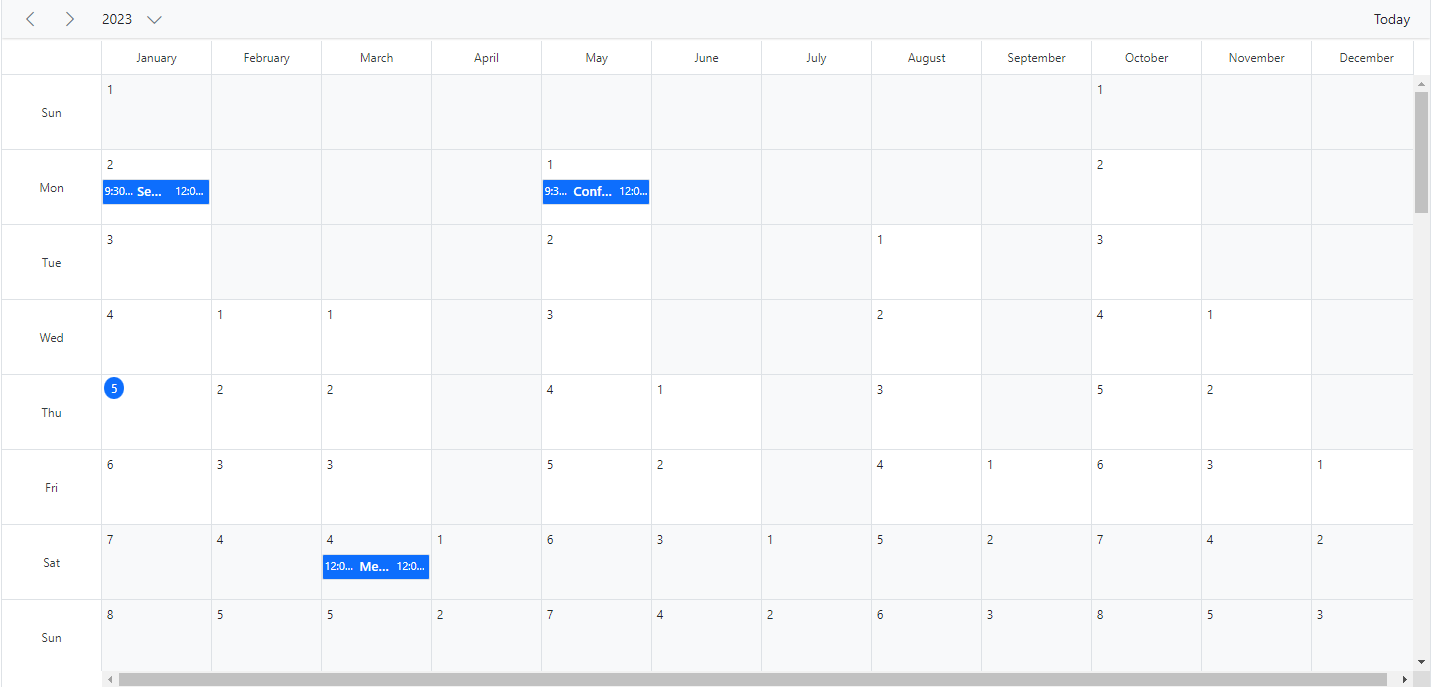
#### Resource grouping
The following code example depicts how to group the multiple resources on Timeline Year view and its relevant events are displayed accordingly under those resources.
{% tabs %}
{% highlight ts tabtitle="app.component.ts" %}
import { NgModule } from '@angular/core'
import { BrowserModule } from '@angular/platform-browser'
import { ScheduleModule } from '@syncfusion/ej2-angular-schedule'
import { ButtonModule } from '@syncfusion/ej2-angular-buttons'
import { DayService, WeekService, WorkWeekService, MonthService, AgendaService, MonthAgendaService} from '@syncfusion/ej2-angular-schedule'
import { Component } from '@angular/core';
import { EventSettingsModel, TimelineYearService, GroupModel } from '@syncfusion/ej2-angular-schedule';
import { resourceData } from './datasource';
@Component({
imports: [
ScheduleModule,
ButtonModule
],
providers: [DayService,
WeekService,
WorkWeekService,
MonthService,
AgendaService,
MonthAgendaService,
TimelineYearService],
standalone: true,
selector: 'app-root',
// specifies the template string for the Schedule component
template: `
`
})
export class AppComponent {
public selectedDate: Date = new Date(2018, 3, 1);
public views: Array = ['TimelineYear'];
public eventSettings: EventSettingsModel = {
dataSource: resourceData
};
public groupSettings: GroupModel = { resources: ['Owners'] };
public allowMultipleOwner: Boolean = true;
public ownerDataSource: Object[] = [
{ OwnerText: 'Nancy', Id: 1, OwnerColor: '#ffaa00' },
{ OwnerText: 'Steven', Id: 2, OwnerColor: '#f8a398' },
{ OwnerText: 'Michael', Id: 3, OwnerColor: '#7499e1' }
];
}
{% endhighlight %}
{% highlight ts tabtitle="main.ts" %}
import { bootstrapApplication } from '@angular/platform-browser';
import { AppComponent } from './app.component';
import 'zone.js';
bootstrapApplication(AppComponent).catch((err) => console.error(err));
{% endhighlight %}
{% endtabs %}
#### Auto row height
Timeline Year view supports Auto row height. When the feature [`rowAutoHeight`](https://helpej2.syncfusion.com/angular/documentation/api/schedule/#rowautoheight) is enabled, the row height gets auto-adjusted based on the number of overlapping events occupied in the same time range. If you disable the Auto row height, you have the `+ more` text indicator on each day cell of a Timeline Year view, clicking on which will allow you to view the hidden appointments of a day.
{% tabs %}
{% highlight ts tabtitle="app.component.ts" %}
import { NgModule } from '@angular/core'
import { BrowserModule } from '@angular/platform-browser'
import { ScheduleModule } from '@syncfusion/ej2-angular-schedule'
import { ButtonModule } from '@syncfusion/ej2-angular-buttons'
import { DayService, WeekService, WorkWeekService, MonthService, AgendaService, MonthAgendaService} from '@syncfusion/ej2-angular-schedule'
import { Component } from '@angular/core';
import { EventSettingsModel, TimelineYearService } from '@syncfusion/ej2-angular-schedule';
import { scheduleData } from './datasource';
@Component({
imports: [
ScheduleModule,
ButtonModule
],
providers: [DayService,
WeekService,
WorkWeekService,
MonthService,
AgendaService,
MonthAgendaService,
TimelineYearService],
standalone: true,
selector: 'app-root',
template: ``
})
export class AppComponent {
public selectedDate: Date = new Date(2018, 5, 17);
public rowAutoHeight: boolean = true;
public eventSettings: EventSettingsModel = { dataSource: scheduleData };
}
{% endhighlight %}
{% highlight ts tabtitle="main.ts" %}
import { bootstrapApplication } from '@angular/platform-browser';
import { AppComponent } from './app.component';
import 'zone.js';
bootstrapApplication(AppComponent).catch((err) => console.error(err));
{% endhighlight %}
{% endtabs %}
## Extending view intervals
It is possible to customize the display of default number of days on different Scheduler view modes. For example, a day view can be extended to display 3 days by setting the [`interval`](https://helpej2.syncfusion.com/angular/documentation/api/schedule/views/#interval) option as 3 for the `Day` option within the [`views`](https://helpej2.syncfusion.com/angular/documentation/api/schedule/views/) property as depicted in the following code example. In the same way, you can also display 2 weeks by setting interval 2 for the `Week` option.
You can provide the alternative display name for such customized views on the Scheduler header bar, by setting the appropriate [`displayName`](https://helpej2.syncfusion.com/angular/documentation/api/schedule/views/#displayname) property.
{% tabs %}
{% highlight ts tabtitle="app.component.ts" %}
import { NgModule } from '@angular/core'
import { BrowserModule } from '@angular/platform-browser'
import { ScheduleModule } from '@syncfusion/ej2-angular-schedule'
import { ButtonModule } from '@syncfusion/ej2-angular-buttons'
import { DayService, WeekService, WorkWeekService, MonthService, AgendaService, MonthAgendaService} from '@syncfusion/ej2-angular-schedule'
import { Component } from '@angular/core';
import { EventSettingsModel } from '@syncfusion/ej2-angular-schedule';
import { scheduleData } from './datasource';
@Component({
imports: [
ScheduleModule,
ButtonModule
],
providers: [DayService,
WeekService,
WorkWeekService,
MonthService,
AgendaService,
MonthAgendaService],
standalone: true,
selector: 'app-root',
// specifies the template string for the Schedule component
template: ``
})
export class AppComponent {
public selectedDate: Date = new Date(2018, 1, 15);
public isSelected: Boolean = true;
public dayInterval: number = 3;
public weekInterval: number = 2;
public eventSettings: EventSettingsModel = { dataSource: scheduleData };
}
{% endhighlight %}
{% highlight ts tabtitle="main.ts" %}
import { bootstrapApplication } from '@angular/platform-browser';
import { AppComponent } from './app.component';
import 'zone.js';
bootstrapApplication(AppComponent).catch((err) => console.error(err));
{% endhighlight %}
{% endtabs %}
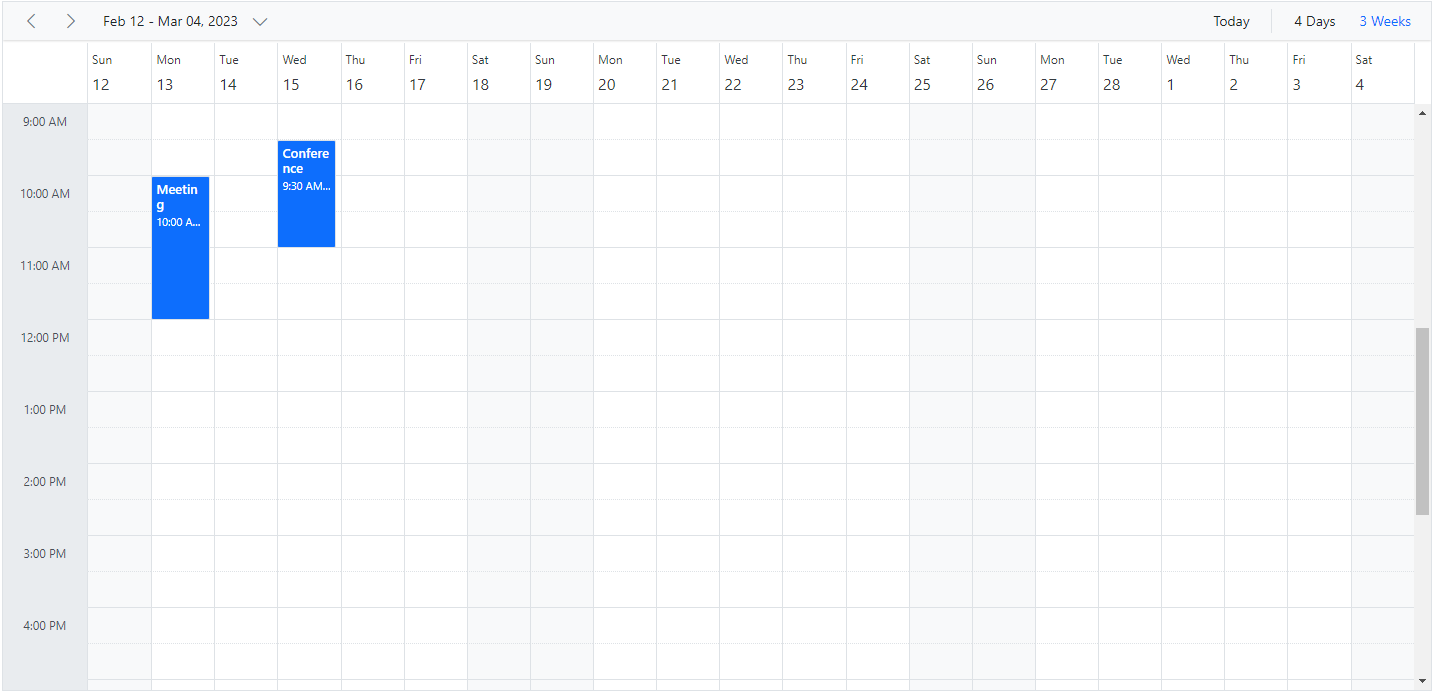
> View intervals can be extended in all Scheduler views except Agenda and Month Agenda views.
## See Also
* [How to restrict view navigation while clicking on dates](./how-to/prevent-date-navigation)
> You can refer to our [Angular Scheduler](https://www.syncfusion.com/angular-components/angular-scheduler) feature tour page for its groundbreaking feature representations. You can also explore our [Angular Scheduler example](https://ej2.syncfusion.com/angular/demos/#/material/schedule/overview) to knows how to present and manipulate data.